

Quick answer
How do you set up WooCommerce for a custom product business?
Set up WooCommerce with payments, shipping, and taxes, then create one product per base item with a clear starting price. Add the personalization with a product add-ons plugin such as Smart Add-Ons: text, choices, file uploads, dates, and extra-cost options, each with its own price. Test a full order, check that every choice lands on the order, then launch and improve with analytics.
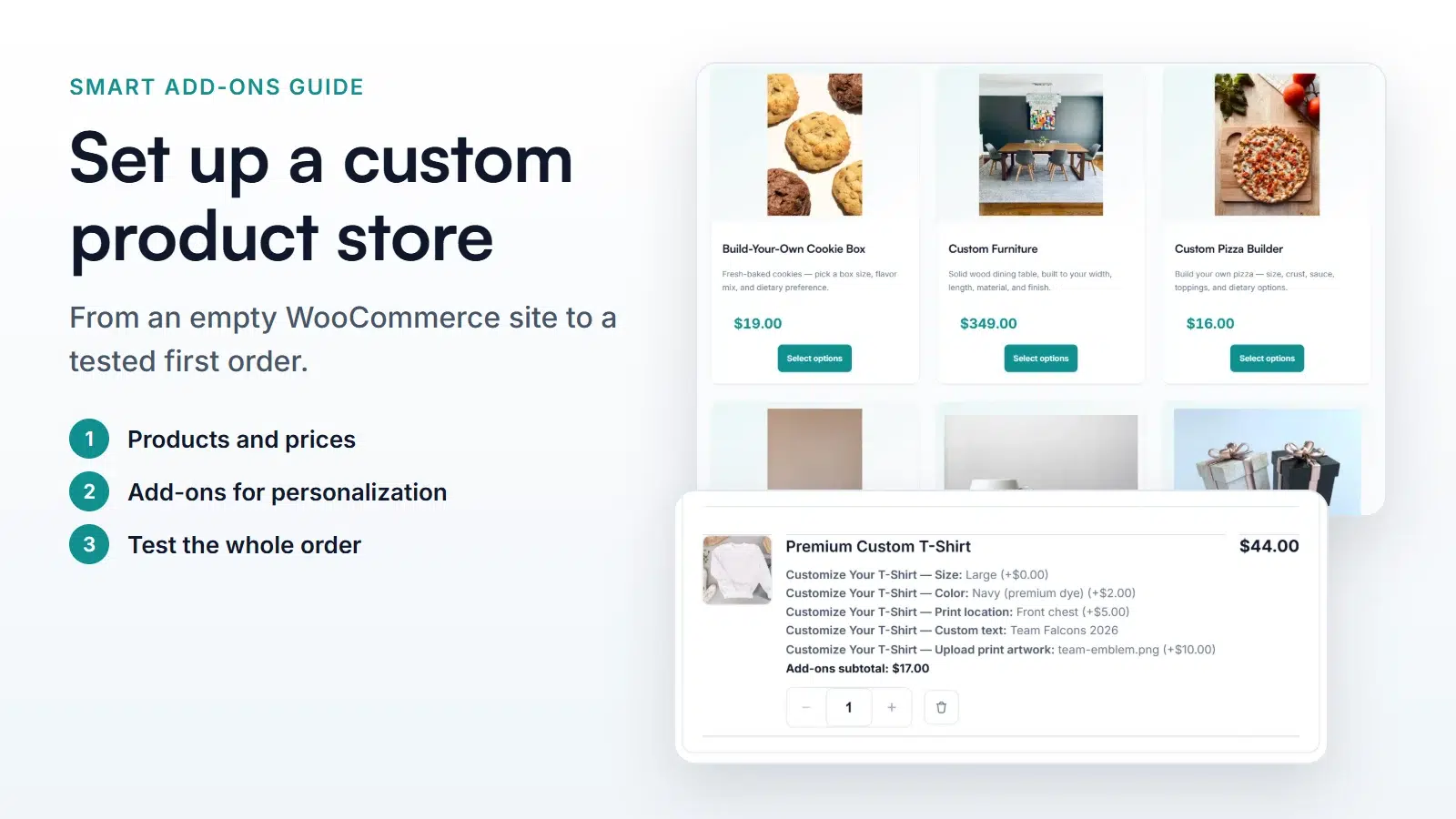
A WooCommerce custom product store works differently from a shop that sells items off a shelf. Every order carries details, such as a name to engrave, a logo to print, or a delivery date, and those details have to reach the person making it. This guide walks through setting one up from an empty site to a tested first order in eight steps. It uses the Smart Add-Ons demo store as the worked example and links to a detailed guide for each part.
Step 1: Decide how each product is customized
Start with a list of what customers choose for each product and whether it changes the price. Most custom products mix three kinds of choices:
- Personalization: text, a photo or logo, or a message, such as an engraved name.
- Options: sizes, colors, materials, or finishes, some of which cost more.
- Extras: gift wrap, express production, or a warranty.
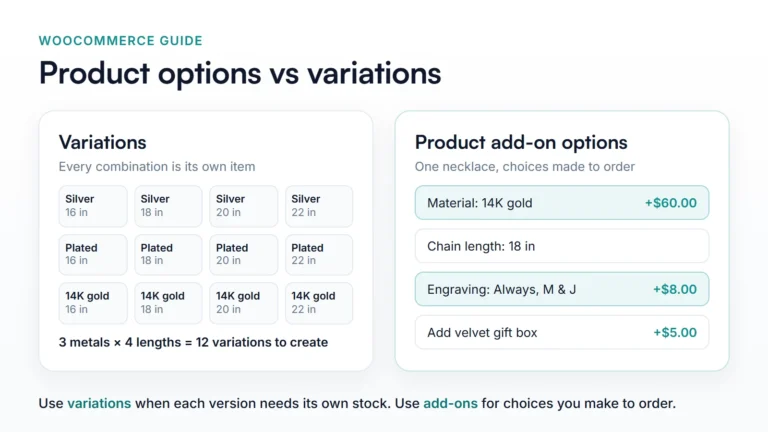
Use WooCommerce variations only for choices you track stock for separately. Everything that’s made to order works better as add-ons. The options vs variations guide has six quick checks.
Step 2: Set up the WooCommerce basics
Install WooCommerce and complete the setup wizard (opens in new tab) for your store address, currency, and product types. Then configure three things every WooCommerce custom product store needs before its first sale:
- Payments: choose and test a payment method. See WooCommerce’s payments guide (opens in new tab).
- Shipping: set up shipping zones (opens in new tab) with rates that allow for heavier or bulkier custom items.
- Taxes: set up taxes (opens in new tab) for where you sell. Add-on prices are part of the product line, so they’re taxed with it.
Step 3: Create products with clear starting prices
Create one product per base item, such as a 12 oz mug or a solid wood dining table. Set the regular price to what the simplest version costs, so shoppers see an honest starting price, and put extra-cost choices on add-ons. Write a description that explains what can be personalized and how long production takes. The personalized mug tutorial shows this for a simple product.
Step 4: Install Smart Add-Ons
WooCommerce has no built-in way to collect personalization on a product. Install Smart Add-Ons by following the installation guide. Its settings live under Smart Add-Ons in your WordPress admin menu.
Step 5: Build add-on groups for your products
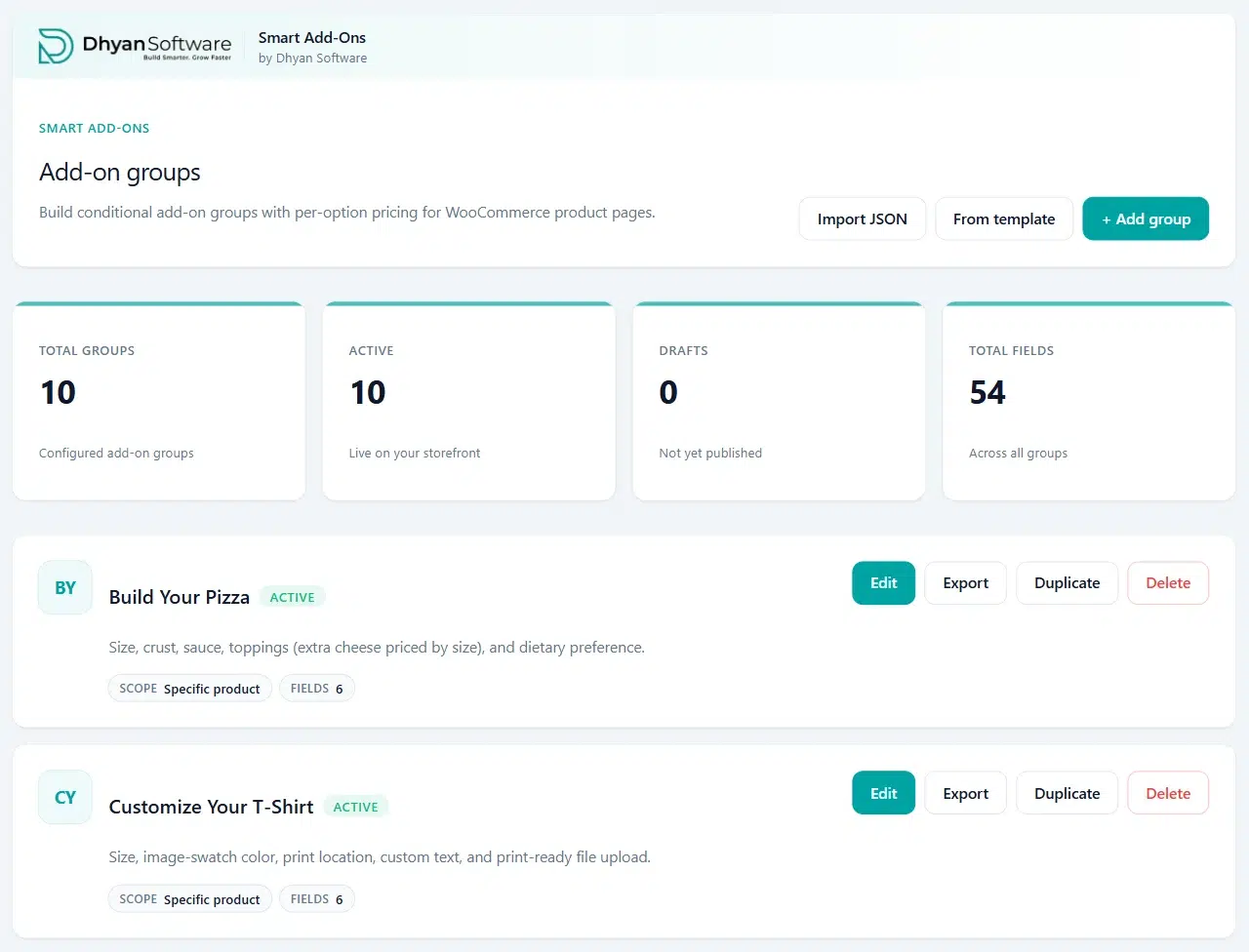
An add-on group is the set of fields a shopper fills in on a product page. Go to Smart Add-Ons → Add-On Groups, click + Add group, and choose its Scope: one product, a product category, or all products. A category scope lets every new product in that category share the same options.
Pick the field type that matches each choice:
- Text fields for names and messages, with a maximum length.
- Dropdowns, radio buttons, and image swatches for sizes, colors, and materials.
- File uploads for artwork and photos.
- Date pickers for delivery or event dates.
- Checkboxes for extras such as gift wrap.
Mark the choices a product can’t be made without as required, so no order arrives incomplete.
Step 6: Price add-ons and keep forms short
Each add-on can have a fixed price, a percentage of the product price, or a formula, and can be charged per item or once per order line. The add-on pricing guide covers each option. For made-to-measure products, formula pricing calculates a price from other choices, such as the width of a made-to-order table.
Long forms put shoppers off. Use conditional logic to show follow-up questions only when they apply, such as a gift message field that appears only when gift wrap is ticked.
Step 7: Test a complete order
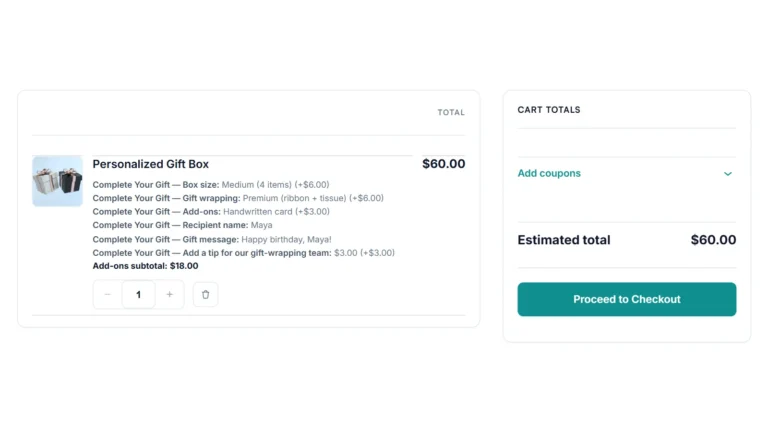
Before your WooCommerce custom product store goes live, place a test order the way a customer would, ideally logged out in a private browser window. Fill in every add-on, check that the total updates, and add the product to the cart. Each choice should appear under the product with its price.
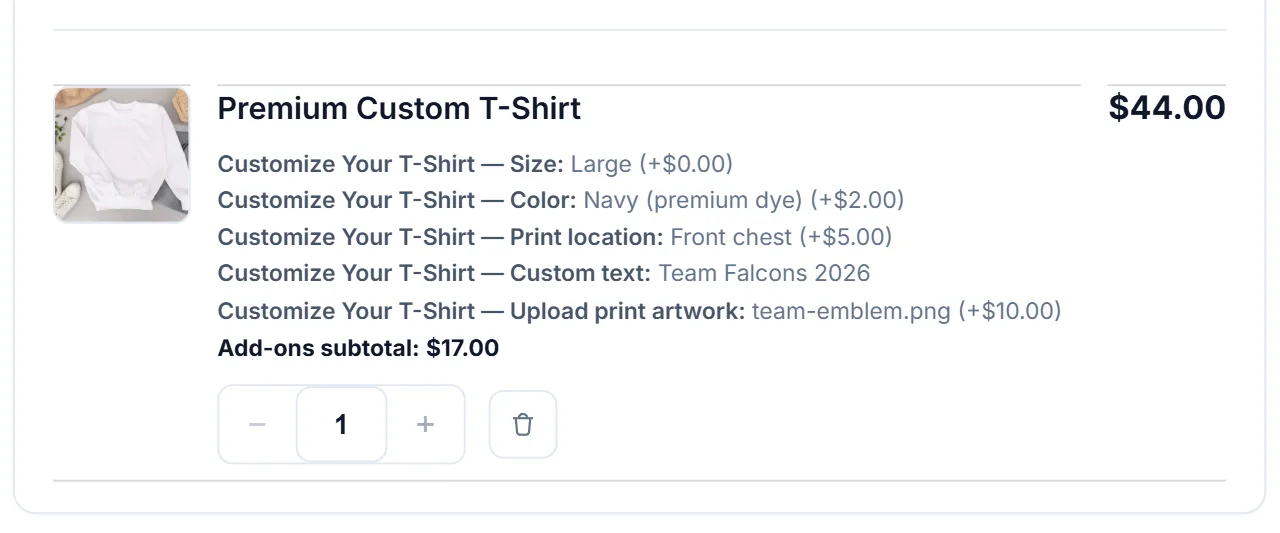
Complete the checkout, then open the order in WooCommerce → Orders. This is the screen your production team works from: the choices are listed under the item, and uploaded files have a download link. The cart and order guide explains each line.
Step 8: Launch, then improve with data
Once your WooCommerce custom product store is live, match the add-on styling to your brand in the appearance settings, then let real orders guide what you change:
- Check which add-ons shoppers use and what they earn in add-on analytics.
- Compare two versions of an add-on group with A/B testing.
- Reuse a finished group for new products with duplicates and templates.
WooCommerce custom product store FAQ
Do I need a separate product for every personalized version?
No. In a WooCommerce custom product store, one product with add-ons covers every combination of text, colors, and extras. Create separate products only for genuinely different base items.
Can customers upload their own designs?
Yes. A file upload field accepts images or documents up to the size you set, and the file is attached to the order item for your team to download.
Can I try the setup before building my own store?
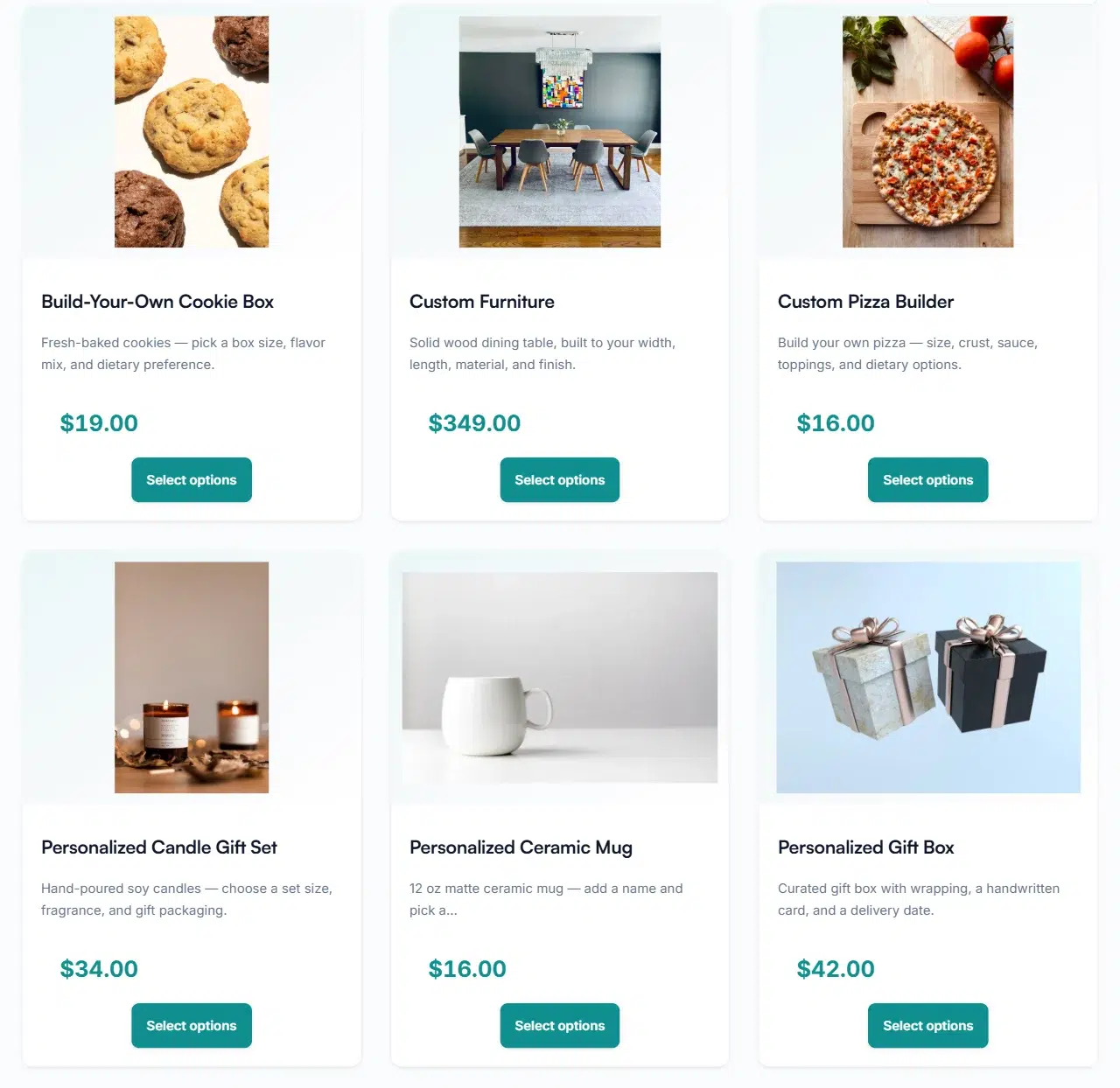
Yes. The Smart Add-Ons demo store has ten custom products you can configure and add to the cart.
Next steps
- Follow a complete product build in the T-shirt customization tutorial.
- New to add-ons? Start with what WooCommerce product add-ons are.
- Compare Smart Add-Ons plans.
- Selling custom cakes? Build a WooCommerce cake ordering system walks through a complete example.
- Selling bookings instead of goods? Set up a WooCommerce photography booking store covers that variant.

Comments