


Quick answer
How do you reuse WooCommerce product add-ons on another product?
In Smart Add-Ons, go to Smart Add-Ons → Add-On Groups and click Duplicate on the group you want to copy, then edit the copy's name and product. To keep a reusable starting point, save a group as a template and create new groups from it with From template. To move a group to another store, use Export and Import JSON.
A WooCommerce product options template saves you from rebuilding the same add-ons by hand for every new product. Smart Add-Ons gives you three ways to reuse your work: duplicate a group, keep a WooCommerce product options template for new products, or export a group to another store. This guide covers the first two in detail, including exactly what gets copied and what to check before a copy goes live.
Duplicate, template, or export: which to use
- Duplicate when a new product needs almost the same add-ons as an existing one, such as a hoodie that needs the same print options as a T-shirt.
- Template when you want a standard starting point you’ll use again and again, such as an engraving set for every new jewelry line.
- Export and import when the group needs to go to a different WordPress site, such as from a staging site to your live store.
How to duplicate an add-on group
Go to Smart Add-Ons → Add-On Groups. Every group has Edit, Export, Duplicate, and Delete buttons.
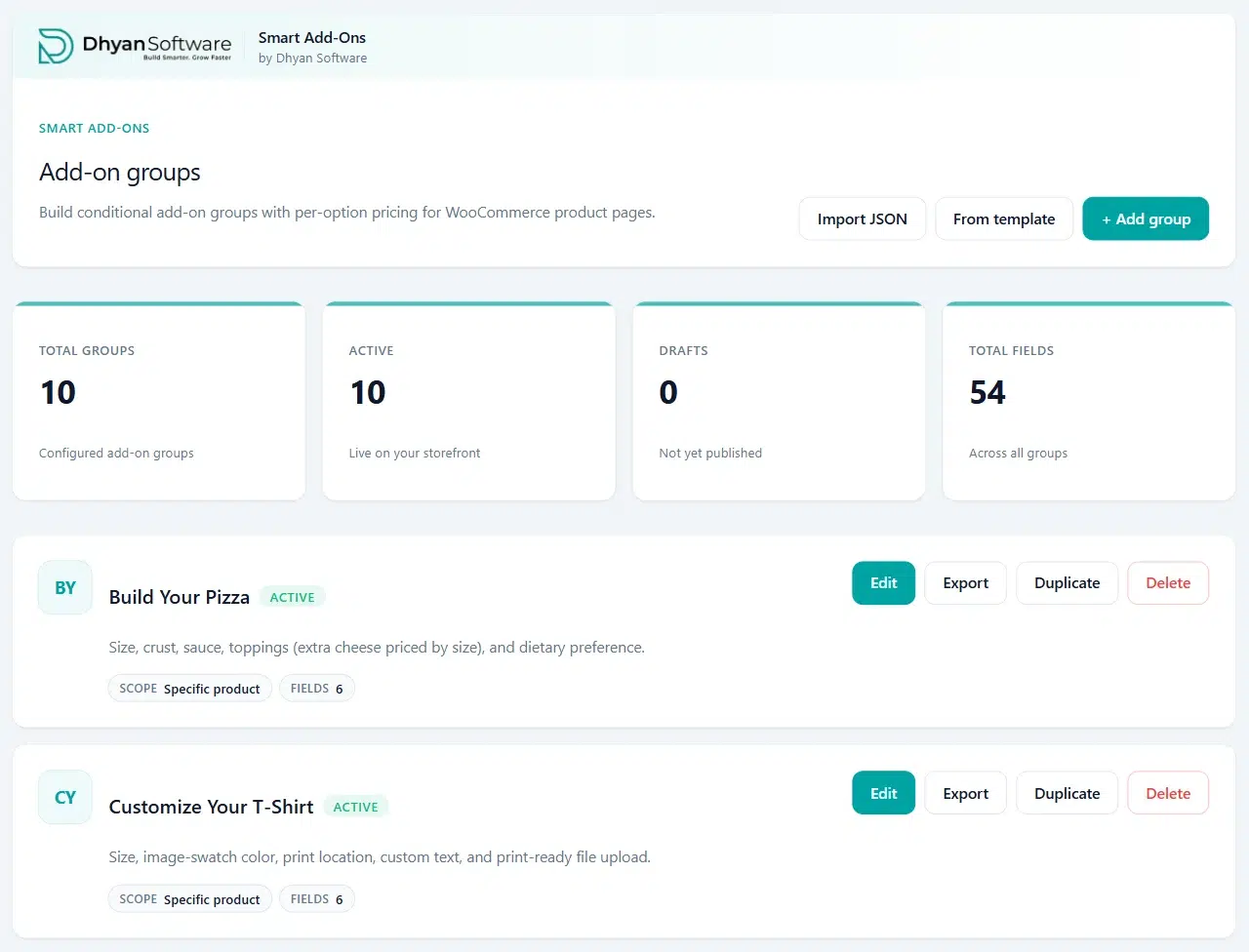
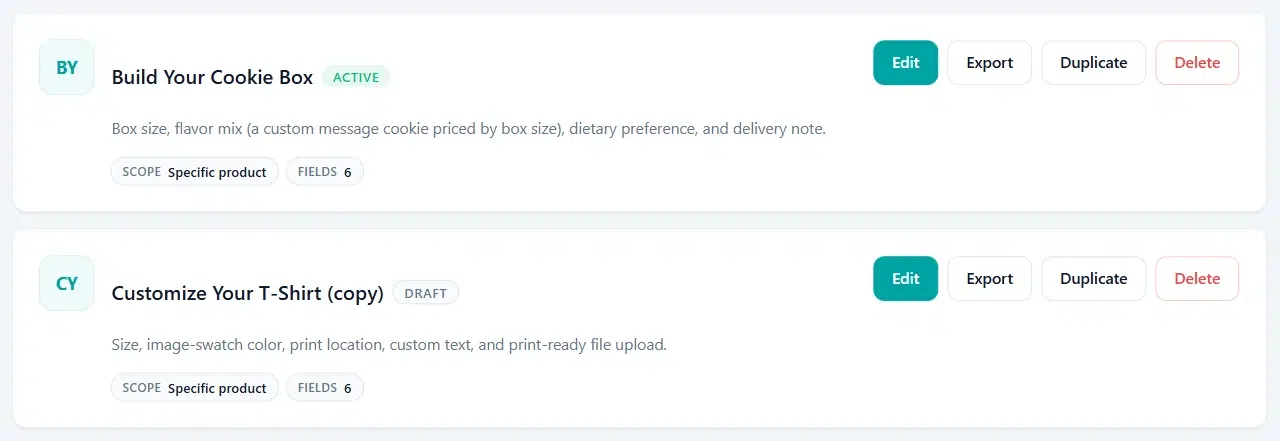
Click Duplicate. A new group appears at the bottom of the list with (copy) added to its name, and a message confirms it was duplicated and saved as a draft.
What a duplicate copies
- Every field, in the same order, with its options, prices, price type, and quantity pricing.
- Field settings, such as validation rules, upload limits, and date settings.
- Conditional logic, updated to point at the copy’s own fields, so rules keep working in the new group.
- The description, priority, scope, and product or category.
- Visibility & layout settings: Visible from, Visible until, Allowed roles, and Storefront layout.
What to check after duplicating
- Status: the copy is a Draft, so it doesn’t show on your storefront until you set it to Active.
- Formula prices: a formula such as
{field:12} * 2still refers to the original group’s field. Update the field ID in the copy. The formula pricing guide explains field references.
Click Edit on the copy. Under Group details, give it a clear Group name, choose the new Scope and Product or Category, set Status to Active when it’s ready, and click Save group.

How to save a WooCommerce product options template
A WooCommerce product options template is a group you keep as a starting point instead of showing it on a product. Open a saved group with Edit and scroll to the buttons at the bottom of the editor.

Click Save as template. Smart Add-Ons saves a copy of the group as a template, with the same name and no products or categories assigned. The group you’re editing doesn’t change and keeps showing on your storefront. The new template appears in your group list with a template badge.
Create a new group from a template
- On the Add-on groups screen, click From template.
- In Create from template, click Use template next to the one you want.
- Smart Add-Ons creates a draft named after the template with (new) added, and opens it in the editor.
- Rename it, set the Scope and product or category, set Status to Active, and click Save group.
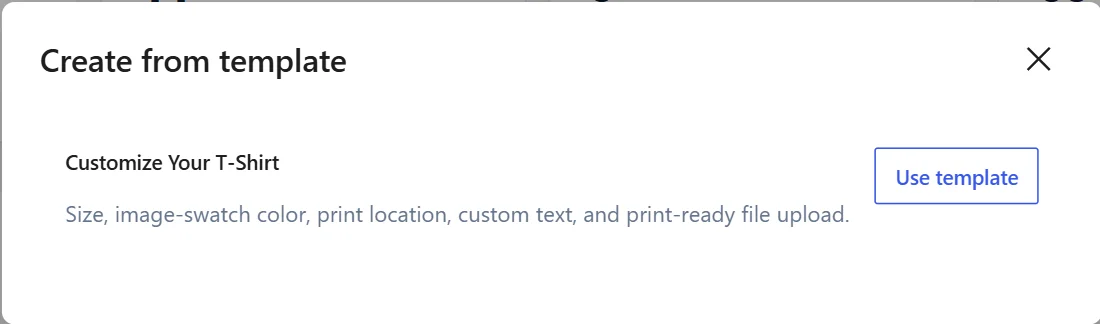
New groups start as drafts with the scope set to all products, so nothing appears on your storefront until you choose where the group belongs and make it active. As with a duplicate, check any formula prices.
WooCommerce product options template FAQ
If I change a template, do groups made from it change too?
No. Every group created from a WooCommerce product options template is an independent copy. Editing the template only affects groups you create from it afterwards.
Does a duplicate keep the original group's analytics?
No. The copy’s fields are new, so they start with no history. Views and selections on the original stay with the original in add-on analytics.
Can I use a template on a different store?
Templates live on the store where you saved them. To reuse a WooCommerce product options template on another site, open it, click Export JSON, and use Import JSON on the other store. The import and export guide covers what to check after importing.
Next steps
- Build a group worth reusing with the T-shirt customization tutorial.
- Learn how prices and quantity pricing work in the add-on pricing guide.
- Read about WooCommerce’s own product management (opens in new tab) options.
- To cover a whole catalogue section at once, scope WooCommerce add-ons by category instead of per product.


Comments