

Quick answer
How do you build a personalized mug store with WooCommerce?
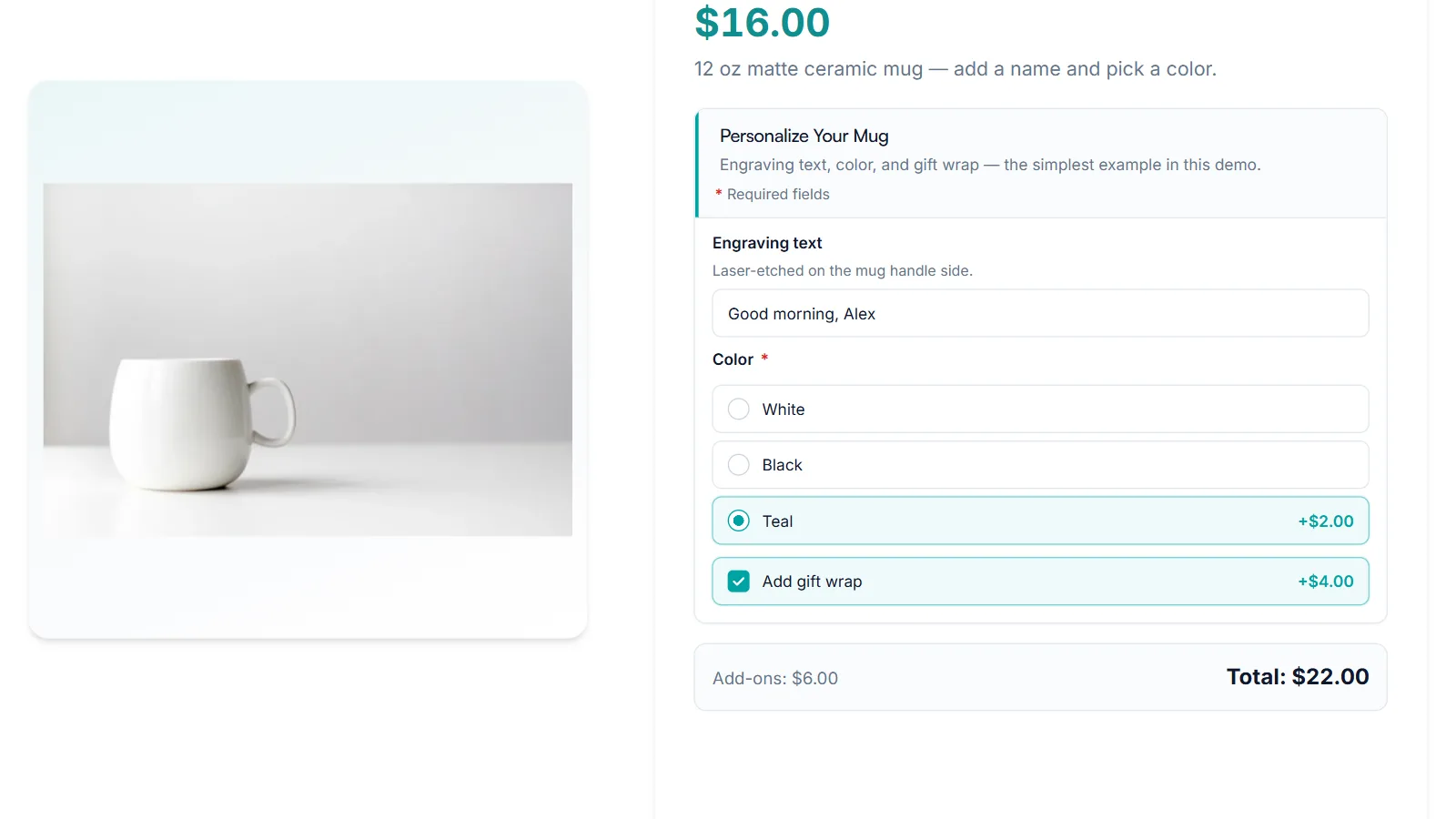
Create each mug as a WooCommerce product, then add a product add-ons group for the personalization: a text field for the name or message, a priced color choice, and an optional gift wrap checkbox. Scope the group to your mugs category so every mug gets the same options, and test the full order before you launch.
A WooCommerce personalized mug store is one of the easiest ways to start selling custom products online. The product is simple, the personalization is short, and customers love seeing their own words on something they use every morning. This tutorial walks through building a WooCommerce personalized mug store with Smart Add-Ons in seven steps, from the first product to a test order, using the personalized mug in our demo store as the finished example.
By the end, shoppers will be able to type the text they want on their mug, pick a color, add gift wrap, and see the price update before they add it to the cart. Every choice lands on the order, ready for whoever prints the mug.
Step 1: Plan your mug catalog
Before touching WordPress, decide what each product is and what shoppers customize. A simple rule works well for a WooCommerce personalized mug store:
- One product per mug style, such as a 12 oz matte ceramic mug or a 15 oz enamel camp mug. Each style has its own photos, description, and base price.
- Add-ons for everything made to order, such as the text, the mug color, and gift wrap.
- Variations only when stock differs, such as two sizes you keep in separate stock counts. Personalization doesn’t need its own stock, so it belongs in add-ons.
Set the base price to cover the blank mug and your standard printing, and put the price of optional extras on the add-ons themselves. Shoppers then see a clear starting price and exactly what each extra adds.
Step 2: Create the mug product in WooCommerce
- Go to Products → Add New Product.
- Enter the name, such as Personalized Ceramic Mug, a short description of the mug, and its regular price.
- Add a clean product photo and assign a category, such as Mugs.
- Click Publish.
WooCommerce’s own guide to managing products (opens in new tab) covers every product setting in detail. The demo mug is a simple product with a $16 base price.
Step 3: Create the personalization group
- Go to Smart Add-Ons → Add-On Groups and click + Add group.
- Name it Personalize Your Mug. The group name appears at the start of each line in the cart, so keep it short and friendly.
- Set Scope to Product category and choose Mugs, so every mug you add later gets the same options automatically.
Step 4: Add the personalized text
Click + Add field, set Field type to Text, and label it Engraving text or Your text. Then:
- Use Description to say where the text goes, such as Laser-etched on the mug handle side.
- Use Placeholder to show an example, such as e.g. Good morning, Alex.
- Under Validation rules, set Maximum length to what fits your print area. The demo allows 30 characters.
- Leave the price at 0 if text is included in the base price, or set a fixed price if personalization is an extra.
Step 5: Add a mug color choice
Add a Radio field labeled Color and tick Required field, so no order arrives without one. Add an option for each color with its Label, Value, and Price. In the demo, White and Black are included and Teal adds $2. If you’d rather show swatches, use an Image selection field with a color for each option instead.
Step 6: Offer gift wrap
Add a Checkbox (toggle) labeled Add gift wrap with a fixed price, such as $4. Mugs are a popular gift, so this small extra is easy to say yes to. To collect a gift message only from shoppers who tick it, follow the gift wrap guide. Then click Save group.
Step 7: Test your WooCommerce personalized mug store
Open the mug on your storefront. Type some text, choose a color, and tick gift wrap. The add-ons total and the product total update with every choice.

Add it to the cart. Each choice appears under the product, with a price in brackets for the ones that cost extra, and an Add-ons subtotal.

Finally, place a test order and open it in WooCommerce → Orders. The text, color, and gift wrap are listed under the mug exactly as the shopper chose them, which is what your team prints from. The cart and order guide explains every line.
Ideas to grow the store
- Font choice: a Radio field that only appears once text is entered, using conditional logic.
- Photo mugs: a file upload field for the customer’s photo, with a fixed price for photo printing.
- Sets: a separate product for a pair of mugs, with two text fields, such as His and Hers.
WooCommerce personalized mug store FAQ
Do I need a separate product for every mug color?
No. In a WooCommerce personalized mug store, color is usually a made-to-order choice, so a required Radio or Image selection field on one product is enough. Use variations only if you track stock separately for each color.
Can I stop customers typing text that won't fit?
Yes. Set a Maximum length on the text field. If the text is too long, the mug isn’t added to the cart until the shopper shortens it.
Does Smart Add-Ons send orders to a print partner?
No. It collects the personalization and saves it on the WooCommerce order. If you work with a print-on-demand service, check how that service reads order item details from WooCommerce.
Next steps
- Try the finished example on the Personalized Ceramic Mug in the live demo store.
- Go deeper on text limits in the text field guide.
- See what Smart Add-Ons includes and pick a plan.


Comments