


Quick answer
How do you add a text field to a WooCommerce product?
WooCommerce has no text field option built in, so to add a text field to a WooCommerce product you use a product add-ons plugin. In Smart Add-Ons, go to Smart Add-Ons → Add-On Groups, add a field with Field type set to Text, give it a label and an optional character limit, choose which products it applies to, and save.
A text field lets a shopper type something that belongs to their order: a name to engrave, initials for a monogram, a short line for a label. This guide shows how to add a text field to a WooCommerce product with Smart Add-Ons, limit what customers can type, charge for it, and check that the text reaches the order. It assumes the plugin is already installed. If it isn’t, start with the installation guide.
When a text field is the right choice
Use a text field for a single line that the customer supplies:
- Engraving and monograms: a name, a date, or initials.
- Personalized labels: the words printed on a candle, mug, or jar.
- Reference details: an account number, or an email address for a digital delivery.
For anything longer, such as a gift message that runs across several lines, use a Textarea field instead. It works the same way but gives the customer a bigger box. Whatever the customer types is saved as plain text, with any HTML stripped out.
How to add a text field to a WooCommerce product
- Go to Smart Add-Ons → Add-On Groups. Click + Add group, or open an existing group to add the field there.
- Enter a Group name, such as Engraving.
- Click + Add field and set Field type to Text.
- Set Field label to what the customer sees above the box, such as Engraving.
- Add a Placeholder as a hint inside the box, such as Up to 20 characters. Use Description for anything longer, like Printed exactly as typed.
- Turn on Required field only if you can’t make the product without it. Most engraving is optional.
- Set Scope to Specific product and choose the product, or to Product category to add the field to a whole range at once.
- Click Save group.
Limit what customers can type
Each text field has a Validation rules section with optional checks that run when the shopper clicks Add to cart.
| Setting | Use it for |
|---|---|
| Minimum length | Stopping one-letter entries, such as at least 2 characters for initials |
| Maximum length | Matching what physically fits, such as 20 characters on a pendant |
| Format | Any text, Email address, Whole number, or Number (decimal allowed) |
| Custom pattern (regex) | An exact format, such as ^[A-Z]{1,3}$ for one to three capital letters |
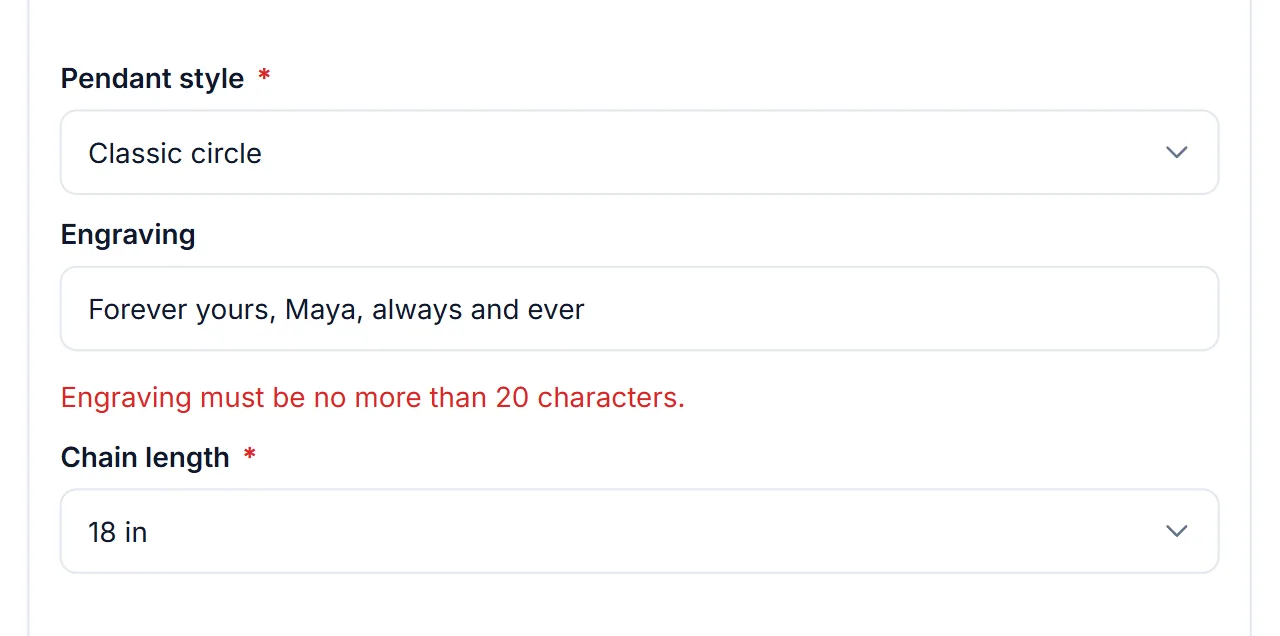
If an entry breaks a rule, the product isn’t added to the cart and the shopper sees a message on the field that names the problem, for example: Engraving must be no more than 20 characters. The same checks run again on the server, so they can’t be skipped.
Charge for a custom text field
A text field can carry its own price, set under Price type:
- Fixed amount: a set charge, such as $8.00 for engraving.
- Percentage of product price: a charge that scales with the price of the item.
- Formula: a calculation using the product price
{base}, the quantity{qty}, or the value of another number field.
The charge only applies when the shopper types something. Leave the field empty and the price doesn’t change. Quantity pricing decides whether the charge repeats: Per product quantity charges it for every item in the order, while Flat fee (once per line item) charges it once, which suits a one-off setup cost.
Check it on your storefront
Open the product and type into the field. The add-ons total updates as soon as there is text in the box. Then add the product to the cart: the text appears on the cart line under the field’s label, and carries through to WooCommerce → Orders and the order confirmation email. WooCommerce’s own guide to managing orders (opens in new tab) explains that screen.
To try one first, open the Personalized Necklace on the live demo store. Its Engraving field is capped at 20 characters and adds $8.00 once you type.
How to add a text field to a WooCommerce product: FAQ
Can I add a text field to a WooCommerce product without code?
Yes. WooCommerce has no built-in text field option, but a product add-ons plugin such as Smart Add-Ons lets you add one from the admin, with a label, a placeholder, a character limit, and an optional price. That is the quickest way to add a text field to a WooCommerce product.
Can I limit how many characters customers type?
Yes. Under Validation rules, set Minimum length and Maximum length. If the text is too long, the product isn’t added to the cart and the shopper sees a message such as Engraving text must be no more than 20 characters.
Can I charge per character?
No. A text field’s price applies once when text is entered, not per character. To charge per item, such as per name, use a formula based on a number the shopper enters.
Next steps
- Read the full text field reference for every setting.
- Browse all ten field types to find the right one for each option.
- Show the text field only when it’s needed with conditional logic, for example only after the shopper checks Add engraving.



Comments