

Quick answer
What should you do in your first week with Smart Add-Ons?
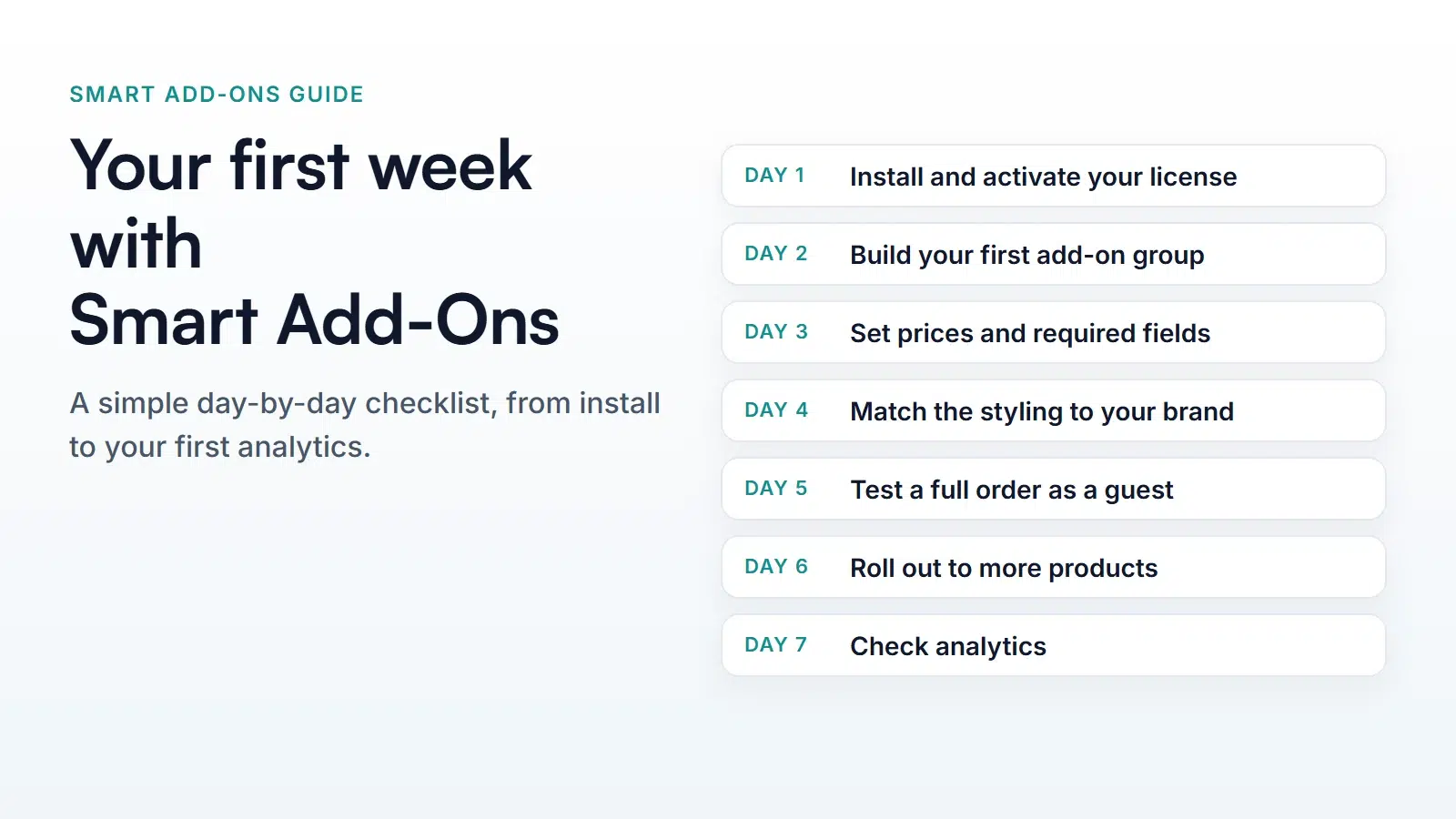
Day 1: install the plugin and activate your license. Day 2: build one add-on group for a best-selling product. Day 3: set prices and required fields. Day 4: match the styling to your brand. Day 5: test a full order as a guest. Day 6: reuse your group on more products. Day 7: check analytics and plan your next improvement.
Getting started with Smart Add-Ons doesn’t take long, but a little order helps. Instead of adding options to every product on day one, this checklist spreads the setup over seven short sessions: one working product first, then testing, then everything else. Each day links to a detailed guide, so you can go deeper wherever you need to.
Day 1: Install and activate your license
- Check that your store meets the requirements: WordPress 6.4 or newer and WooCommerce 8.0 or newer, with WooCommerce active.
- Upload the plugin ZIP under Plugins → Add New Plugin → Upload Plugin and activate it.
- Go to Smart Add-Ons → License, paste your key into License key, and click Activate license.
Don’t skip the license step when getting started with Smart Add-Ons. An active license covers updates, support, Pro authoring, and applicable AI/cloud services. Your add-on groups keep running on your storefront even if a license later expires. The installation guide covers each step and common errors.
Day 2: Build your first add-on group
When getting started with Smart Add-Ons, pick one product that already sells well, so you can see the effect quickly. Go to Smart Add-Ons → Add-On Groups, click + Add group, set Scope to Specific product, and add two or three fields that customers genuinely ask for, such as gift wrap and a gift message.
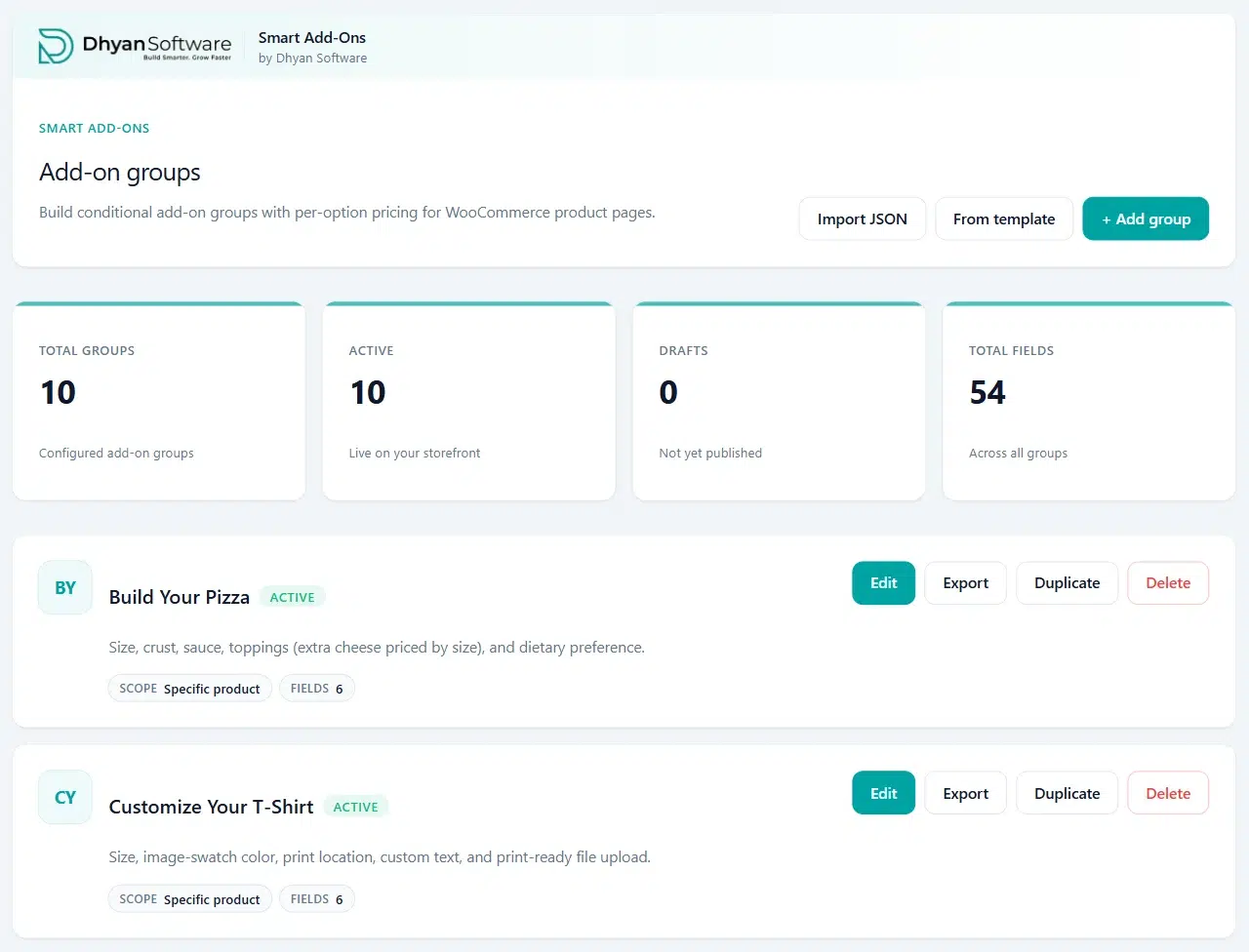
Start small. A short group that shoppers actually use teaches you more than a long form nobody finishes. The gift wrap guide is a good first build.
Day 3: Set prices and required fields
- Give extra-cost options a price, and leave included choices at 0. The pricing guide explains fixed, percentage, and formula prices.
- Mark a field required only if the product can’t be made without it.
- Open the product on your store and check that the total updates as you choose options.
Day 4: Match the styling to your brand
Go to Smart Add-Ons → Appearance, set your brand colors, check the live preview, and click Save appearance. Add-on fields sit right next to your product photos, so they should look like part of your store. See how to customize add-on styling for every setting.
Day 5: Test a full order as a guest
Open a private browser window, so you shop logged out the way a new customer would, and place a test order:
- Choose options, try leaving a required field empty, and add the product to the cart.
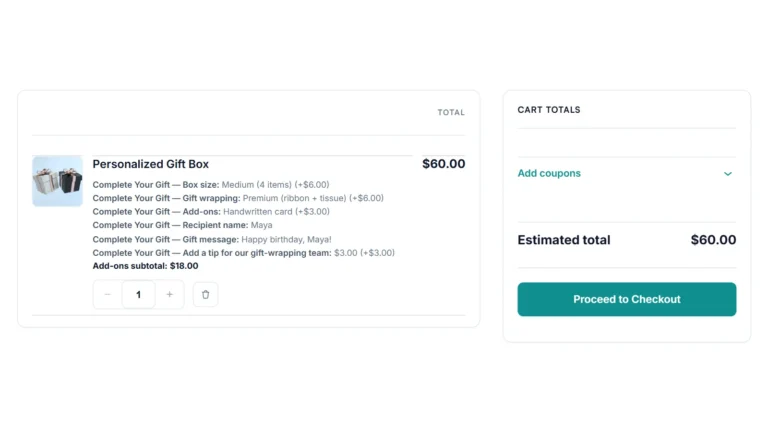
- Check the cart lists every choice with its price.
- Complete checkout and open the order in WooCommerce → Orders, where your team will see the choices and download any uploaded files.
If you use a page cache, clear it after changing add-on groups so product pages show the latest version. The cart and order guide explains what to expect at each step.
Day 6: Roll out to more products
The quickest way to keep getting started with Smart Add-Ons is to reuse what already works. Once one product works end to end, build on it rather than starting over:
- Change the group’s Scope to Product category so every product in the category gets it.
- Use Duplicate or save a template for similar products, as shown in the duplicate and templates guide.
- Hide follow-up questions until they’re needed with conditional logic.
Day 7: Check analytics and plan what’s next
Open Smart Add-Ons → Analytics to see how often add-on groups were viewed, which fields shoppers used, and how much add-ons earned in paid orders. Early numbers can be small, so use them to spot what’s being ignored rather than to draw firm conclusions. The analytics guide explains every number.
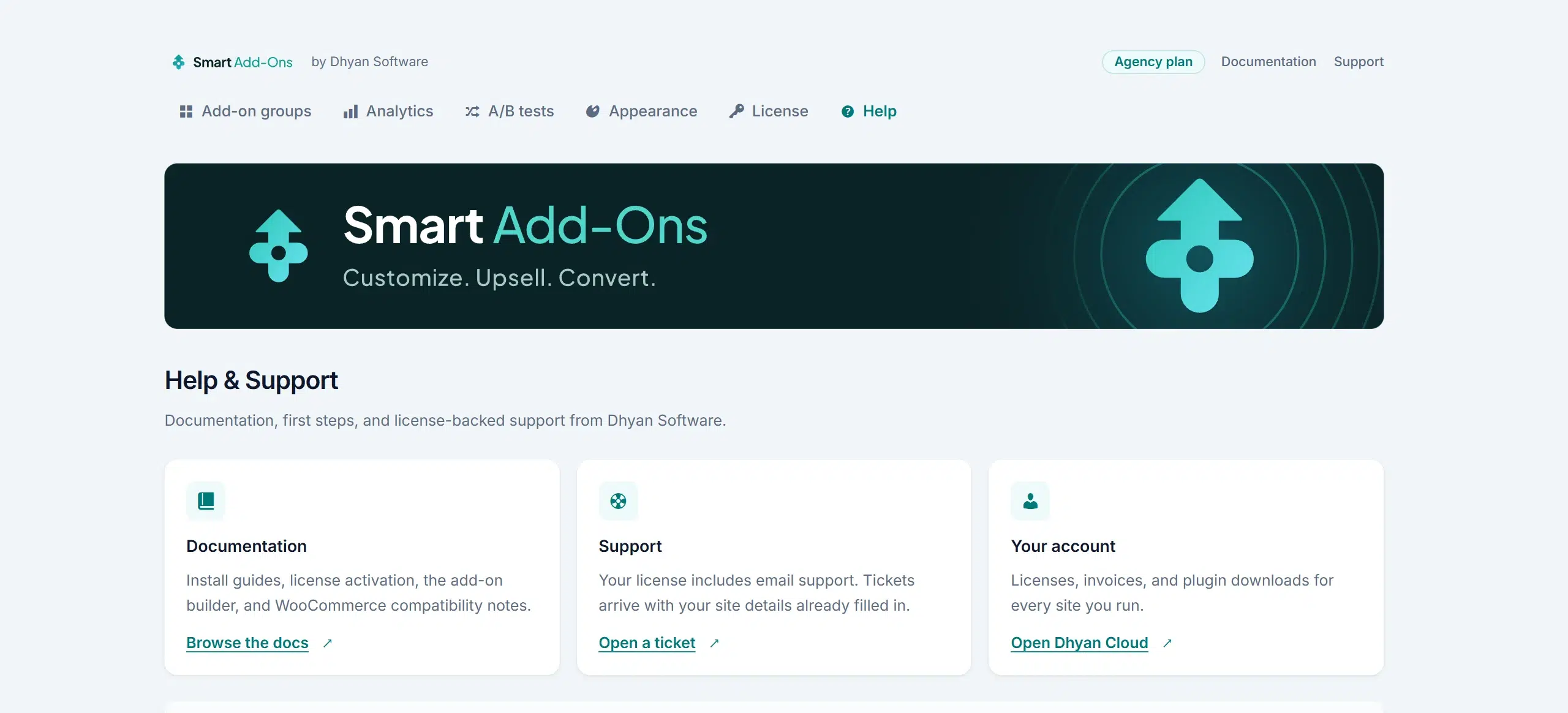
Finally, bookmark Smart Add-Ons → Help. It links to the documentation, and with an active license, to the support portal.
Getting started with Smart Add-Ons FAQ
Why don't my add-ons show on the product page?
Check two things: the group’s Status is Active, and its Scope includes the product. Then clear your page cache and reload the product.
Can I try it before adding options to my real products?
Yes. When getting started with Smart Add-Ons, you can explore the demo store first, or build your first group as a draft and set it to Active once you’re happy with it.
Where do I get help if I'm stuck?
Start with the Smart Add-Ons documentation. With an active license, Smart Add-Ons → Help links to the support portal, or you can email support@dhyansoftware.com with your license key and site URL.
Next steps
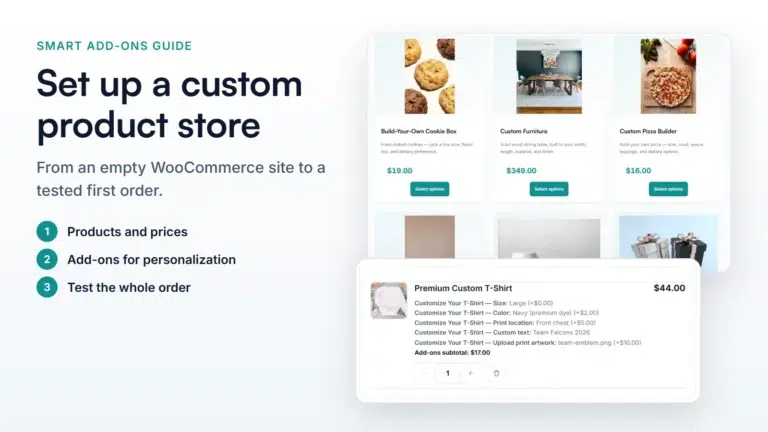
- Plan your whole catalog with the custom product store guide.
- Read WooCommerce’s own guide to managing products (opens in new tab).
- Compare Smart Add-Ons plans.
- Curious what shipped in the first release? Read the Smart Add-Ons 1.0 release notes.

Comments