


Quick answer
How do you add image options to a WooCommerce product?
Add a WooCommerce image select field, called Image selection in Smart Add-Ons, with a product add-ons plugin. In Smart Add-Ons, add the field, give each option a label, a value, a price, and a swatch (either an image from your media library or a solid color), and save. Shoppers click a picture to choose one option.
Some choices are easier to see than to read. Navy versus midnight blue, oak versus walnut, a floral versus a striped pattern: shoppers decide faster when they can look at the options. This guide shows how to add WooCommerce image select options with the Image selection field in Smart Add-Ons, how to prepare swatch images that look sharp, and when a color swatch is enough. It assumes the plugin is installed. If it isn’t, start with the installation guide.
When to use image options
- Colors and finishes. Fabric colors, wood stains, metal finishes, paint.
- Patterns and designs. Wrapping paper, phone case prints, card designs.
- Styles that are hard to name. Font styles, frame profiles, collar shapes.
Like radio buttons, an Image selection field lets shoppers pick exactly one option. If the options are easy to tell apart by name, such as Small, Medium, and Large, radio buttons or a dropdown are simpler.
How to add a WooCommerce image select field
- Go to Smart Add-Ons → Add-On Groups. Click + Add group, or open an existing group.
- Click + Add field and set Field type to Image selection.
- Set Field label, such as Color.
- For each option, fill in Label, Value, and Price, and set its Swatch (see the next section). Click Add option for the next one.
- Turn on Required field if every order needs a choice.
- Set Scope to the products or category that need it, and click Save group.
Image or color: setting each swatch
Each option’s Swatch has two modes:
- Image: click Select image, pick or upload a picture in the media library, and click Use image. Use Replace or Remove to change it later.
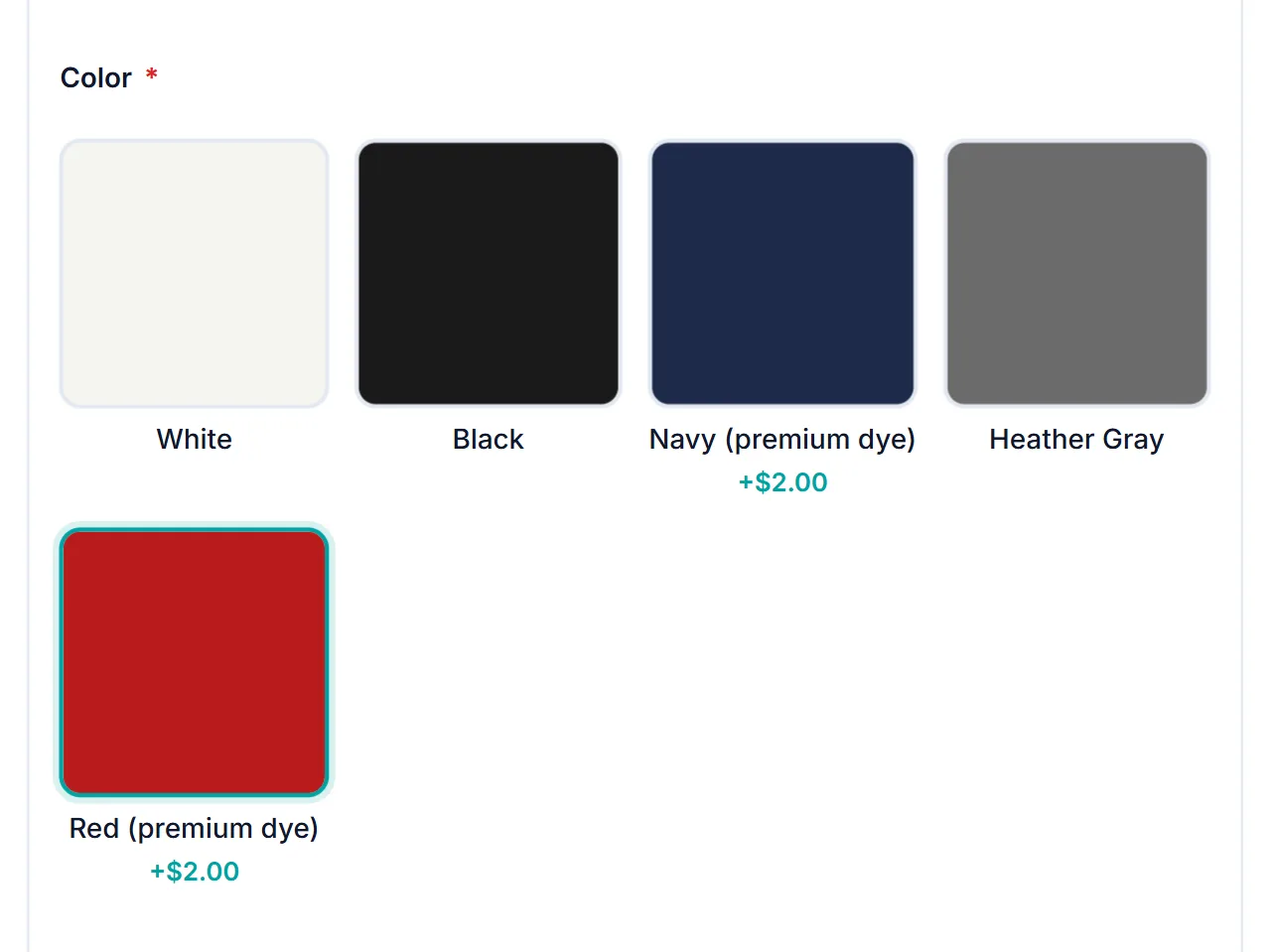
- Color: pick a color, or type a 6-digit hex code such as #1a1a1a. This is the quickest way to show plain colors, with no images to prepare.
If an option has no swatch, its tile shows the option label instead.
How to prepare swatch images
Every swatch is shown as a square tile, and images fill the tile, so anything outside the center square is cropped. For clean results:
- Crop to a square before uploading, with the detail that matters in the middle.
- Keep them small. Around 300 × 300 pixels stays sharp on high-resolution screens without slowing the page. Swatch images load lazily, but smaller files still help, and Google’s guide to choosing the right image format (opens in new tab) explains how to keep them light.
- Keep the framing consistent. Same zoom, same lighting, same background, so shoppers compare the options, not the photos.
What shoppers see
Shoppers click a tile to choose it. Options that add to the price show it under the label, such as +$2.00, and the add-ons total updates when they choose. If the field is required and nothing is chosen, the product isn’t added to the cart and they see a message such as Color is required. The cart line and the order show the chosen option’s label.
You can try it on the Premium Custom T-Shirt in the live demo store.
WooCommerce image select FAQ
Can shoppers choose more than one image option?
No. A WooCommerce image select field works like radio buttons: one choice per field.
What size should swatch images be?
Swatches display as square tiles that crop to fill, so upload square images of around 300 × 300 pixels with the important detail in the center.
Can I use a color instead of a photo?
Yes. Switch the option’s Swatch to Color, then pick a color or type a 6-digit hex code. If an option has both an image and a color, the image is shown.
Next steps
- Read the image selection field reference for every setting.
- Learn how fixed, percentage, and formula prices work in the add-on pricing guide.
- Show extra fields based on the chosen swatch with conditional logic, such as a thread color field only for embroidered options.



Comments