


Quick answer
How does WooCommerce formula pricing work for product add-ons?
WooCommerce formula pricing calculates an add-on's price from numbers instead of a fixed amount. In Smart Add-Ons, set Price type to Formula and enter something like {field:90} * 0.5, using the product price, the quantity, or another field's number. The price updates as the shopper chooses and is charged exactly in the cart.
Some add-ons don’t have one right price. Longer table legs cost more on a wider table, a rush fee might be 10 percent of the order plus a handling charge, and printing names costs more for every name. WooCommerce formula pricing handles all of these with one line of simple maths. This guide goes beyond the basics in the add-on pricing guide: how to write formulas in Smart Add-Ons, which numbers you can use, ready-made recipes, and the mistakes that quietly turn a price into $0.
Plan note: formula pricing is available on the Pro plan. On Starter, the Formula price type is not offered in the field editor. If you already saved a formula and later move to a plan without it, that formula keeps pricing your add-on exactly as it does now — you just cannot add or edit one until you upgrade.
How to set up WooCommerce formula pricing
- Go to Smart Add-Ons → Add-On Groups and open the group.
- Add or open the field to price. Formulas work on Checkbox (toggle), Text, Textarea, Date, and File upload fields.
- Under Pricing, set Price type to Formula.
- Type the formula into Pricing formula, such as
{base} * 0.1 + 5. - Choose Quantity pricing (see the section on quantity below), and click Save group.
The three numbers a formula can use
{base}is the product’s price before add-ons.{qty}is the quantity being added to the cart.{field:ID}is the number from another add-on field, where ID is that field’s numeric ID.
What counts as the number from another field depends on its type:
- Dropdown or Radio: the chosen option’s Value, if it’s a number. Give a Width option the label 48 in and the value 48.
- Customer-defined price: the amount the shopper entered.
- Checkbox (toggle): 1 when ticked, 0 when not.
- Text: the typed number, such as 3 in a Number of names field.
Anything that isn’t a number, including words and an empty field, counts as 0. That’s why formulas can’t price typed text by its length.
Operators and the order they run in
Formulas support +, -, *, /, parentheses, and decimal numbers. Multiplication and division run before addition and subtraction, the usual order of operations (opens in new tab), so {base} * 0.1 + 5 means 10 percent of the price, then plus 5. Use parentheses to change the order. The result is rounded to two decimal places.
Formula recipes
| Use case | Formula | Example |
|---|---|---|
| Priced by size | {field:90} * 0.5 | $0.50 per inch of the chosen width |
| Percentage plus a fee | {base} * 0.1 + 5 | 10% of the product price, plus $5 |
| Per typed unit | {field:12} * 2 | $2 for each name, set on the Number of names field itself |
| Priced by area | {field:20} * {field:21} * 0.02 | Width times height, at $0.02 per square inch |
| Extra above the smallest size | ({field:90} - 30) * 2 | $0 at 30 in, then $2 per extra inch, when 30 is the smallest option |
A formula-priced field is only charged when it is ticked or filled in, and it can use its own number, as in the per-name recipe. For typed numbers, set the text field’s Format to Whole number, so shoppers can’t enter words that would count as 0. The minimum and maximum guide shows how, and a Minimum length or a required setting stops the field being left empty.
How to find a field’s ID
The group editor doesn’t show field IDs yet, so find them on the product page:
- Save the group, then open a product it applies to on your storefront.
- Right-click the page and choose View page source.
- Search for the field’s label, such as Width. Just before it, you’ll see id followed by a number, such as 90. That number is the ID.
IDs don’t change when you edit a field, so you only need to look each one up once. A duplicated or imported group gets new field IDs, so update its formulas to match.
Formulas and quantity
Quantity pricing still applies to a formula’s result. With Per product quantity, the default, the result is multiplied by the quantity. With Flat fee (once per line item), it’s charged once.
What shoppers see
Next to a formula-priced add-on, shoppers see (calculated at checkout) instead of a fixed amount. The price is still worked out right away: as soon as they tick the add-on or change a number it depends on, the Add-ons total and the Total update.
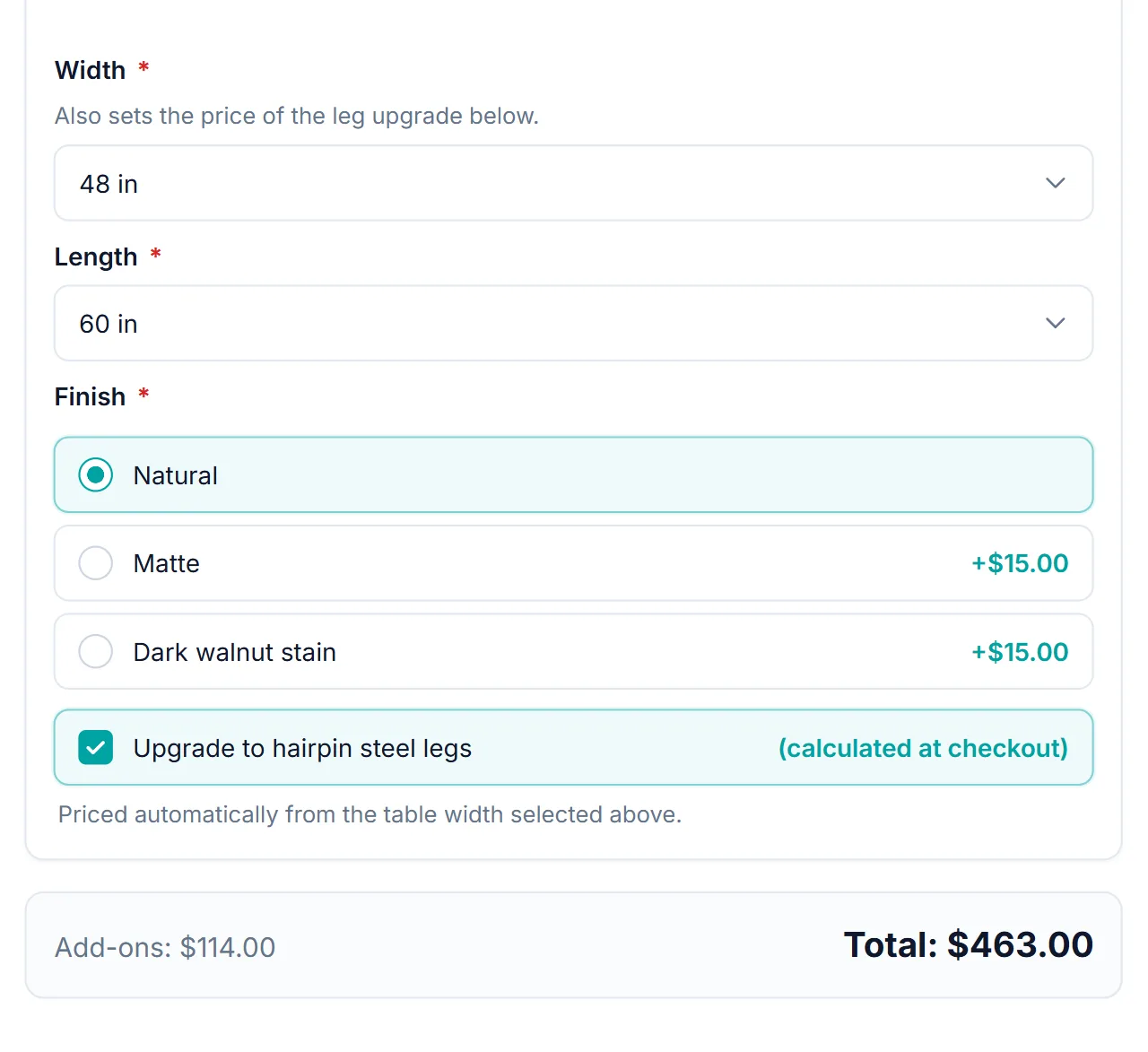
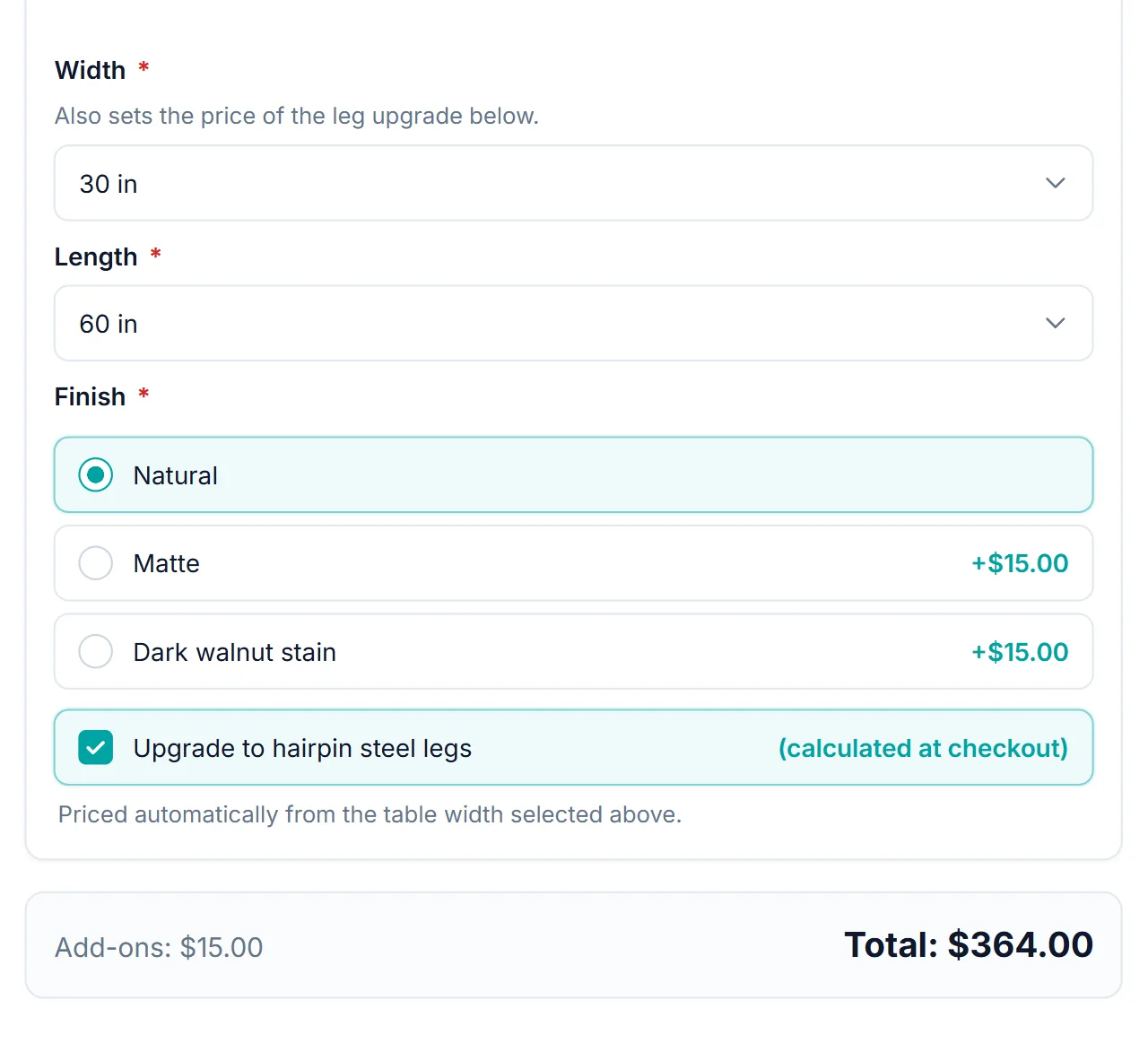
In the cart, the calculated amount is shown like any other add-on, such as Upgrade to hairpin steel legs: Yes (+$24.00), and it’s charged exactly. You can try it on the Custom Furniture product in the live demo store.
WooCommerce formula pricing FAQ
Can WooCommerce formula pricing use functions like MIN or MAX?
No. Formulas support numbers, the placeholders {base}, {qty}, and {field:ID}, the operators + – * /, and parentheses. Anything else makes the price $0.
Can a formula price typed text by its length?
No. Only numbers count, and words or empty fields count as 0.
Does the shopper see the formula price before checkout?
Yes. The add-on reads (calculated at checkout), but the add-ons total and product total update as soon as they choose, and the cart shows the exact amount from WooCommerce formula pricing.
Next steps
- Read the pricing reference for every pricing setting.
- Let shoppers enter an amount a formula can build on with a WooCommerce custom price field.
- Show a formula-priced add-on only when it applies with conditional product options.
- Formula pricing is a Pro feature — see what else the Smart Add-Ons Pro plan includes.




Comments