


Quick answer
How do you create a product builder in WooCommerce?
With Smart Add-Ons, split the product's options into steps and create one add-on group per step, all assigned to the same product. Give each group a Display order (1, 2, 3) so the steps appear in sequence, choose a stacked or accordion layout, and test that the total and the cart include every choice.
A WooCommerce product builder lets shoppers put together their own version of a product one decision at a time: size, then materials, then finishing touches. When a product has a dozen options, showing them as a few clear steps makes the page much easier to follow than one long form. This guide builds a WooCommerce product builder with several Smart Add-Ons groups in five steps, using the options of the demo store’s Custom Pizza Builder as the example.
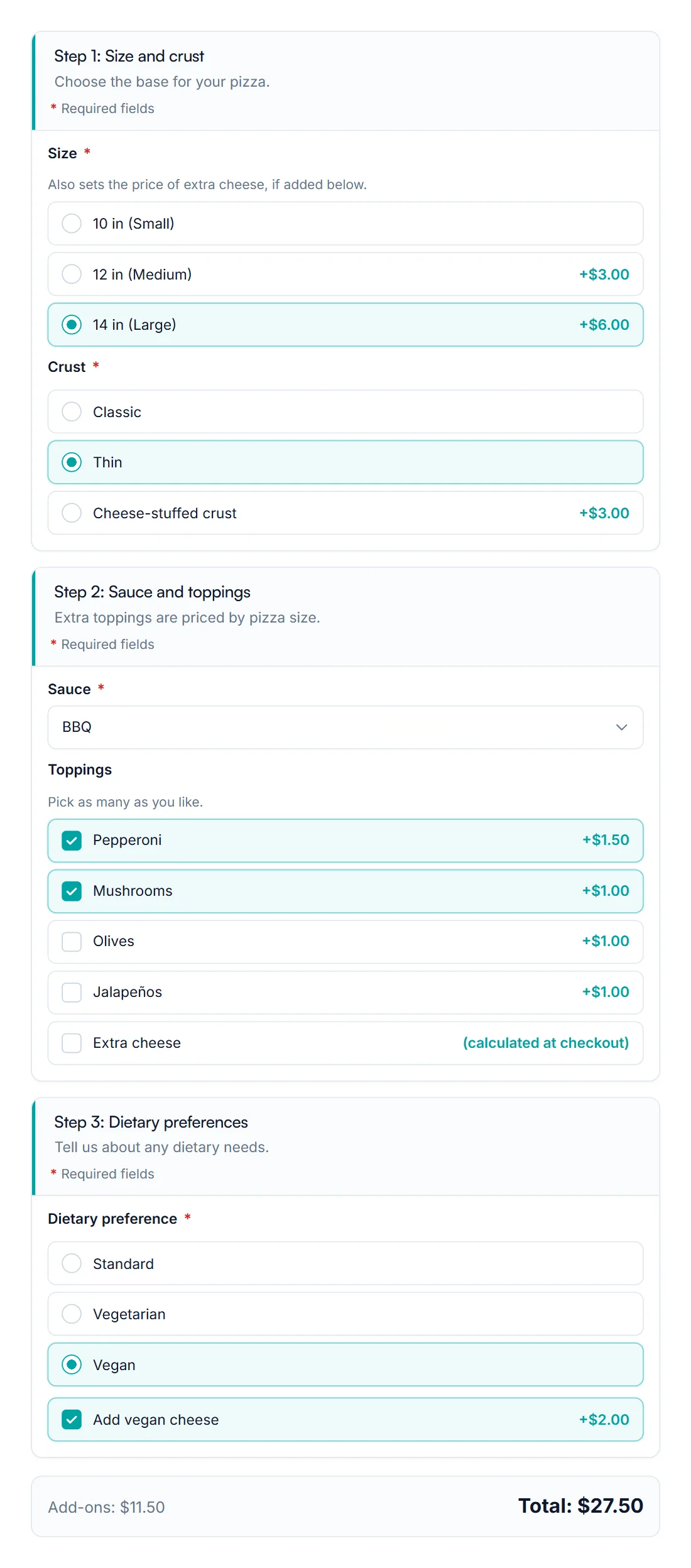
Step 1: Plan the steps of your WooCommerce product builder
List every option and sort it into the order a customer would decide. Three to five steps is usually enough. For the pizza:
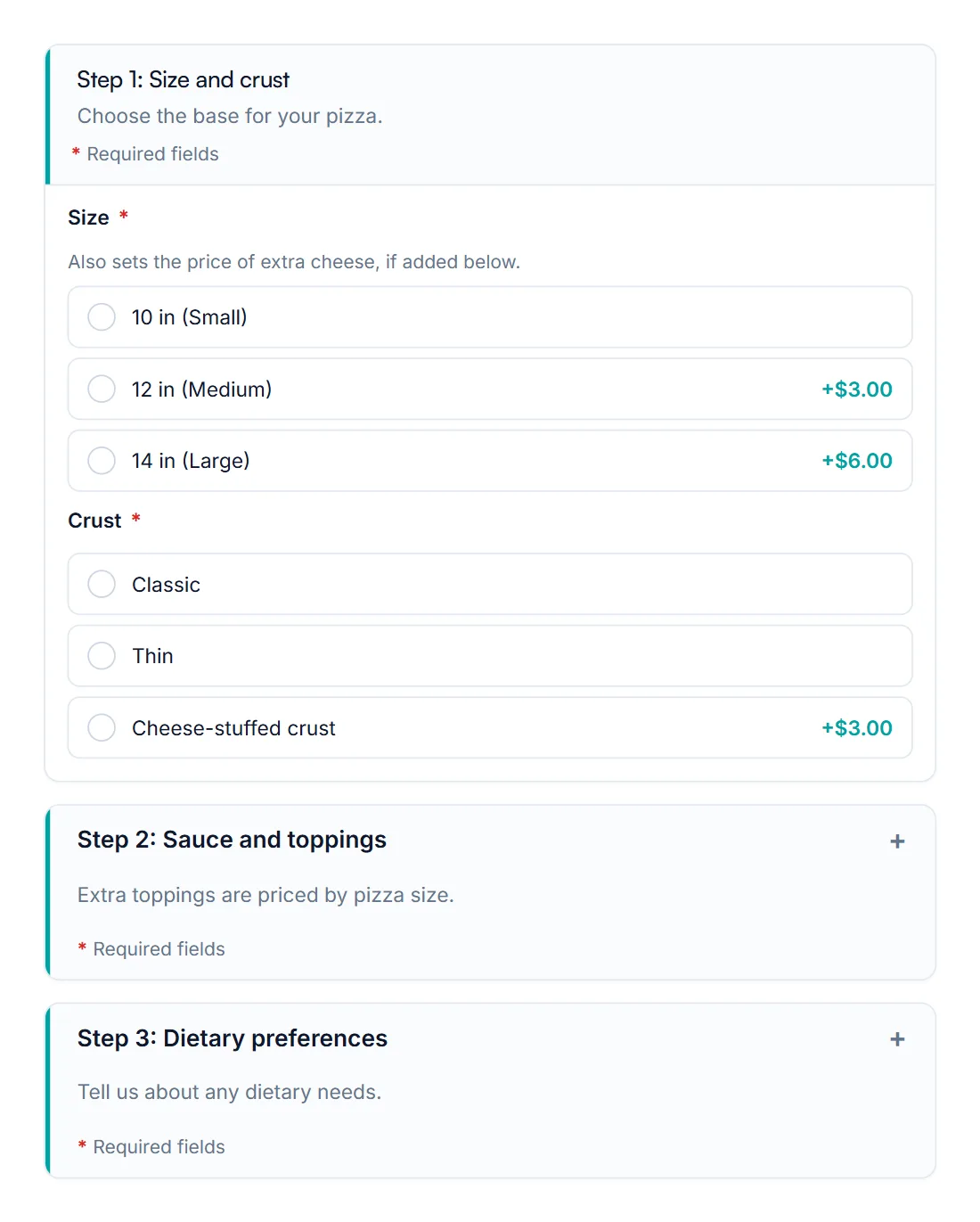
- Size and crust: the base that sets the starting price.
- Sauce and toppings: the choices that build on the base.
- Dietary preferences: a preference, plus vegan cheese for vegan orders.
Step 2: Create one add-on group per step
Go to Smart Add-Ons → Add-On Groups and click + Add group for the first step. Give it a Group name shoppers understand, such as Step 1: Size and crust, and a one-line Description. Set Scope to Specific product and choose the product, or use Product category if several products share the builder. Add the step’s fields and click Save group. Repeat for each step.
Already built everything as one long group? Use Duplicate to make a copy for each step, then delete the fields that belong to other steps. The duplicate and templates guide explains what a copy includes.
Step 3: Put the steps in order
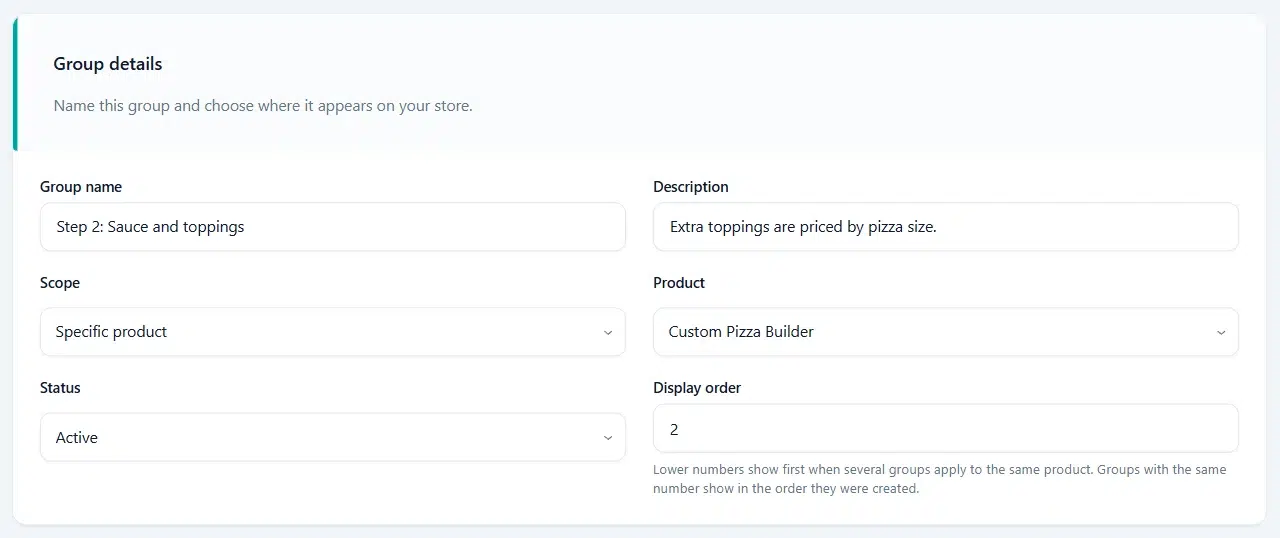
Open each group and set its Display order under Group details. Lower numbers show first when several groups apply to the same product, so give the steps 1, 2, and 3. Groups with the same number show in the order they were created.
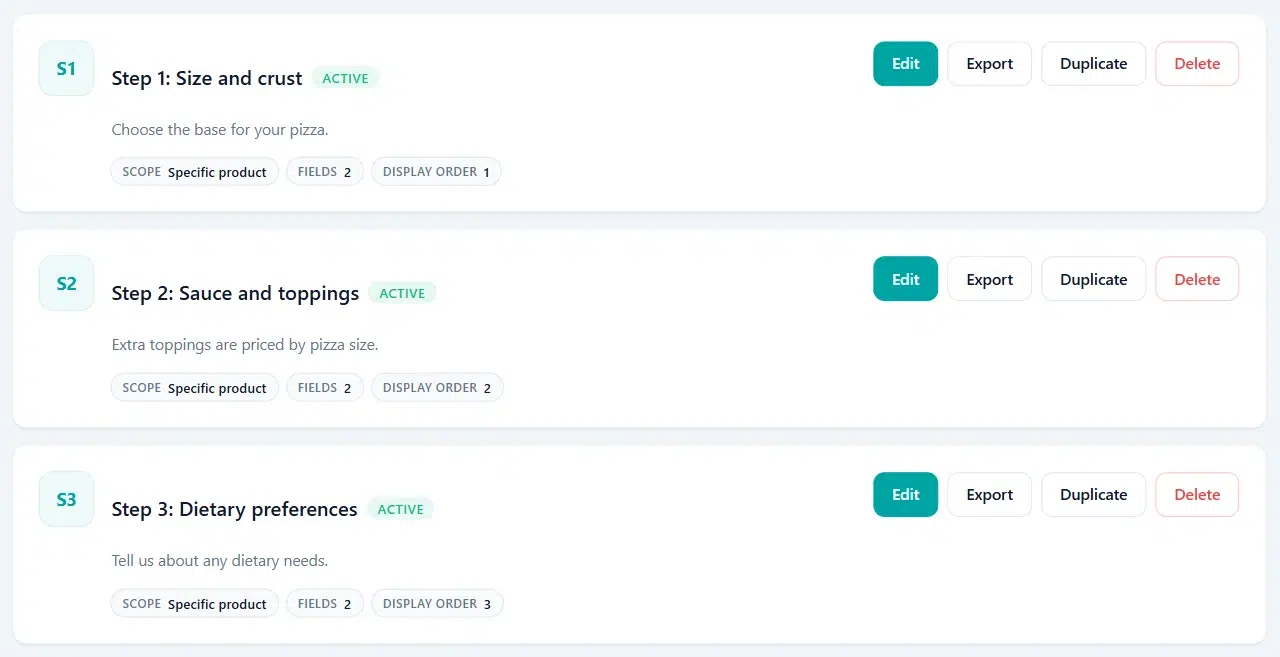
The group list is sorted the same way and shows each group’s display order, so you can check the sequence at a glance.
Groups assigned to all products, such as a store-wide gift wrap option, also appear on the builder. Give them a higher number to keep them after your steps, or tick Exclude global add-on groups in the product’s Product data → General tab to leave them off this product.
Step 4: Choose a stacked or accordion layout
Each group’s Visibility & layout section has a Storefront layout setting. Stacked, the default, shows every step open. Accordion shows each step as a panel shoppers can open and close, which keeps a long WooCommerce product builder compact. With Accordion selected, Open by default decides whether the panel starts open.
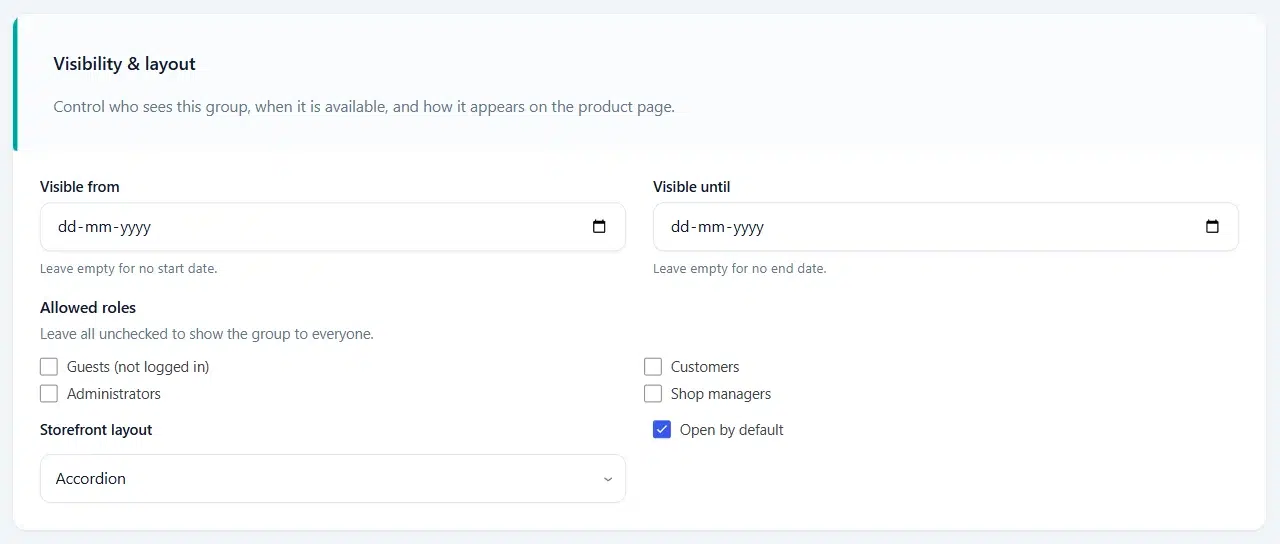
The same section can limit a step to certain dates or customer roles, for example a seasonal toppings step that only appears in December.
Step 5: Test the builder from start to cart
Open the product as a shopper and work through every step. The price summary below the last group adds up the add-ons from all groups, so the total should change as you choose. In the example, a large thin-crust pizza with BBQ sauce, pepperoni, mushrooms, and vegan cheese adds $11.50 to the $16 base, for $27.50. Add it to the cart and check that each choice is listed under the product, with its group’s name in front.
For choices that need a calculated price, such as extra cheese priced by pizza size, see formula pricing. The cart and order guide shows how the choices appear on the order.
WooCommerce product builder FAQ
Is one group or several groups better?
One group is simplest for a handful of options. Several groups make a WooCommerce product builder easier to follow once a product has many options, and let you reuse a step, such as gift options, across products.
Can a field in one step show or hide a field in another step?
No. Conditional logic rules use fields from the same group, so keep related fields together in one step.
Does the builder work with variable products?
Yes. Add-on groups work on WooCommerce variable products (opens in new tab), and percentage prices are based on the selected variation’s price. See options vs variations for when to use each.
Next steps
- Try the Custom Pizza Builder in the live demo store.
- Show follow-up questions only when needed with conditional logic.
- Compare Smart Add-Ons plans.


Comments