


Quick answer
How do you A/B test WooCommerce product add-ons?
In Smart Add-Ons, duplicate an add-on group and change one thing in the copy, such as a price. Go to Smart Add-Ons → A/B Tests, create a test with the original as variant A and the copy as variant B, then activate the copy. Each shopper sees one of the two groups, and the test shows views, orders, and add-on revenue for each variant so you can declare a winner.
Is $5 the right price for front printing, or would $4 sell more? Should gift wrap be a checkbox or a set of three options? Instead of guessing, WooCommerce A/B testing lets you show two versions of your add-ons to different shoppers at the same time and compare what they actually do. This guide sets up a test in Smart Add-Ons in five steps, explains how shoppers are split, and shows how to read the results before you pick a winner. A/B tests are included in the Pro plan and higher.
What you can test
WooCommerce A/B testing in Smart Add-Ons compares two add-on groups, so anything you can change in a group can be tested:
- Prices: a lower or higher price for an option, or a fixed price versus a percentage.
- Choices: two options versus three, such as adding a premium tier. See tiered upsell options for ideas.
- Wording: labels and descriptions that explain the benefit differently.
- Field type: a checkbox versus radio buttons, or a dropdown versus image swatches.
Good WooCommerce A/B testing changes one thing at a time. If variant B has a new price and new wording, you can’t tell which change made the difference.
Step 1: Create variant B from your current group
Go to Smart Add-Ons → Add-On Groups and click Duplicate on the group you want to test. The copy is saved as a draft, assigned to the same products or categories, so shoppers don’t see it yet. Open it with Edit, give it a clear name such as Customize Your T-Shirt (lower print prices), make your one change, and click Save group. Leave its status as Draft for now. The duplicate and templates guide explains what a copy includes.
Step 2: Create the WooCommerce A/B testing experiment
- Go to Smart Add-Ons → A/B Tests.
- Under Create new test, enter a Test name that describes the change.
- Set Traffic to variant A (%). 50 sends half of your shoppers to each variant. Any value from 1 to 99 works.
- Choose your current group as Variant A and the copy as Variant B, then click Create test.
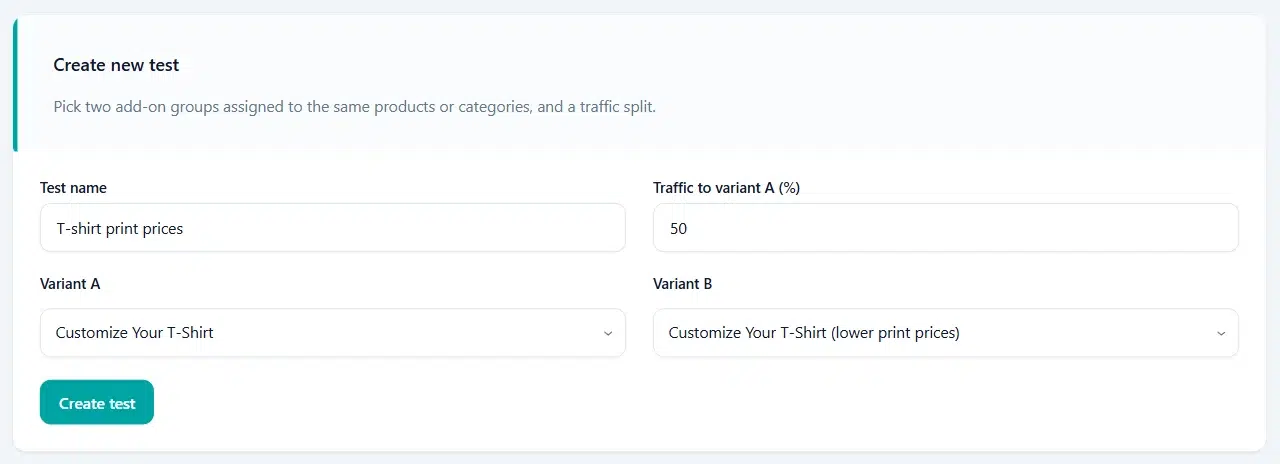
Smart Add-Ons checks the test before it starts. The two groups must be different, assigned to exactly the same products, categories, or all products, and not already part of another test. That way, every shopper in the test sees exactly one of the two groups.
Step 3: Activate variant B
Only active groups appear on your storefront. While the copy is still a draft, every shopper sees variant A and nothing is split. Open the copy, set Status to Active, and click Save group. The test starts splitting shoppers from then on. If you use a page cache, clear it so product pages include the new group.
How shoppers are split
Each product page in the test includes both groups, and the shopper’s browser picks one using your traffic split. The choice is saved in a first-party cookie named saue_ab_ followed by the test ID for 90 days, so returning shoppers see the same version. Because the choice happens in the browser, full-page caches such as LiteSpeed Cache keep splitting traffic correctly. Shoppers who block cookies may get a different variant on each visit.

Step 4: Read the results
Each test on the A/B Tests screen has a results table with a column for each variant, which is where WooCommerce A/B testing pays off. Here’s a test that has just started, so every number is still zero:

- Views: product page views that showed the variant’s group.
- Add-on selections: options shoppers chose in that group.
- Orders: paid orders for a product in the test from shoppers in that variant, whether or not they chose an add-on.
- Order rate: orders divided by views.
- Add-on revenue: what the add-ons earned in those orders, after refunds on those order lines.
- Add-on revenue per view: add-on revenue divided by views, which balances a lower price against more sales.
Once both variants have views, the higher order rate and add-on revenue per view are highlighted. While either variant has fewer than 100 views, the test shows an early data note, because differences that small can be chance.
For a rough idea of how many visitors a test needs to detect a given change, try this A/B test sample size calculator (opens in new tab).
Step 5: Declare a winner
When you’re confident in the result, click Declare A winner or Declare B winner and confirm.

From then on, every shopper sees the winning group, the losing group stays hidden on those products, and new visits no longer count toward the results. Clear your page cache afterwards so cached product pages update.
WooCommerce A/B testing FAQ
Can I test more than two versions at once?
No. Each test compares two groups, and a group can only be in one test at a time. Test two versions, keep the winner, then test it against the next idea.
Will a returning shopper see a different version?
Not normally. WooCommerce A/B testing in Smart Add-Ons remembers each shopper’s variant in a cookie for 90 days. Shoppers who block or clear cookies may be assigned again.
What happens to the results if I delete a test?
They’re removed from the A/B Tests screen, and both groups show on their products again. Note the numbers you want to keep before you delete a test.
Next steps
- Find the add-ons worth testing first with add-on analytics.
- Get ideas for gentle upsells in upselling without being pushy.
- Compare Smart Add-Ons plans to get A/B testing.

Comments