

Quick answer
How do you add a date picker to a WooCommerce product?
Add a WooCommerce product date picker with a Date field from a product add-ons plugin. In Smart Add-Ons, add the field to an add-on group, optionally set the earliest and latest dates shoppers can pick, and save. The chosen date is saved on the order and shown in your store's date format.
A cake for Saturday’s party. Flowers delivered on an anniversary. A personalized gift that has to arrive before the holidays. When the date matters, ask for it on the product page instead of hoping the customer writes it in the order notes. This guide shows how to add a WooCommerce product date picker with Smart Add-Ons, limit which dates can be chosen, and see the date on the order. It assumes the plugin is installed. If it isn’t, start with the installation guide.
What a product date field is for
- Delivery dates: when a gift, flowers, or food should arrive.
- Event dates: the day of the party, wedding, or launch the order is for.
- Personalization: a date to engrave or print, such as a wedding date on a keepsake.
How to add a WooCommerce product date picker
- Go to Smart Add-Ons → Add-On Groups. Click + Add group, or open an existing group.
- Click + Add field and set Field type to Date.
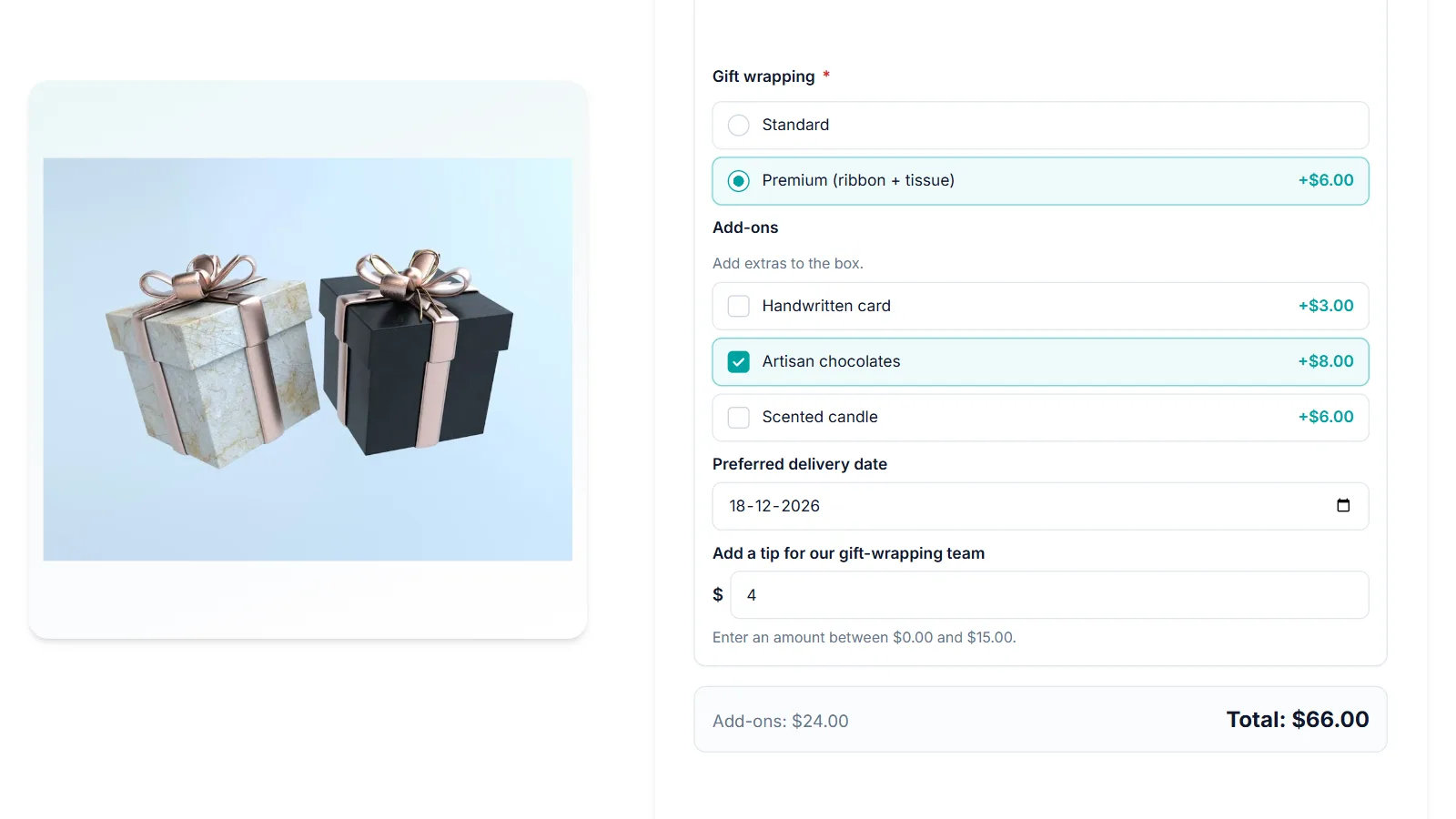
- Set Field label to say exactly which date you mean, such as Preferred delivery date. A bare Date label leaves shoppers guessing.
- Use Description for anything they should know, such as We deliver Monday to Saturday.
- Turn on Required field if you can’t fulfill the order without a date.
- Set Scope to the products or category that need it, and click Save group.
Limit which dates shoppers can pick
Under Date settings, set an Earliest date, a Latest date, or both. Leave either one empty for no limit. Most browsers grey out dates outside the range in the picker, and if one is submitted anyway, the product isn’t added to the cart and the shopper sees a message such as: Preferred delivery date must be on or after December 1, 2026.
Charge for a chosen date
A date field can carry a price under Price type, which suits a scheduled delivery surcharge. The charge only applies when a date is actually chosen. If most shoppers don’t need a specific day, pair it with a Schedule delivery checkbox and use conditional logic to show the date only when that box is ticked, the same technique the gift wrap guide uses for gift messages.
What shoppers see
The field uses the date input built into the shopper’s browser (opens in new tab): a calendar on a computer, and the phone’s own date selector on mobile. It works the same way as every other date box they use, with no separate calendar widget to learn.

Once the product is in the cart, the date is shown in your store’s own format, the one set under Settings → General → Date Format in WordPress. The same format carries through to the order in WooCommerce → Orders and the order email, so everyone reads the date the same way.
You can try it on the Personalized Gift Box in the live demo store, which asks for a preferred delivery date.
WooCommerce product date picker FAQ
Can I set a rolling lead time, such as three days from today?
Not yet. You can set an Earliest date and a Latest date, but both are fixed calendar dates, so update them as your schedule changes.
Why does the date look different for some shoppers?
The WooCommerce product date picker uses the browser’s own date input, which shows dates in each shopper’s regional format. In the cart and on the order, the date uses your WordPress date format.
Can shoppers pick a time as well as a date?
The Date field collects a day only. For a time, add a Dropdown with your available time slots.
Next steps
- Read the date field reference for every setting.
- Selling bookable products? See how add-ons behave with WooCommerce Bookings.
- Price a delivery date, a rush option, or both with the add-on pricing guide.


Comments