


Quick answer
How do you add a dropdown menu to a WooCommerce product?
Add a WooCommerce product dropdown with a Dropdown field from a product add-ons plugin. In Smart Add-Ons, add the field, enter a label, value, and price for each option, choose where it appears, and save. Dropdowns keep long lists compact, but they don't show option prices inside the list.
Sauces, chain lengths, table widths, font styles: when shoppers pick one answer from a longer list, a dropdown keeps the product page tidy. This guide shows how to add a WooCommerce product dropdown with Smart Add-Ons, price each choice, and avoid the one trap dropdowns have. It assumes the plugin is installed. If it isn’t, start with the installation guide.
When a dropdown is the right choice
- The list is long. Five or more options would push the rest of the page down as radio buttons.
- The options are similar. Sizes, lengths, and flavors that shoppers can compare by name alone.
- Most options cost the same. If prices differ a lot between options, read the section on prices below first.
How to add a WooCommerce product dropdown
- Go to Smart Add-Ons → Add-On Groups. Click + Add group, or open an existing group.
- Click + Add field and set Field type to Dropdown.
- Set Field label, such as Sauce.
- For each choice, fill in Label, Value, and Price, then click Add option for the next one.
- Turn on Required field if every order needs an answer.
- Set Scope to the products or category that need it, and click Save group.
Label, value, and price for each option
- Label is what shoppers see in the list and what appears in the cart and on the order, such as White sauce.
- Value is the option’s internal name, such as white. Conditional rules refer to it. For numbers, such as a width, enter just the number, such as 48, so a formula elsewhere can use it.
- Price is what that option adds. Leave it at 0 for options that cost nothing extra. Price type applies to the whole field, so every option is priced the same way, such as a fixed amount.
The one thing dropdowns don’t show: prices
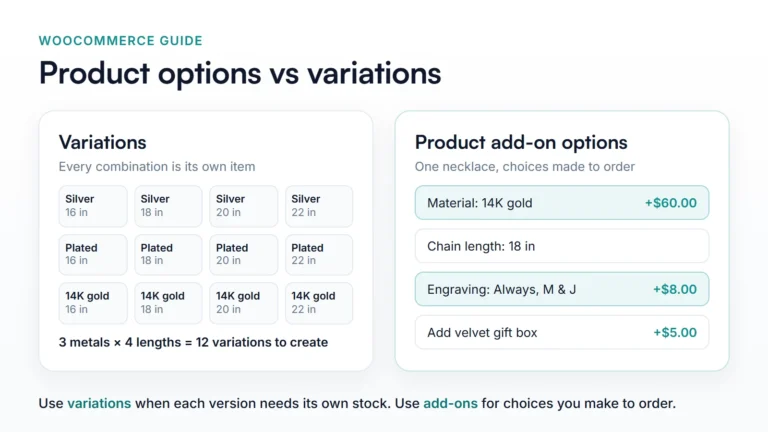
An open dropdown lists option labels only. If BBQ sauce costs $1.00 more, shoppers don’t see that until they choose it and the add-ons total changes. Radio buttons don’t have this problem, because each option shows its extra cost beside it. For more on when drop-downs help or hurt, see Nielsen Norman Group’s guidelines for drop-down menus (opens in new tab).

What shoppers see
The dropdown starts on Select an option. If the field is required and they skip it, the product isn’t added to the cart and the field shows a message such as: Sauce is required. Once they choose, the add-ons total updates with that option’s price, and the cart line and the order show the option’s label.
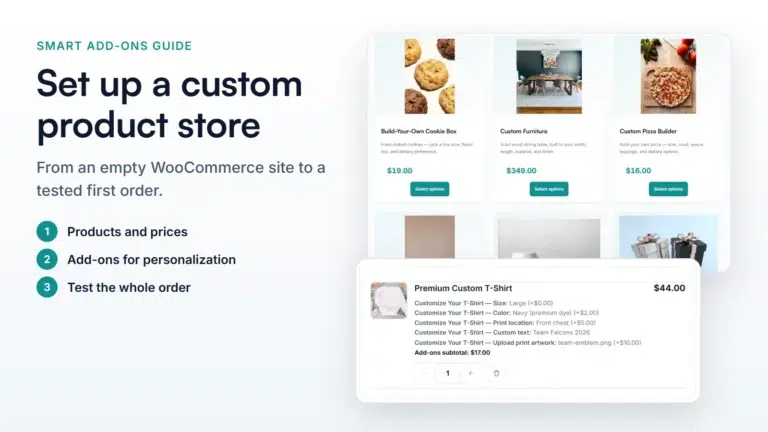
You can try it on the Custom Pizza Builder in the live demo store, which uses a dropdown for the sauce and radio buttons for size and crust.
WooCommerce product dropdown FAQ
Does a WooCommerce product dropdown show option prices?
No. The open list shows option labels only, and the add-ons total updates once a priced option is chosen. Use radio buttons when shoppers need to compare prices.
How many options should a dropdown have?
Dropdowns suit five or more similar options, such as sizes or lengths. For two to four options, radio buttons show every choice at once.
Can a dropdown option drive a price elsewhere?
Yes. Give the options numeric values, such as 48 for a width, and a formula on another field can use that number.
Next steps
- Read the dropdown field reference for every setting.
- Compare it with the radio field for short lists with different prices.
- Show a follow-up dropdown only after a related choice with conditional logic, and see how option prices add up in the add-on pricing guide.
- Feeding a menu with sizes, sauces, and extras? The WooCommerce food ordering guide builds a full order form.


Comments