


Quick answer
How do you add a gift wrap option in WooCommerce?
Add a paid Add gift wrapping checkbox and a Gift message box that only appears once the checkbox is ticked. In Smart Add-Ons that is one add-on group with two fields and one conditional rule, shown on every product or just a category. No code, and about five minutes of setup.
Gift wrapping is one of the simplest ways to earn more from an order you were already going to get. WooCommerce doesn’t include a gift wrap option, so this guide builds a WooCommerce gift wrap option with Smart Add-Ons: a paid checkbox, a gift message box that only appears when the shopper chooses wrapping, and a single setup that covers your whole store. It assumes the plugin is installed. If it isn’t, start with the installation guide.
What the finished gift wrap option does
- An Add gift wrapping checkbox that adds a fixed charge, such as $5.00.
- A Gift message box that stays hidden until the checkbox is ticked, so shoppers who don’t want wrapping never see it.
- Both saved on the order, so whoever packs it can see the message.
- One setup that appears on every product, or only on the categories you choose.
Step 1: Create a gift options group
- Go to Smart Add-Ons → Add-On Groups and click + Add group.
- Enter a Group name, such as Gift options.
Step 2: Add the gift wrapping checkbox
- Click + Add field and set Field type to Checkbox (toggle).
- Set Field label to Add gift wrapping.
- Set Price type to Fixed amount and enter the price, such as 5.00. Shoppers see it next to the checkbox as +$5.00.
- Choose Quantity pricing: Per product quantity charges for every item, which suits wrapping each one separately. Flat fee (once per line item) charges once, which suits wrapping them together.
- Leave Required field off. Gift wrapping is a choice, not a requirement.
Step 3: Add a gift message that only appears when it’s needed
- Click + Add field again and set Field type to Textarea, which gives shoppers room for a few lines.
- Set Field label to Gift message and add a Placeholder, such as Write a short message for the card.
- Under Validation rules, set a Maximum length that fits your card, such as 150 characters.
- In the conditions, choose Show this field when, click Add rule, and set it to Add gift wrapping → Is checked.
Step 4: Show the WooCommerce gift wrap option on every product
Set Scope to decide where the group appears, then click Save group:
- Global (all products) puts gift wrapping on every product in the store.
- Product category limits it to a range, such as Gifts or Jewelry.
- Specific product adds it to a single item.
If your products aren’t grouped that way yet, WooCommerce’s guide to product categories and tags (opens in new tab) covers setting them up.
Check it on your storefront
Open a product the group applies to. The checkbox shows its price, and the gift message box is hidden. Tick the checkbox: the message box appears and the add-ons total goes up by the wrapping charge. Add the product to the cart, and the wrapping charge and the message both appear on the cart line, then on the order in WooCommerce → Orders and in the order email.
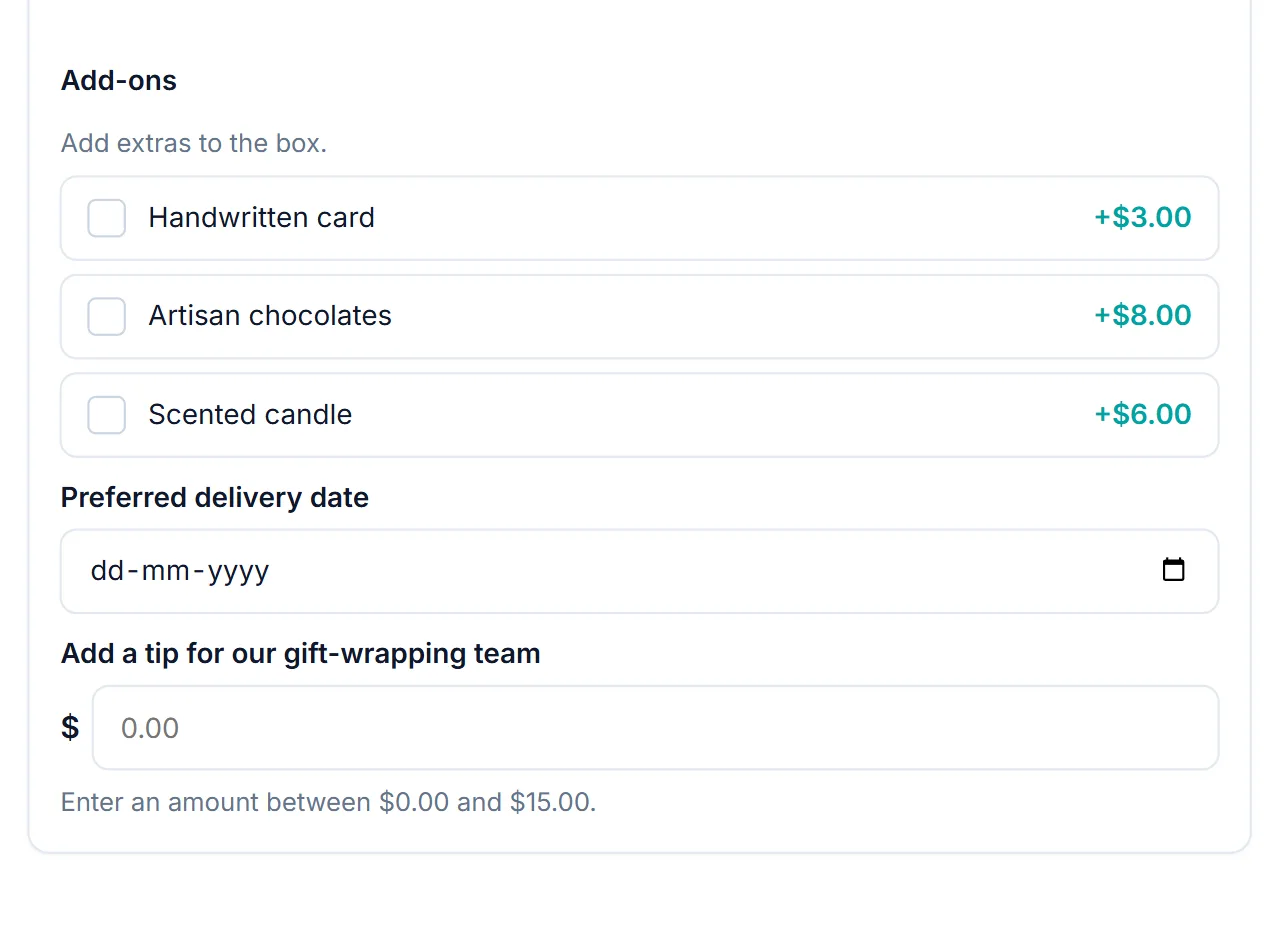
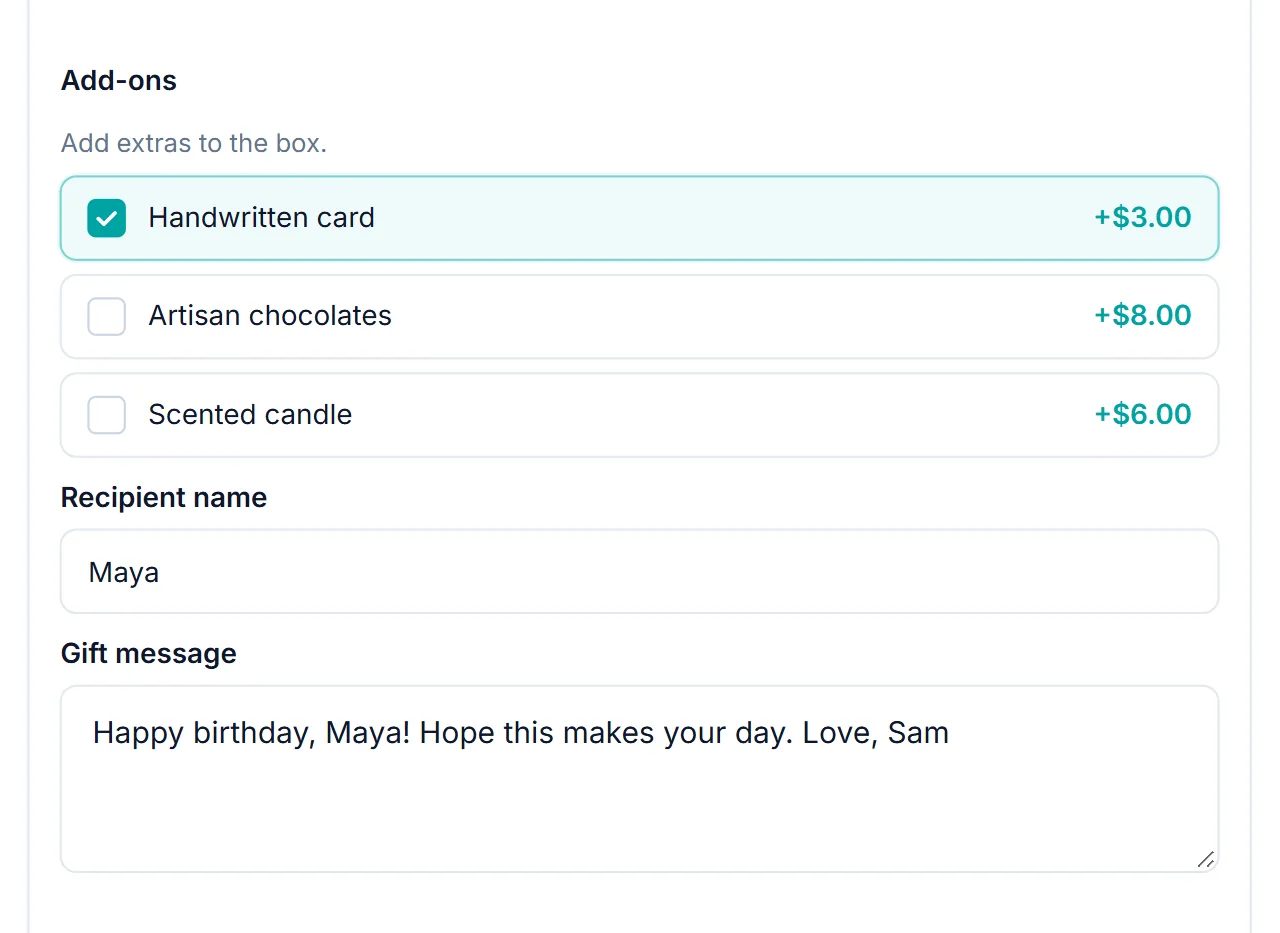
You can try the same pattern now on the Personalized Gift Box in the live demo store. Tick Handwritten card and watch the recipient and message fields appear.
WooCommerce gift wrap option FAQ
Does WooCommerce have a gift wrap option built in?
No. You add a WooCommerce gift wrap option with a product add-ons plugin: a priced checkbox, plus a gift message box that appears only when the checkbox is ticked.
Can I show the gift wrap option on every product?
Yes. Set the group’s Scope to Global (all products), or to a product category if only some products can be wrapped.
Is the gift message charged?
Only if you give it a price. In a typical setup, the checkbox carries the wrapping fee, and the gift message is free text saved to the order for whoever packs it.
Other options built the same way
- Engraving: an Add engraving checkbox that reveals a text field with a character limit. The text field guide covers the limits.
- Greeting card: a checkbox that reveals a recipient name and a message, like the demo gift box.
- Scheduled delivery: a checkbox that reveals a date picker for the delivery date.
- Business gifting: the same options at scale in a WooCommerce corporate gift store.
Every one of these uses the same two ideas: a priced choice, and conditional logic that shows the follow-up field only when it’s relevant. If you’re new to add-ons in general, What are WooCommerce product add-ons? explains the basics, and the Smart Add-Ons page lists everything the plugin includes.


Comments