

Quick answer
How do you change how WooCommerce product add-ons look?
In Smart Add-Ons, go to Smart Add-Ons → Appearance. Set your brand colors, backgrounds, type scale, label weight, font, spacing density, and panel width, check the live preview, and click Save appearance. The styling applies to add-on fields on every product page, with no CSS needed.
Add-on fields sit right next to your product photos, price, and Add to cart button, so they should look like part of your store, not a plugin bolted on. WooCommerce product add-ons styling in Smart Add-Ons happens on one settings screen: pick colors, type, and spacing, watch a live preview update, and save. This guide walks through every setting in four steps, and shows developers how to go further with CSS custom properties. New to Smart Add-Ons? Start with the installation guide.
Step 1: Open the Appearance screen
Go to Smart Add-Ons → Appearance. The settings sit on the left and a Live preview on the right. The preview uses the same markup as the add-on fields on your product pages, so what you see there is what shoppers see. Changes apply store-wide, to every add-on group on every product.
Step 2: Set brand colors and backgrounds
Each color has a picker and a Hex color value box, so you can paste your exact brand color. Under Brand colors:
- Accent: selected options, prices, and focus states.
- Accent hover: the accent when a shopper hovers.
- Selected background: the tint behind a chosen option.
- Text, Muted text, and Borders: labels, descriptions, and outlines.
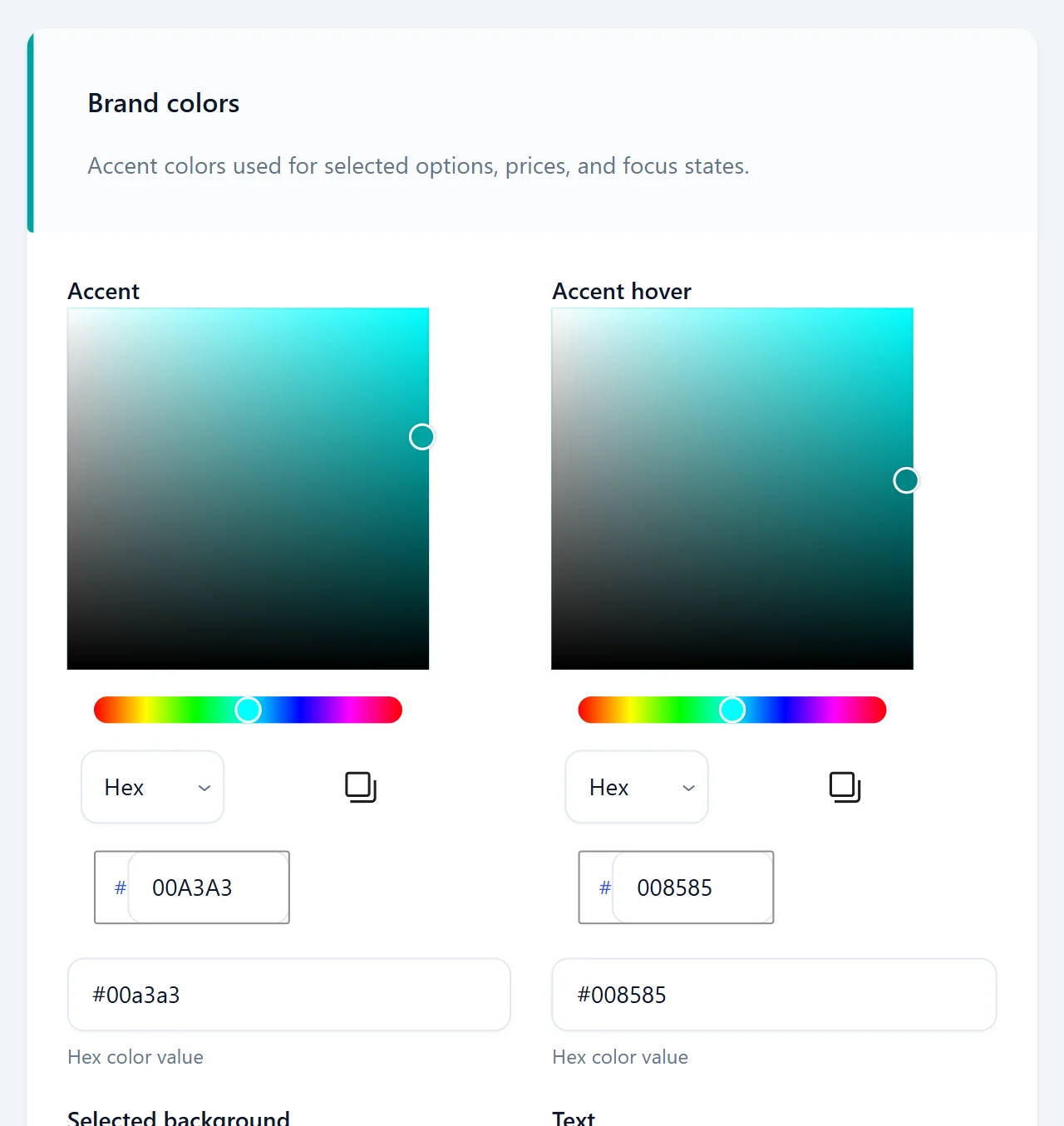
Under Backgrounds, Panel background sits behind group headers and the price summary, and Field background is used for cards, option rows, and inputs. The Text color doesn’t change with them, so a light Text color needs dark backgrounds, and the other way round.
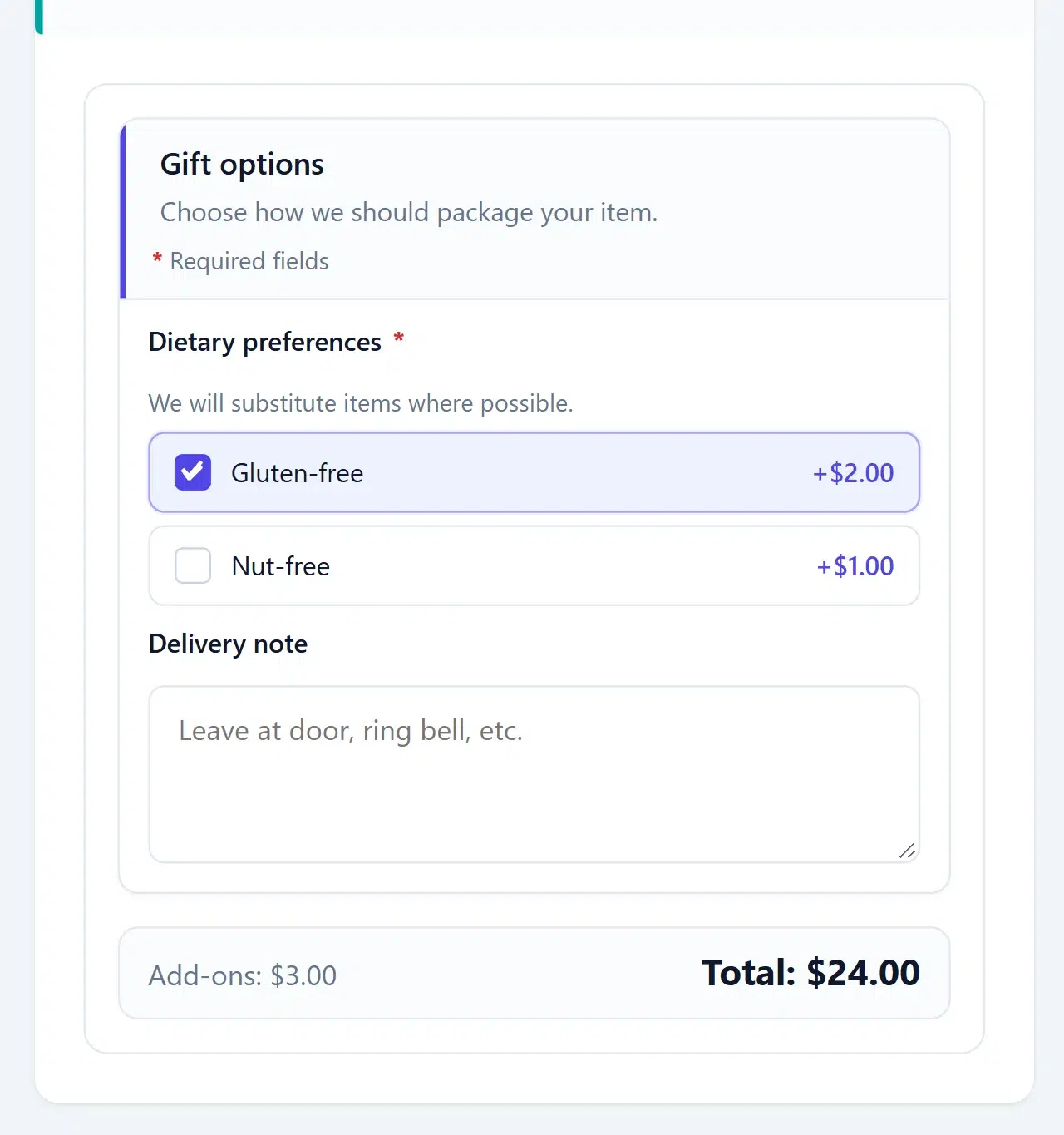
As you change colors, the preview updates straight away. Here the accent is switched from the default teal to an indigo brand color:
Step 3: Choose typography
- Type scale: Compact, Default, or Comfortable text sizes.
- Label weight: Medium (500), Semibold (600), or Bold (700) for field labels.
- Font family (optional): leave it empty to inherit your theme’s font, or enter a font stack such as “Inter”, system-ui, sans-serif. The font must already be loaded by your theme.
Step 4: Set layout, then save
- Density: Compact, Default, or Comfortable spacing between fields and groups.
- Max panel width: limit how wide the add-on panel gets, such as 42rem or 640px. Leave it empty for full width.
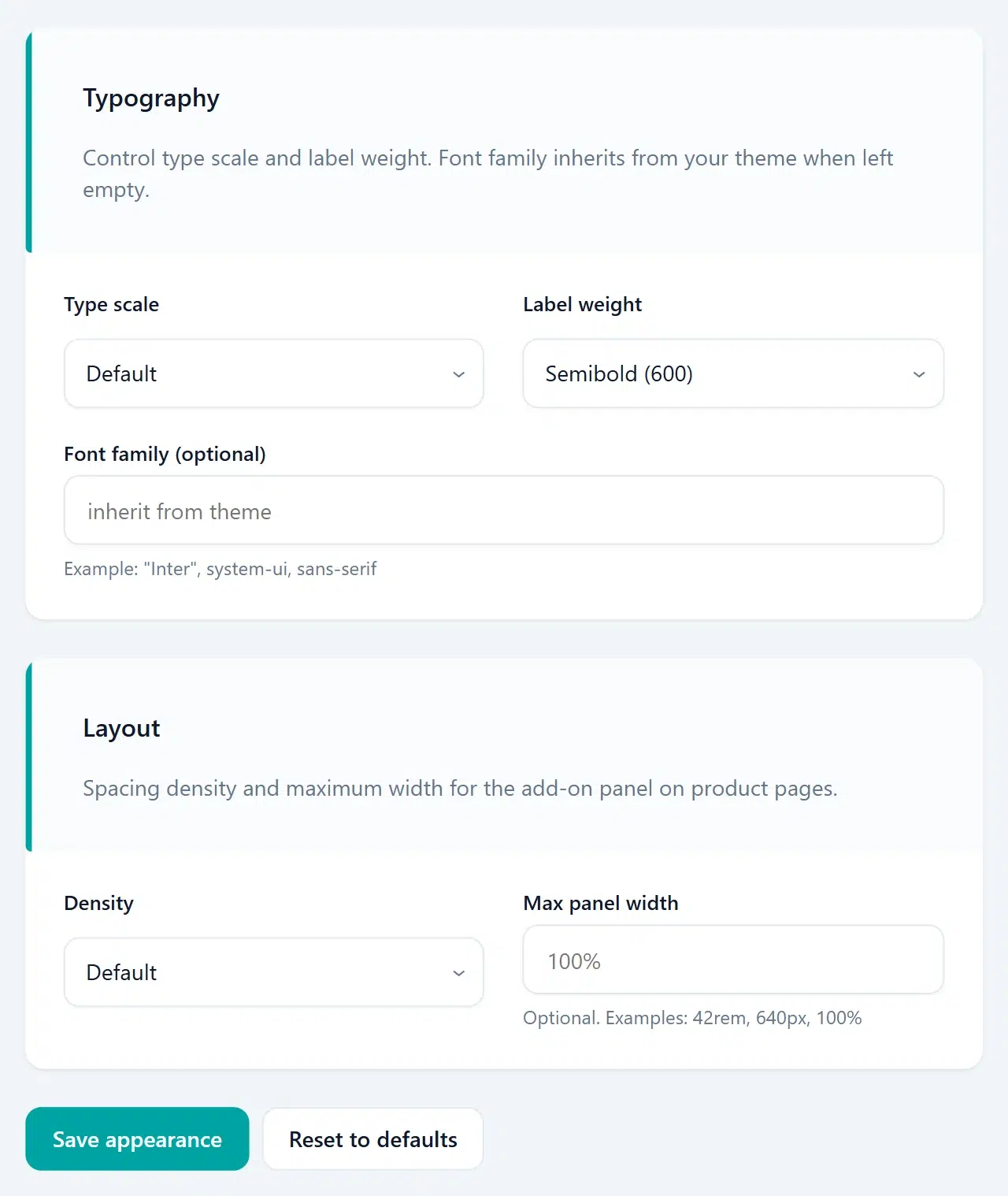
Click Save appearance to apply everything to your storefront. Reset to defaults puts every setting back to the original values in the form, and you save again to apply them. Then open a product with add-ons to check your WooCommerce product add-ons styling in your real theme.
For developers: CSS custom properties
The Appearance settings are output as CSS custom properties (opens in new tab) on the .saue-addon-wrapper element, such as --saue-accent, --saue-border, --saue-font-family, and --saue-panel-max-width. That means a theme can adjust one value without fighting the plugin’s CSS, for example to use a different accent on one product page, using the postid body class WordPress adds to every single post and product:
.postid-123 .saue-addon-wrapper {
  --saue-accent: #b91c1c;
}
WooCommerce product add-ons styling FAQ
Can different products use different add-on styles?
The Appearance screen applies store-wide. For different WooCommerce product add-ons styling on some products, override the CSS custom properties in your theme for those products.
Will add-ons use my theme's font?
Yes. With Font family left empty, add-on fields inherit the font your theme uses on product pages.
Does Reset to defaults change my storefront right away?
No. It resets the settings in the form and the preview. Click Save appearance to apply them to the storefront.
Next steps
- See the default styling on real products in the Smart Add-Ons demo store.
- Check text contrast with the WebAIM contrast checker (opens in new tab).
- Learn how shoppers use the fields in upselling without being pushy.


Comments