

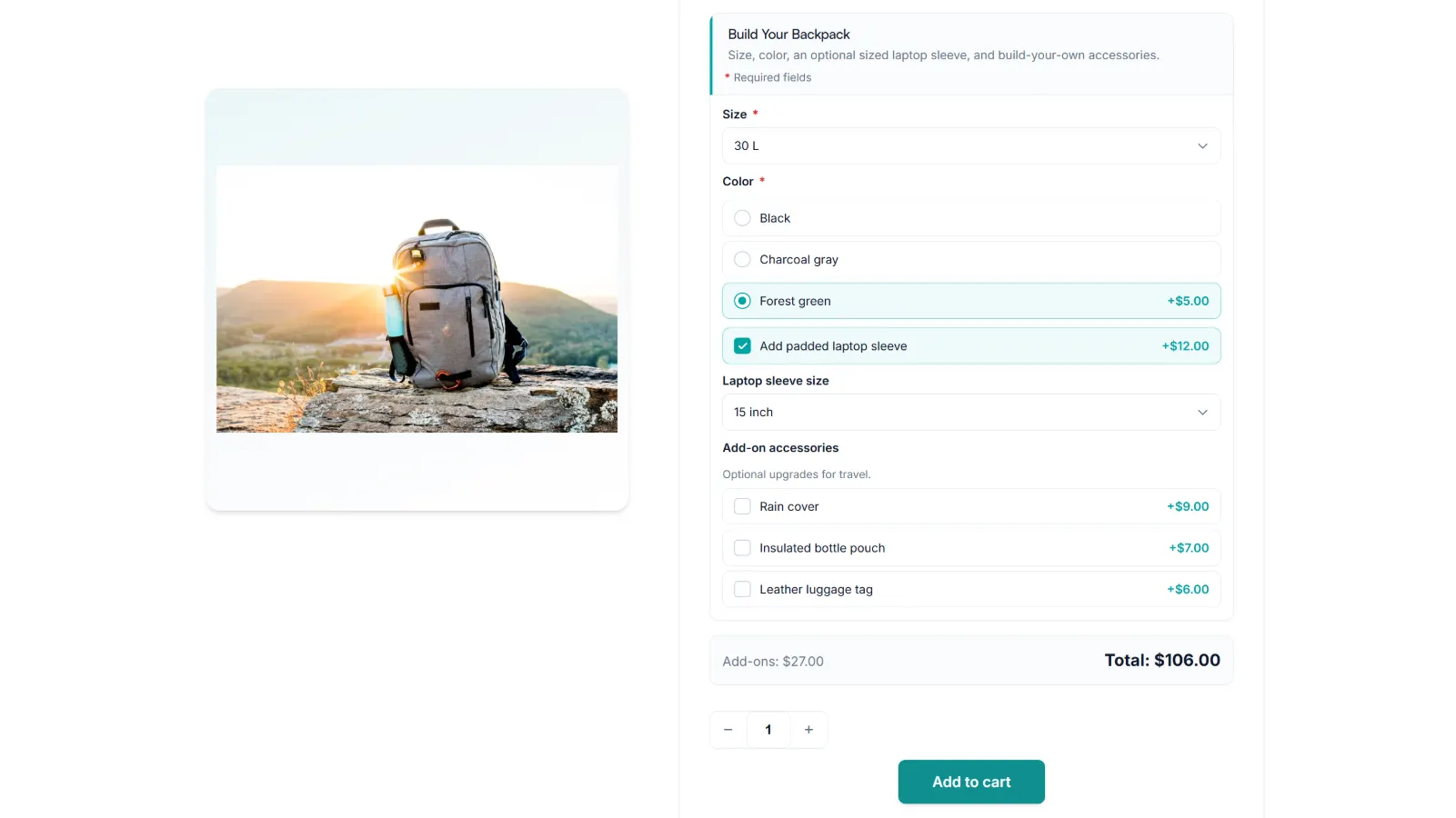
Quick answer
How do you install a WooCommerce product add-ons plugin?
Download the Smart Add-Ons ZIP from your customer portal, upload it under Plugins → Add New Plugin → Upload Plugin, and activate it. Then paste your license key under Smart Add-Ons → License. WooCommerce must already be active.
This guide shows you how to install WooCommerce product add-ons with Smart Add-Ons, from checking that your server meets the requirements to seeing your first working option on a product page. Every menu and button name below matches what you will see on screen, so you can follow along click by click.
What you need to install WooCommerce product add-ons
| Requirement | Minimum | Recommended |
|---|---|---|
| WordPress | 6.4 | 6.7+ |
| WooCommerce | 8.0 | 9.0+ |
| PHP | 8.1 | 8.2+ |
| PHP memory limit | 128 MB | 256 MB |
To check your PHP version, go to Tools → Site Health → Info and open the Server section. You will also need WooCommerce installed and active, plus the plugin ZIP and license key from your purchase.
Step 1: Download the plugin ZIP
- Sign in at app.dhyansoftware.com with the email address you used at checkout.
- Open Downloads in the left menu.
- Click Download next to Smart Add-Ons for WooCommerce.
You can also download it from your store account under My Account → Downloads.
Step 2: Upload and activate the product add-ons plugin
- In your WordPress admin, go to Plugins → Add New Plugin.
- Click Upload Plugin at the top of the page.
- Choose the ZIP you downloaded and click Install Now.
- Click Activate Plugin.
On activation, Smart Add-Ons creates its database tables automatically and a Smart Add-Ons menu appears in the admin sidebar. There is no SQL to run and nothing to configure yet. If you are new to uploading plugins, WordPress has its own guide to managing plugins (opens in new tab).
Installing with WP-CLI instead
If you manage the site from the command line, one command installs and activates the plugin. Replace the path with wherever you saved the ZIP.
wp plugin install /path/to/downloaded-plugin.zip --activateStep 3: Activate your license key
- Go to Smart Add-Ons → License.
- Paste your key into the License key field. It looks like
ADDF-XXXX-XXXX-XXXX-XXXX. - Click Activate license.
The status changes from Not activated to Active, with your plan shown underneath. Your key is in your order confirmation email, and in the customer portal under Licenses, where a Copy button puts it on your clipboard.
What activation turns on
- Automatic updates. New versions show up on your Plugins screen like any other plugin update.
- Your plan’s features. A/B testing and AI suggestions switch on for Pro and above.
- A safety net. If your store cannot reach the license server, everything keeps working for 7 days.
Moving the store to a new domain later? Click Deactivate on this site first. That frees the activation so you can use the same key on the new site.
Step 4: Create your first add-on group
A group is a set of fields that appears together on a product page. This one adds paid gift wrapping, plus a gift message field that only appears when wrapping is chosen.
- Go to Smart Add-Ons → Add-On Groups and click + Add group.
- Enter a Group name, such as Gift options.
- Click + Add field. Set Field type to Checkbox (toggle), Field label to Add gift wrapping, Price type to Fixed amount, and the price to 3.00.
- Click + Add field again. Set Field type to Text and Field label to Gift message. In the conditions, choose Show this field when, click Add rule, and set it to Add gift wrapping → Is checked.
- Set Scope to Global (all products), Specific product, or Product category.
- Click Save group.
Step 5: Check it on your storefront
Open a product the group applies to. The checkbox shows its price; check it and the gift message field appears while the total updates.
Then add the product to your cart and place a test order. The gift wrapping charge and message should appear on the cart line, in WooCommerce → Orders, and in the order email. If they do, your install is complete.
Troubleshooting a WooCommerce add-ons install
| Problem | Fix |
|---|---|
| “The plugin does not have a valid header” | Upload the ZIP exactly as downloaded. Do not unzip and re-zip it. |
| Activation stops and asks for WooCommerce | Install and activate WooCommerce, then activate Smart Add-Ons again. |
| No Smart Add-Ons menu after activating | Check the plugin shows as Active under Plugins, and that PHP is 8.1 or newer. |
| License stays Not activated | Check the key starts with ADDF- and has no extra spaces. If every activation on your plan is in use, deactivate an old site from the customer portal. |
For anything else, the troubleshooting guide covers the full list of errors, or you can contact support.
Install WooCommerce product add-ons: FAQ
What do I need before I install WooCommerce product add-ons?
WordPress 6.4 or newer, WooCommerce 8.0 or newer, PHP 8.1 or newer, and a 128 MB PHP memory limit, plus the plugin ZIP and your license key. The recommended setup is WordPress 6.7, WooCommerce 9.0, PHP 8.2, and 256 MB of memory.
Can I install WooCommerce product add-ons with WP-CLI?
Yes. Run wp plugin install with the path to the downloaded ZIP and the activate flag, then activate your license under Smart Add-Ons → License.
What happens if my store can't reach the license server?
Everything keeps working for 7 days, so a short connection problem doesn’t switch off your add-ons.
What to do next
With the plugin installed and one working group, you have the whole workflow. From here:
- Explore all ten field types, from dropdowns to file uploads.
- Learn conditional logic in depth, including AND and OR rules.
- New to the idea of add-ons? Start with What are WooCommerce product add-ons?
Don’t have a license yet? Compare Smart Add-Ons plans. Every step in this guide works on every plan, and every license comes with a 30-day money-back guarantee.

Comments