


Quick answer
How do you let customers upload a file on a WooCommerce product?
Add a WooCommerce product file upload field with a product add-ons plugin. In Smart Add-Ons, add the field to an add-on group, choose which file types are allowed and the maximum size, optionally charge for it, and save. Uploaded files are stored privately and can be downloaded from the order.
Print shops need artwork. Photo gift stores need photos. Embroidery needs a logo. WooCommerce doesn’t have a way for customers to attach a file to the product they’re buying, so this guide shows how to add a WooCommerce product file upload with Smart Add-Ons: limit the file types and size, charge for it if you want to, and find the file on the order. It assumes the plugin is installed. If it isn’t, start with the installation guide.
When a file upload field makes sense
- Printing: artwork or a logo for t-shirts, mugs, signs, and stickers.
- Photo gifts: a photo for a canvas, a cushion, or a framed print.
- Made to order: a sketch, a spreadsheet of names, or a document with specifications.
If the order can’t be made without the file, you want it attached to that exact order item, not sent by email afterwards.
How to add a file upload to a WooCommerce product
- Go to Smart Add-Ons → Add-On Groups. Click + Add group, or open an existing group.
- Click + Add field and set Field type to File upload.
- Set Field label to something specific, such as Upload print artwork.
- Use Description to say what a good file looks like, such as High-resolution PNG with a transparent background.
- Turn on Required field only if the product can’t be made without a file.
- Set Scope to the product or category that needs it, and click Save group.
Limit file types and size
Two settings control what customers can upload:
- Allowed file types: Images (jpg, png, gif, webp), Documents (pdf, doc, docx, xls, xlsx, csv, txt, rtf, zip), Images & documents, or Custom extensions, where you list the extensions yourself, separated by commas.
- Maximum size (MB): 5 MB by default, up to 50 MB.
Shoppers see both limits in the upload box before they choose a file.
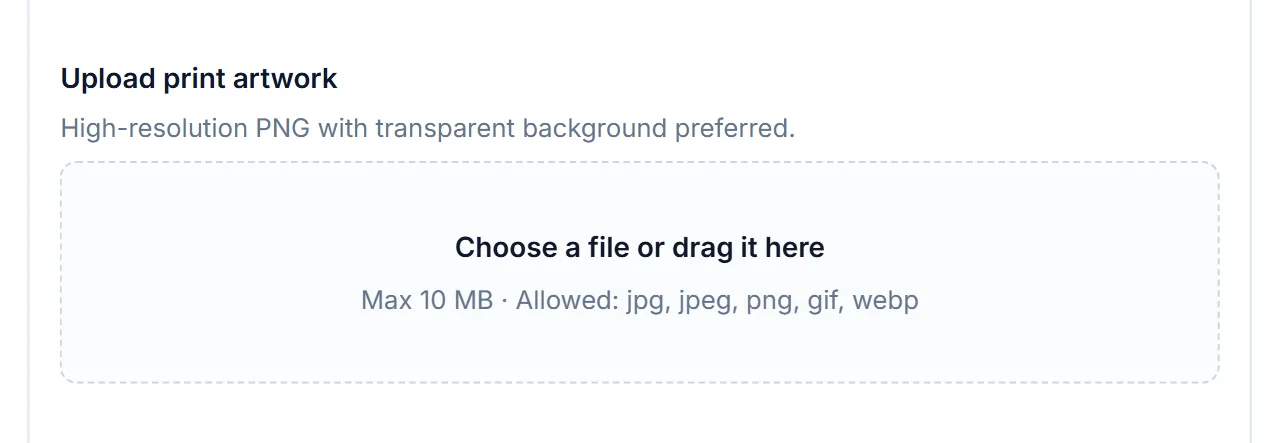
Every file is checked when it’s uploaded. A file that’s too large or the wrong type is rejected with a message naming the problem, and a file whose contents don’t match its extension, such as a renamed document pretending to be a PNG, is rejected too.
Charge for a file upload
An upload field can carry a price like any other add-on, set under Price type. The demo store’s Premium Custom T-Shirt adds $10.00 for uploaded artwork. The charge only applies when a file is actually uploaded, so customers who skip the field pay nothing extra. The add-on pricing guide explains fixed, percentage, and formula prices in detail.
What the customer sees after uploading
Once the file is uploaded, the box shows a thumbnail for images, the file name, and a Remove button in case they picked the wrong one.

Where WooCommerce product file uploads end up
Uploaded files don’t go into your public Media Library. They’re stored in a separate private folder with randomized file names, so they can’t be found by guessing a web address.
To get a file, open the order in WooCommerce → Orders, the screen covered in WooCommerce’s managing orders guide (opens in new tab). Under the order item, an Add-on uploads section lists each file with its name and size, a Download link, and a View link for images and PDFs. Only staff who can manage orders can open these links.
WooCommerce product file upload FAQ
What file types can customers upload?
Choose a preset: Images (jpg, png, gif, webp), Documents (pdf, doc, docx, xls, xlsx, csv, txt, rtf, zip), Images and documents, or your own list of extensions.
How large can uploaded files be?
The default limit is 5 MB, and you can raise it to 50 MB, as long as your server’s own upload limit allows it.
Where are WooCommerce product file uploads stored?
In a private folder with randomized file names, not your public Media Library. Store staff who can manage orders download them from the order screen.
Next steps
- Read the file upload field reference for every setting.
- See how storage and downloads work in the file uploads guide.
- Show the upload only when it’s needed with conditional logic, the same way the gift wrap guide reveals a gift message.
- Running print-on-demand? WooCommerce print-on-demand file upload covers the artwork-specific settings.



Comments