

Quick answer
How does pricing work for WooCommerce add-ons?
Each add-on, or each option inside it, can carry its own price: a fixed amount, a percentage of the product price, or a formula. The shopper sees an add-ons subtotal and a new total update as they choose, and every charge is itemized in the cart and on the order.
Add-ons earn their keep when they’re priced well. This guide explains how WooCommerce add-ons with pricing work in Smart Add-Ons: the three price types, how to charge per item or once per order line, how to limit a price to certain quantities, and what shoppers see while they choose. Every example below comes from a real product on the live demo store.
How WooCommerce add-ons with pricing work
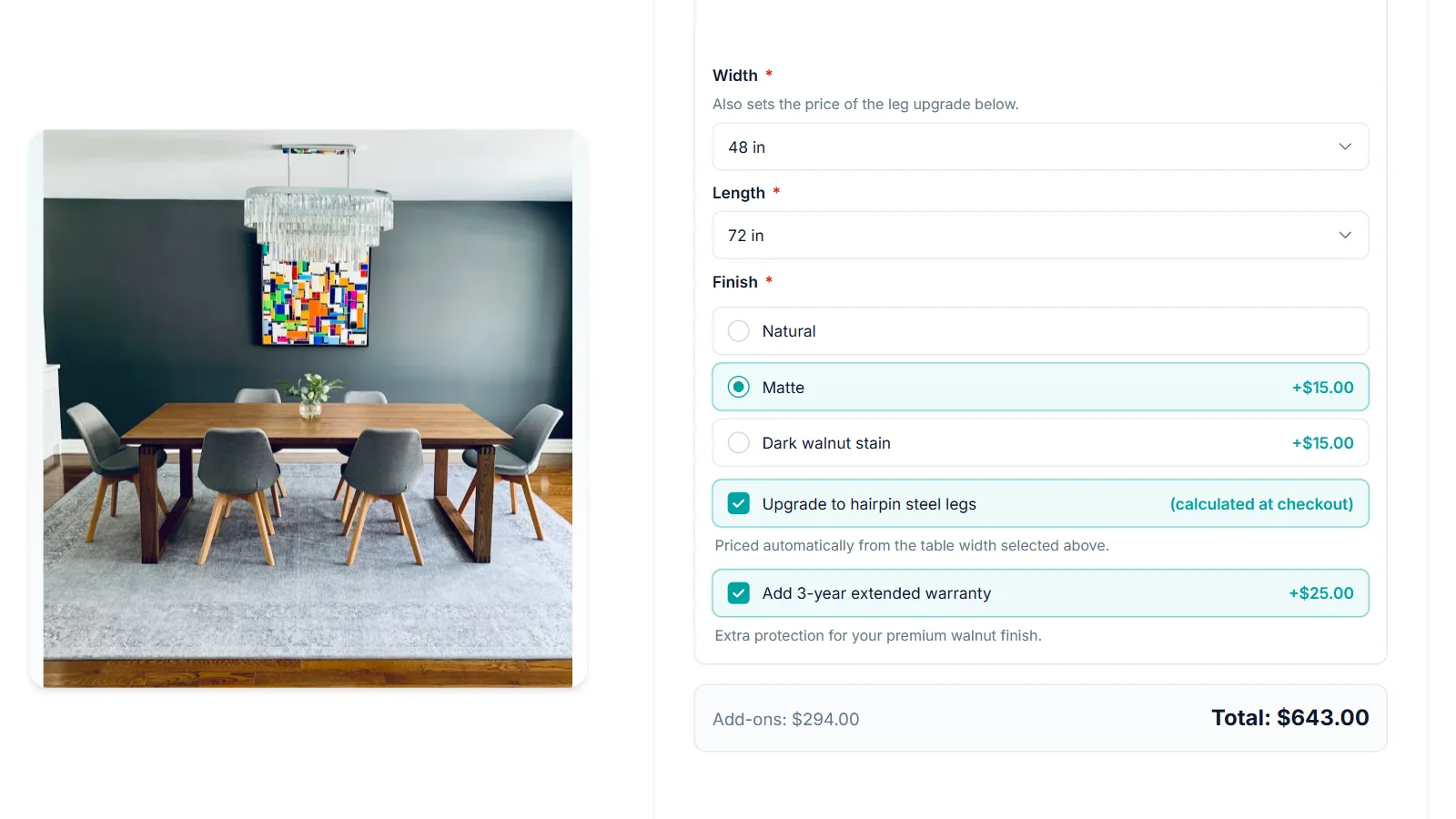
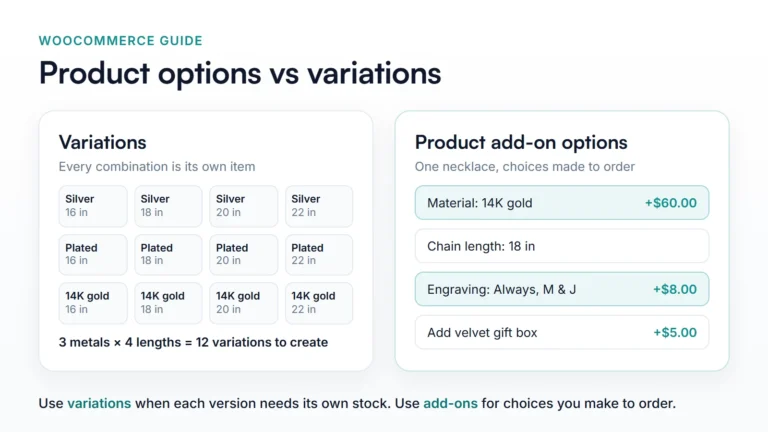
Every priced add-on adds to the product’s own price. A checkbox has one price. Fields with choices, such as radio buttons, dropdowns, image select, and checkbox groups, have a price for each option. On the demo store’s Custom Furniture, Walnut adds $80.00, a 48-inch width adds $90.00, and Oak adds nothing.
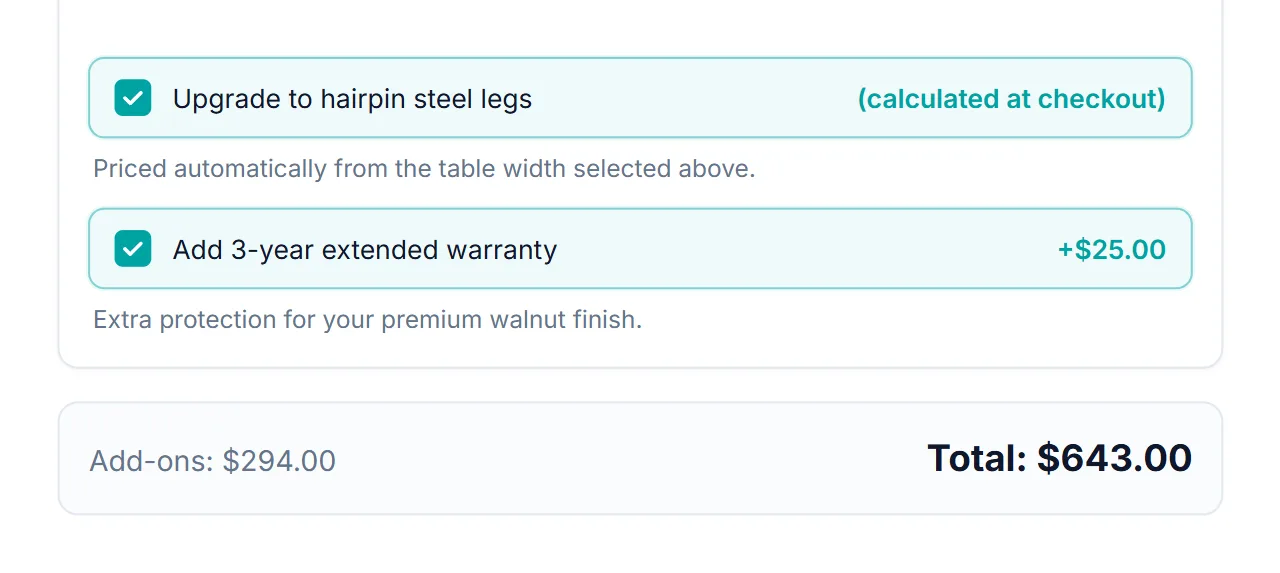
As the shopper chooses, a bar under the options shows an Add-ons subtotal and the new Total. In the cart and on the order, each add-on appears as its own line with its price, so nobody has to work out where a number came from.
The three price types
You choose one under Price type for each add-on.
Fixed amount
A set charge that doesn’t change: gift wrapping for $5.00, engraving for $8.00, a premium finish for $15.00. It’s the easiest to understand, and the right choice whenever your own cost is the same for every product.
Percentage of product price
A charge that scales with the product. An extended warranty at 10% costs $4.00 on a $40.00 item and $40.00 on a $400.00 one. The percentage is taken from the product’s current price, so if the product is on sale, it’s based on the sale price (opens in new tab). Use it when a single flat charge would be too much on cheap products and too little on expensive ones.
Formula
A price calculated from numbers. A formula can use these placeholders and the operators + - * / ( ):
| Placeholder | Means |
|---|---|
{base} | The product’s price |
{qty} | The quantity being added to the cart |
{field:ID} | The numeric value of another field, such as a width chosen from a dropdown |
On the demo furniture, the hairpin leg upgrade uses the formula {field:90} * 0.5, where field 90 is the Width dropdown. A 48-inch table makes the upgrade $24.00, while a 30-inch one makes it $15.00. Shoppers never have to do the sum.
Charge per item or once per order line
Quantity pricing decides what happens when someone buys more than one:
- Per product quantity charges the add-on for every item. Engraving three pendants means three engraving charges.
- Flat fee (once per line item) charges it once, however many are in that cart line. It suits a one-off setup cost, such as preparing custom artwork for a print run.
Limit a price to certain quantities
Each price can have a Min product qty and a Max product qty. The add-on price applies only inside that range. If a shopper picks the add-on with a quantity outside it, the product isn’t added to the cart, and they see a message such as: Gift wrapping is only available for quantities between 1 and 5. Leave the maximum empty for no upper limit.
Let shoppers name their own price
For tips, donations, or an agreed custom quote, the custom price field lets the shopper type the amount, within a minimum and maximum you set. The demo gift box uses one for an optional tip of up to $15.00.
What shoppers see before they add to cart
- Prices next to choices: a fixed price appears beside its option as an amount, such as +$80.00, and a percentage price as a percentage, such as +10%.
- A live total: the Add-ons subtotal and Total update with every change.
- No charge for hidden options: an add-on hidden by conditional logic is never added to the price. On the demo furniture, the $25.00 extended warranty only appears, and only counts, once Walnut is chosen.
WooCommerce add-ons with pricing FAQ
Which price types can WooCommerce add-ons with pricing use?
In Smart Add-Ons, three: a fixed amount, a percentage of the product price, or a formula based on the price, the quantity, or another field’s number.
Is an add-on charged once or per item?
You choose under Quantity pricing. Per product quantity multiplies the price by the quantity, and Flat fee (once per line item) charges it once, whatever the quantity.
Do hidden add-ons still cost money?
No. A field hidden by conditional logic isn’t priced or added to the cart, so shoppers only pay for what they can see and choose. That keeps WooCommerce add-ons with pricing fair and predictable.
Which price type should you use?
| If the add-on is… | Use |
|---|---|
| The same cost on every product | Fixed amount |
| Worth more on expensive products | Percentage of product price |
| Driven by a size, count, or other number | Formula |
| A one-off setup cost | Any type, with Flat fee (once per line item) |
| An amount the shopper decides | Custom price field |
If you’re adding your first priced option, the gift wrap guide walks through a fixed-price checkbox from start to finish, and the text field guide covers pricing a personalization field.
The pricing documentation covers every setting in detail. All three price types are included on every plan, so you can compare Smart Add-Ons plans on everything else.

Comments