

Quick answer
How do you make a WooCommerce product option required?
To set a WooCommerce required product option, open the field in your product add-ons plugin and turn on its required setting. In Smart Add-Ons, tick Required field and save the group. Shoppers then can't add the product to the cart until that field is filled in, and they see a message such as Size is required.
A custom order is only as good as the details that come with it. If a shopper can check out without choosing a size, typing the engraving text, or uploading their artwork, someone on your team has to email them and wait. This guide shows how to set up a WooCommerce required product option with Smart Add-Ons, what shoppers see when they skip it, and when a field shouldn’t be required at all. It assumes the plugin is installed. If it isn’t, start with the installation guide.
How to set up a WooCommerce required product option
- Go to Smart Add-Ons → Add-On Groups and open the group that contains the field.
- Find the field, or click + Add field to create one.
- Tick Required field. Its help text sums it up: customers must complete this field before adding the product to cart.
- Click Save group.
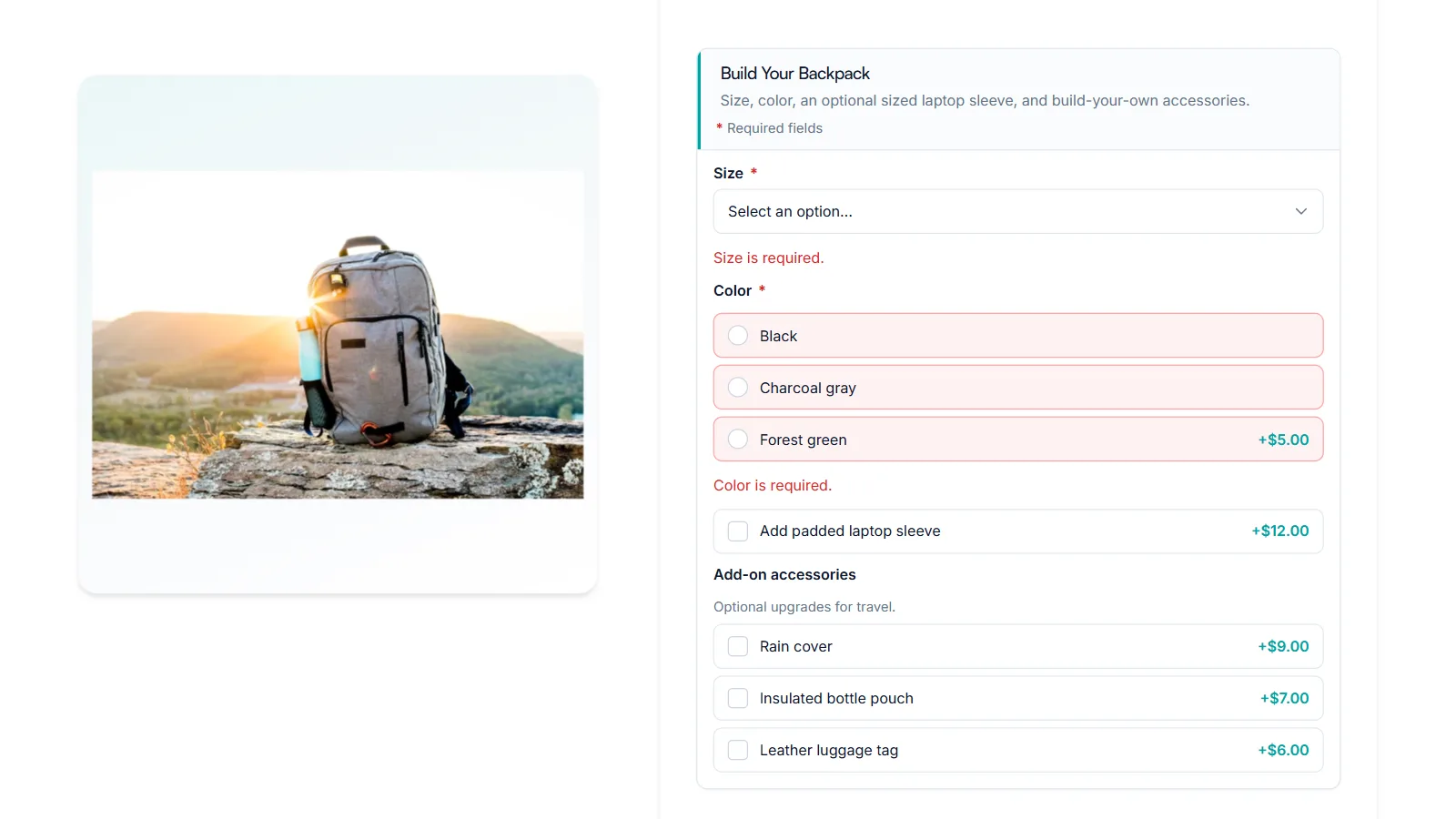
On the product page, the field label gets a red asterisk, and the top of the group shows a * Required fields note, so shoppers know before they start. That follows common form usability advice on marking required fields (opens in new tab).
What “required” means for each field type
The setting works on every field type, but what counts as complete depends on the field:
- Text, Textarea, Date, and Customer-defined price: the shopper must enter something.
- Dropdown, Radio, and Image selection: the shopper must choose an option.
- Checkboxes: the shopper must tick at least one.
- Checkbox (toggle): the box must be ticked. This makes it a confirmation, such as I have checked the spelling of my engraving.
- File upload: the shopper must upload a file.
What shoppers see when they skip a required field
When a shopper clicks Add to cart with a required field still empty, the product isn’t added. Each missing field shows a message made from its label, such as Size is required, and the page scrolls to the first field that needs attention.
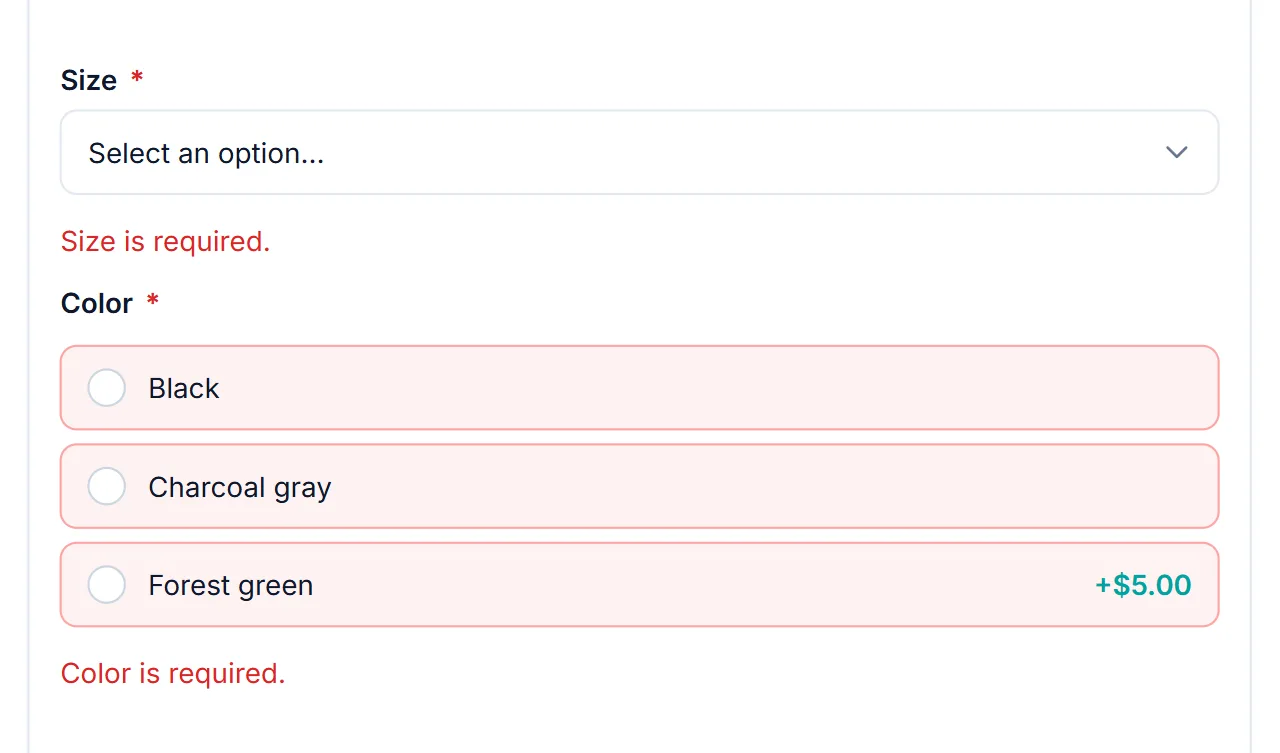
Because the message uses the field label, a clear label matters. A field labeled Engraving text produces Engraving text is required, which is far clearer than Field 3 is required.
Required fields and conditional logic
A required field that is hidden by a conditional rule isn’t required while it’s hidden. For example, a required Gift message field that only appears when Add gift wrap is ticked must be filled in only by shoppers who tick that box. Everyone else checks out without seeing it. The gift wrap guide walks through a similar setup.
When a field shouldn’t be required
Make a field required only when you can’t fulfill the order without it. Size, color, the engraving text on an engraving product, or the print file for a printing job all qualify. Extras such as gift wrap, a rain cover, or a tip should stay optional, because every required field is one more thing a shopper has to do before paying.
You can try required fields on the Travel Backpack Builder in the live demo store. Click Add to cart without choosing a size or color to see the messages.
WooCommerce required product option FAQ
Which field types can be required?
Every field type. What counts as complete depends on the type: text needs something typed, choices need an option picked, Checkboxes need at least one ticked, and a single checkbox must be ticked.
Can a WooCommerce required product option be skipped by turning off JavaScript?
No. Required fields are checked again on the server before the product is added to the cart.
Is a hidden required field still required?
No. A field hidden by conditional logic isn’t required while it’s hidden, so shoppers only complete the fields they can see.
Next steps
- Browse the field type reference for every setting each field offers.
- Go beyond required: set a minimum length for text, or a range for amounts and dates, with the minimum and maximum guide.
- Show a required field only when it’s relevant with conditional logic.

Comments