


Quick answer
How do you build a T-shirt customization store with WooCommerce?
Create the T-shirt as a WooCommerce product, then add one Smart Add-Ons group with a Size dropdown, color swatches, a priced print location, a custom text field, and a file upload for artwork. Every choice updates the price on the product page and is saved on the order for printing.
Custom T-shirts have a lot of moving parts: sizes, colors, where the print goes, the wording, and the customer’s own artwork. WooCommerce t-shirt customization doesn’t need a separate product for every combination. One product with a well-built set of add-ons covers all of it, with the price updating as the shopper chooses. This tutorial builds the store in seven steps, using the Premium Custom T-Shirt in our demo store as the finished example.
By the end, shoppers will pick a size and a color swatch, choose front, back, or both, type their text, upload a logo, and see the total before they add the shirt to the cart. New to Smart Add-Ons? Start with the installation guide.
Step 1: Plan your WooCommerce t-shirt customization options
Write down every choice a shopper makes and what it costs you. The demo T-shirt starts at $27 and uses this plan:
- Size: Small to XX-Large. X-Large adds $2 and XX-Large adds $3 for the extra fabric.
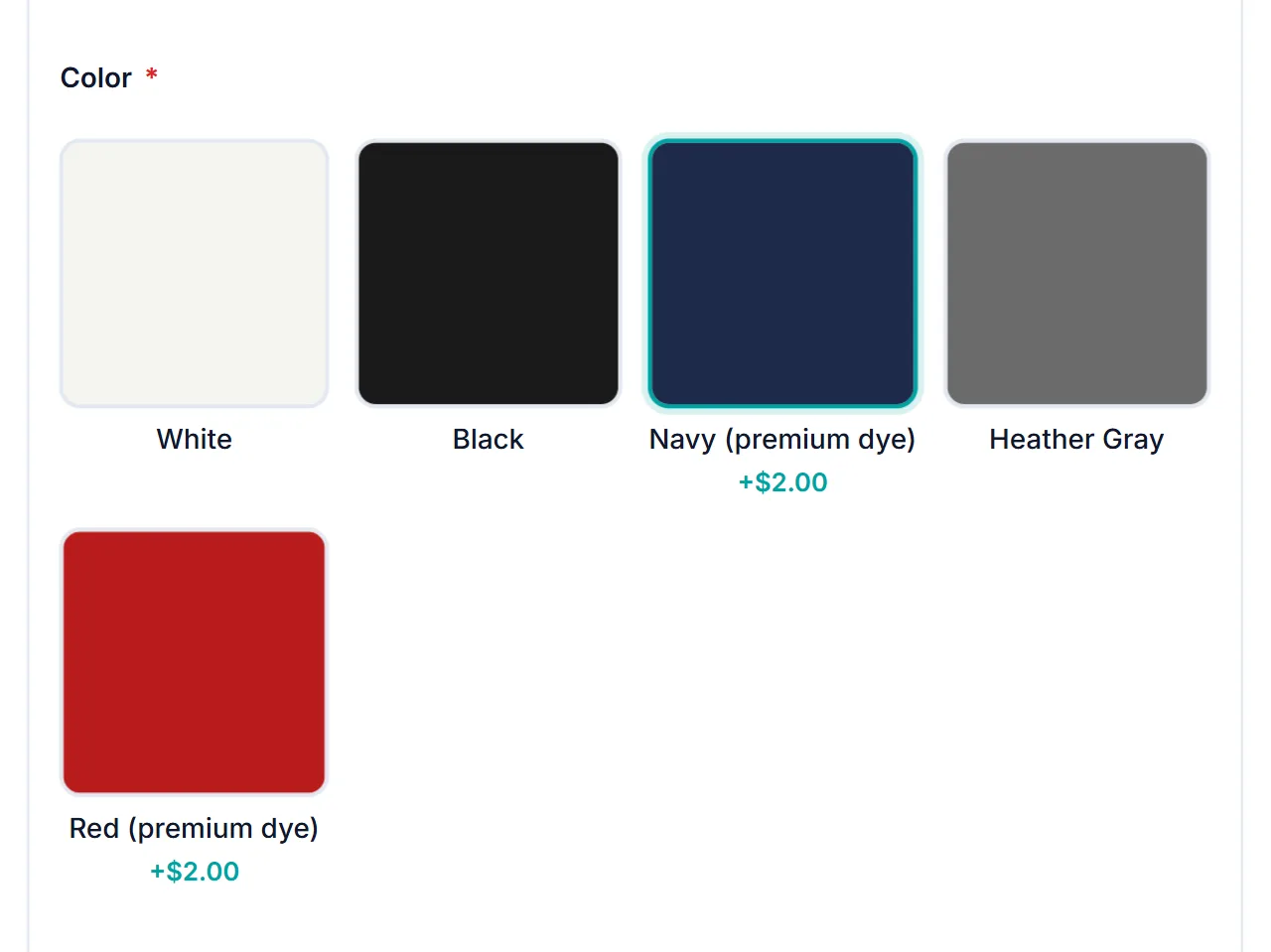
- Color: White, Black, and Heather Gray are included. Navy and Red are premium dyes at $2.
- Print location: Front chest $5, Full back $8, or Front + back $12.
- Custom text: required, up to 20 characters.
- Artwork upload: optional, $10 when a file is uploaded.
If you track stock by size or color, those could be variations instead. Smart Add-Ons works on variable products too, so you can keep sizes as variations and add the print options on top.
Step 2: Create the T-shirt product and the add-on group
- In Products → Add New Product, create the T-shirt with its photos, description, and base price, then click Publish. WooCommerce’s guide to managing products (opens in new tab) covers every product setting.
- Go to Smart Add-Ons → Add-On Groups and click + Add group.
- Set Group name to Customize Your T-Shirt. The name appears before each choice in the cart, so keep it short.
- Set Scope to Specific product and pick the T-shirt, or choose Product category to give every shirt in a category the same options.
Step 3: Add sizes with a dropdown
Click + Add field, set Field type to Dropdown, label it Size, and tick Required field. Under Options & prices, add each size with a Label, a Value, and a Price, using 0 for sizes that cost nothing extra. A dropdown keeps five sizes compact on mobile.
Step 4: Show colors as swatches
Add an Image selection field labeled Color and make it required. For each option, set the label, value, and price, then set its Swatch to Color and type the hex code, such as #1e2a4a for navy. You can also use a photo of the fabric instead. The image select guide explains both swatch modes.
Step 5: Price the print location
Add a Radio field labeled Print location, make it required, and add Front chest, Full back, and Front + back with their prices. Radio buttons show every price at once, so shoppers can compare the three before they choose.
To ask a follow-up question only when both sides are printed, add a Textarea field labeled Back design notes. Tick Enable conditional logic, then set Action to Show this field when, When field to Print location, Operator to Equals, and Value to Front + back. The conditional logic guide covers every rule. Conditions can only use fields that are already saved, so click Save group first if the Print location field is new.
Step 6: Collect custom text and artwork
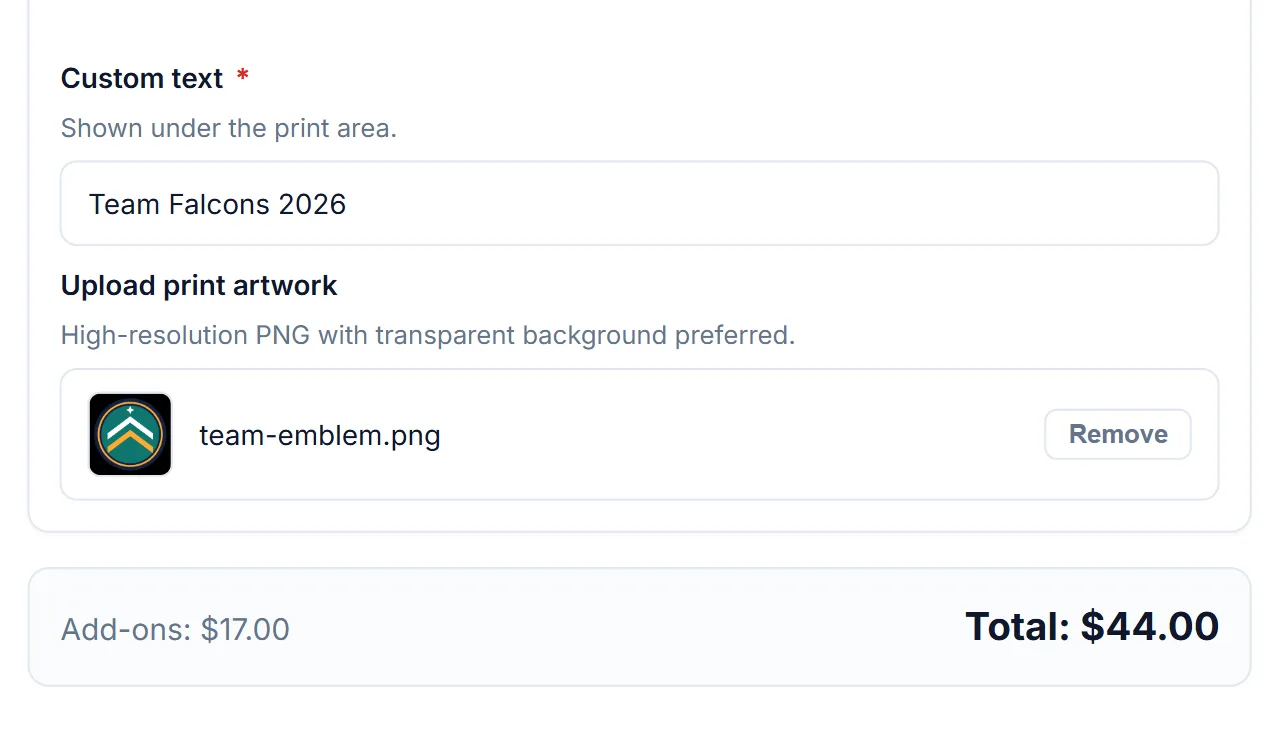
Add a Text field labeled Custom text and make it required. Use Description to say where the text is printed, and Placeholder to show the limit. Under Validation rules, set Maximum length to what fits your print area. The demo allows 20 characters.
Then add a File upload field labeled Upload print artwork:
- Set Allowed file types to Images, so shoppers can upload JPG, PNG, GIF, or WebP files.
- Set Maximum size (MB) high enough for print-quality artwork. The demo allows 10 MB.
- Use the description to ask for what your printer needs, such as a high-resolution PNG with a transparent background.
- Set a fixed price if artwork costs extra. It’s only charged when a file is uploaded.
Click Save group. The file upload guide explains how uploaded files are checked and stored privately.
Step 7: Test your WooCommerce t-shirt customization store
Open the T-shirt on your storefront and go through it like a customer. On the demo, Large, Navy, Front chest, the text Team Falcons 2026, and an uploaded logo add $17 to the $27 shirt, for $44 in total. Add it to the cart:
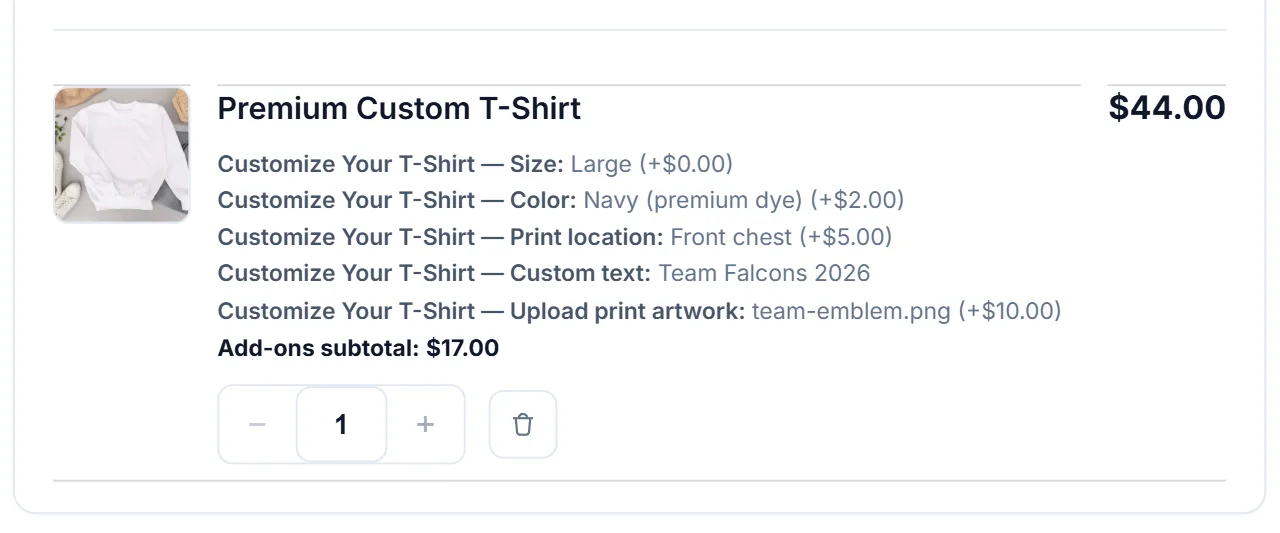
Place a test order and open it in WooCommerce → Orders, because the order is where WooCommerce t-shirt customization has to be right for printing. The size, color, print location, and text are listed under the item, and the artwork is under Add-on uploads with a Download link for your print team. The cart and order guide explains each line.
WooCommerce t-shirt customization FAQ
Can one order include shirts with different sizes and text?
Yes. In WooCommerce t-shirt customization with add-ons, each combination of choices becomes its own cart line, so a shopper can add a Large with one name and a Medium with another, and your team sees each shirt separately on the order.
Can customers see their design on the shirt before ordering?
Not as a live mockup. WooCommerce t-shirt customization with Smart Add-Ons collects the choices, text, and artwork file and saves them on the order. If you need a visual designer, pair it with a dedicated product designer tool.
Does Smart Add-Ons send orders to a print-on-demand service?
No. It saves every choice on the WooCommerce order. If you use a print-on-demand service, check how it reads order item details from WooCommerce.
Next steps
- Try the finished Premium Custom T-Shirt in the live demo store.
- Build a smaller personalized product with the personalized mug store tutorial.
- Compare Smart Add-Ons plans.


Comments