


Quick answer
How do you write a product description for a customizable product?
Lead with what the customer can create, explain what the base price includes, and describe the finished item: materials, sizes, and care. Spell out personalization limits such as characters and file types, set expectations on production time and proofs, and leave option-by-option details to the add-on field labels and descriptions.
Good WooCommerce product descriptions matter even more when shoppers are designing their own item. They can’t see the finished product yet, so the words have to answer what it will be like, what they can change, and what happens after they order. This guide gives seven practical tips for writing WooCommerce product descriptions for customizable products, with examples from the Smart Add-Ons demo store.
Where WooCommerce product descriptions appear
A WooCommerce product has two description fields, both covered in WooCommerce’s guide to managing products (opens in new tab):
- Short description: shown near the price, right above the options and the Add to cart button. Most shoppers read this first.
- Description: the longer text further down the page, for shoppers who want every detail before they buy.
On a customizable product there’s a third layer of copy: the labels and descriptions on your add-on fields. Each has its own job, and the tips below cover all three.
1. Lead with what the customer can create
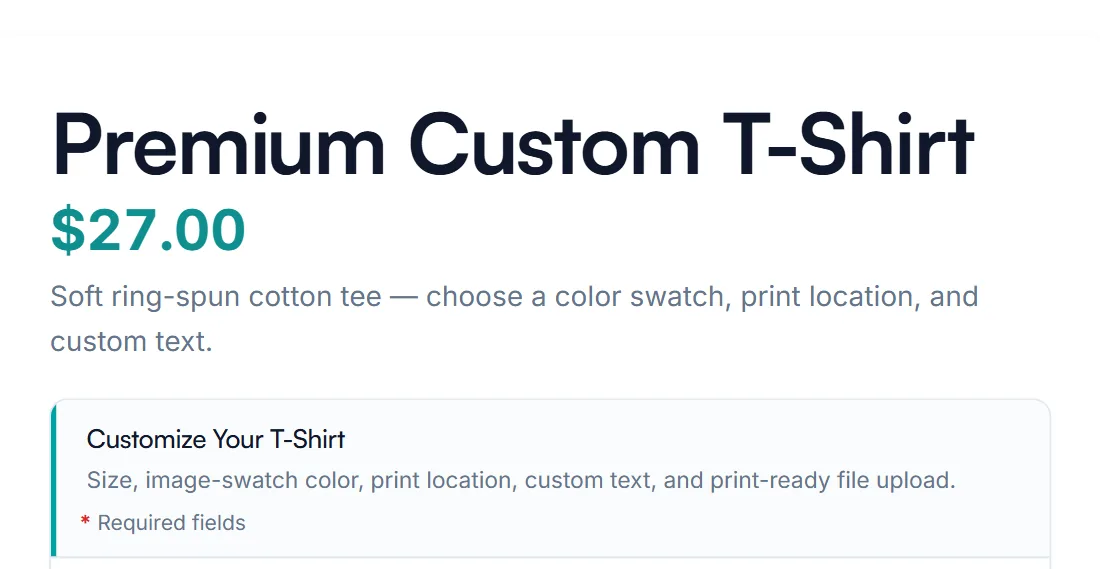
The short description should say, in one sentence, what the product is and what the shopper can personalize. The demo T-shirt’s reads: Soft ring-spun cotton tee — choose a color swatch, print location, and custom text. A shopper knows straight away that the options below are where the design happens.
2. Explain what the starting price includes
With add-ons, the price shown under the title is the starting point, and the total updates as shoppers choose. Say what’s included in that price, such as one line of engraved text or front printing, so extra-cost options don’t feel like surprises. The add-on pricing guide covers setting a clear base price.
3. Describe the finished product
Use the long description for what doesn’t change between orders: materials, dimensions, weight, fit, and care instructions. For a made-to-order table, that’s the wood, the finish, and the leg style. For a mug, it’s the capacity and whether it’s dishwasher safe. These details answer the questions a photo can’t.
4. Spell out personalization limits
Tell shoppers the rules before they start typing: how many characters fit, which fonts or colors are available, and which file types and sizes you accept. Make the description match your field settings. If a text field allows 20 characters, don’t promise a longer message.
5. Set expectations for after the order
Made-to-order items raise questions that off-the-shelf products don’t. Answer them in the description:
- How long production takes before shipping.
- Whether customers get a proof to approve.
- What happens if they spot a typo after ordering.
- Whether personalized items can be returned.
6. Write WooCommerce product descriptions for people who search
Use the words customers use, such as personalized, custom, engraved, or printed, together with the product type. Write unique text for each product rather than copying a supplier’s description or reusing the same paragraph across similar items. Google’s guide to creating helpful content (opens in new tab) explains why original, useful copy matters, and a clear meta description can influence the snippet (opens in new tab) shown in results.
7. Let field labels handle option details
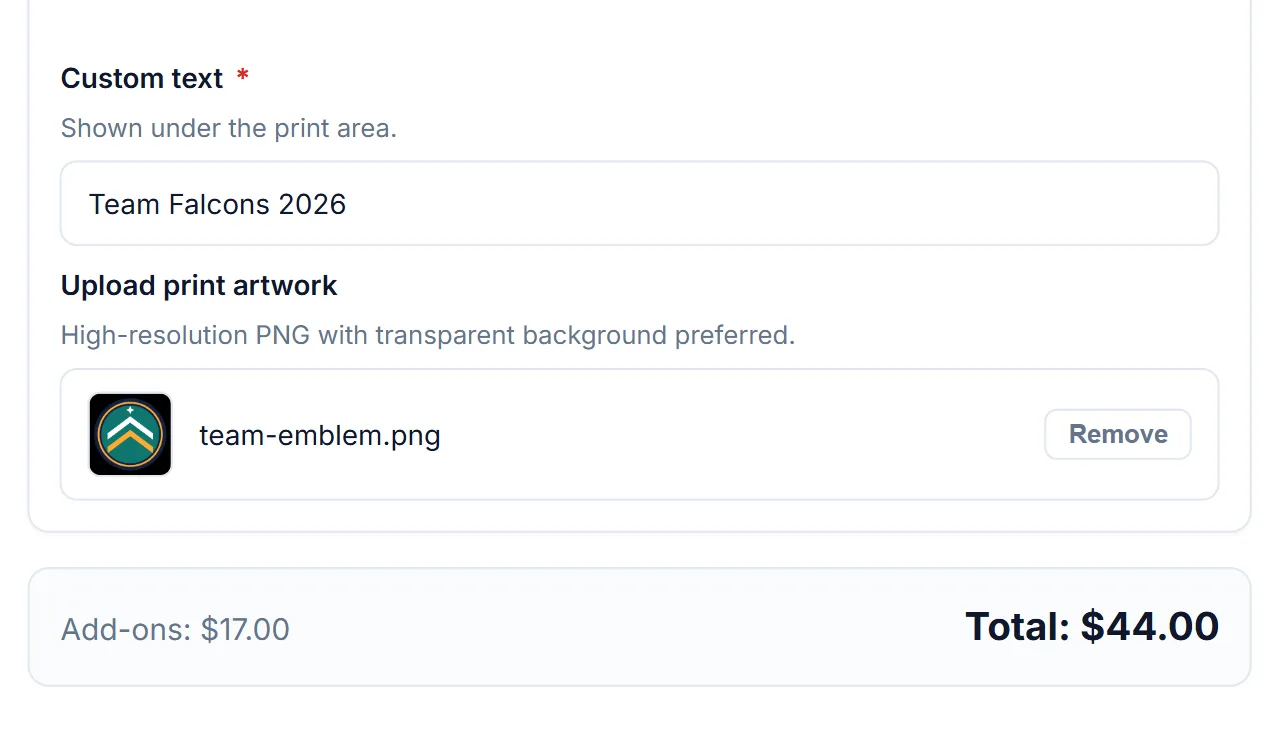
Don’t turn the description into a list of every option and price. Put option-level help where shoppers need it, in the add-on field itself. Each Smart Add-Ons field has a Description shown below its label, which is the right place for a note such as the print area or the ideal image resolution.
Before and after: a personalized mug
Before: High-quality ceramic mug. Great gift. Personalize it today!
After (short description): 12 oz matte ceramic mug with your name or message, up to 30 characters, in white, black, or teal.
After (description): Dishwasher safe. Your text is laser-etched exactly as typed, so please check spelling before ordering. Personalized mugs are made to order and ship within three working days.
The rewrite answers what the mug is, what can be changed, and what happens next, in fewer words than a generic sales pitch. Adjust the details to your own products and policies.
WooCommerce product descriptions FAQ
Should I list every option and price in the description?
No. The add-on fields already show each option and its price, and the total updates as shoppers choose. Summarize what can be customized, and keep prices in the fields so they’re always current.
How long should a short description be?
One or two sentences is enough for most WooCommerce product descriptions. It sits right above the options, so keep it short enough that shoppers still see the fields without scrolling far.
Can I reuse one description for similar products?
Share the structure, but write the details for each product. Different sizes, materials, and uses deserve their own words, and unique copy helps shoppers compare products.
Next steps
- Set up a complete store in the custom product store guide.
- See a full product build in the personalized mug tutorial.
- Compare Smart Add-Ons plans.
- Once the copy is written, make the page findable with WooCommerce product page SEO.
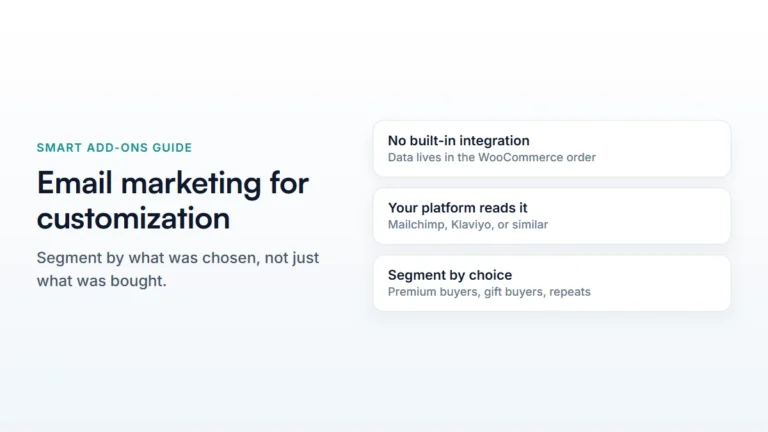
- Reuse that same detail in your emails — see WooCommerce email marketing for customization stores.

Comments