


Quick answer
How do you create radio button options for a WooCommerce product?
Create WooCommerce product radio buttons with a Radio field from a product add-ons plugin. In Smart Add-Ons, add the field, enter a label, value, and price for each option, and save. Shoppers pick exactly one option, and any extra cost is shown right beside it.
Box size, finish, crust, material: when a shopper must choose one option from a short list, WooCommerce product radio buttons are the clearest way to ask. Every choice is visible at once, and each one shows what it adds to the price. This guide shows how to create WooCommerce product radio buttons with Smart Add-Ons. It assumes the plugin is installed. If it isn’t, start with the installation guide.
When radio buttons are the right choice
- Exactly one answer. A box is either 6, 12, or 24 cookies, never two sizes at once. For more than one answer, use checkboxes. Nielsen Norman Group explains the difference in checkboxes vs. radio buttons (opens in new tab).
- A short list. Two to five options fit comfortably. For longer lists, a dropdown saves space.
- Prices differ. Radio buttons show each option’s extra cost, which a dropdown can’t.
How to create WooCommerce product radio buttons
- Go to Smart Add-Ons → Add-On Groups. Click + Add group, or open an existing group.
- Click + Add field and set Field type to Radio.
- Set Field label, such as Box size. Use Description for context shoppers need, such as Larger boxes include more flavors.
- For each choice, fill in Label, Value, and Price, then click Add option for the next one. Label is what shoppers see, Value is the internal name conditional rules use, and Price is what the option adds.
- Turn on Required field if every order needs an answer.
- Set Scope to the products or category that need it, and click Save group.
Show a price next to each option
Each option’s price appears beside it. Options that add nothing show no price at all, so the base choice looks like the default.
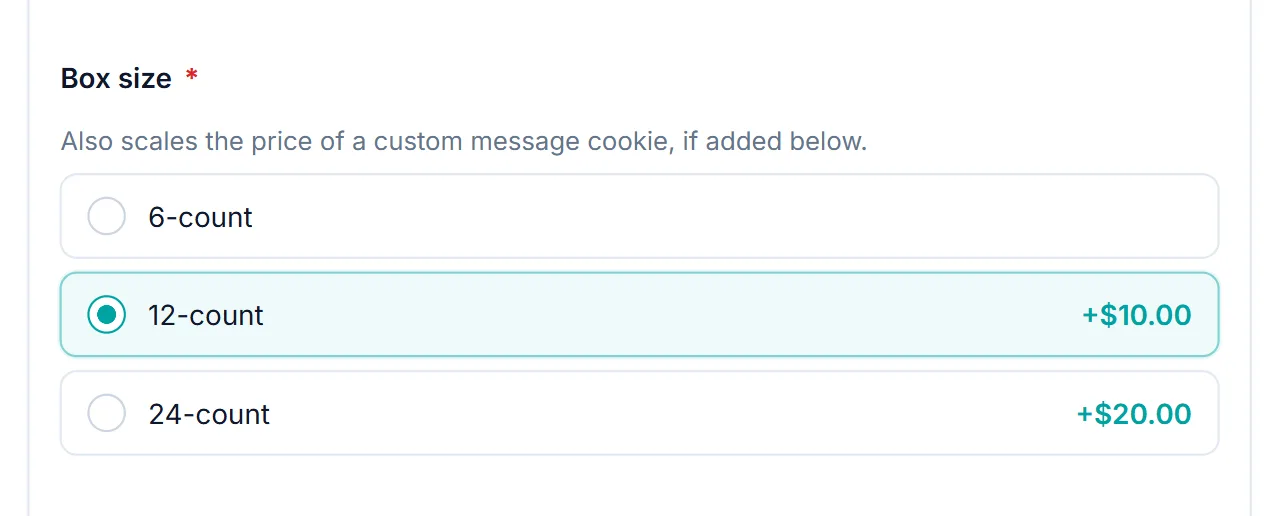
How the price reads depends on the field’s Price type: a fixed amount shows as +$10.00, a percentage as +10%, and a formula as (calculated at checkout) because it depends on other choices. The add-ons total includes whichever option is selected. The add-on pricing guide covers all three.
Required or optional?
If the field is required and the shopper doesn’t pick an option, the product isn’t added to the cart and they see a message such as: Box size is required.
What shoppers see in the cart
The selected option’s label and its price appear on the cart line, and carry through to the order in WooCommerce → Orders and the order email. You can try it on the Build-Your-Own Cookie Box in the live demo store.
WooCommerce product radio buttons FAQ
Can shoppers select more than one radio button?
No. WooCommerce product radio buttons allow exactly one choice. For several choices, use a Checkboxes field instead.
Can shoppers unselect a radio button?
Not by clicking it again. If the choice is optional, add a first option such as None with no price.
Do WooCommerce product radio buttons show prices?
Yes. Each option that costs extra shows its price beside it, such as +$3.00, and options with no extra cost show nothing.
Next steps
- Read the radio field reference for every setting.
- Choosing between colors or patterns? The image selection field works like radio buttons with a picture for each option.
- Reveal extra fields based on the chosen option with conditional logic, the technique behind the gift wrap guide.


Comments