

Quick answer
How do you move WooCommerce product add-ons to another store?
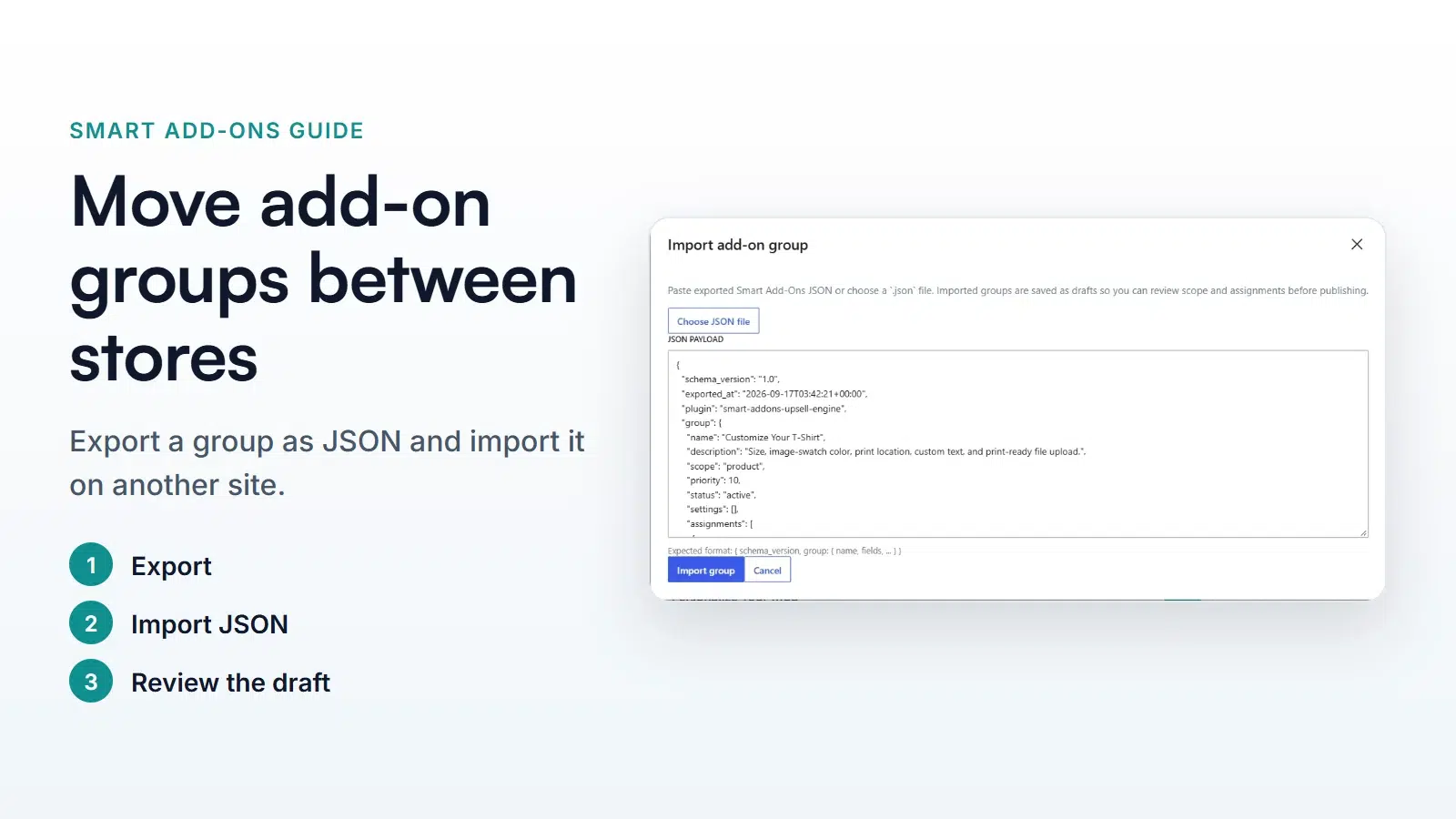
In Smart Add-Ons, click Export on an add-on group to download it as a JSON file. On the other store, go to Smart Add-Ons → Add-On Groups, click Import JSON, choose the file or paste its contents, and click Import group. The group is created as a draft, so you can pick its products and check it before it goes live.
If you build add-ons on a staging site, run more than one store, or set up client shops, you’ll want to export WooCommerce product add-ons from one site and bring them into another. Smart Add-Ons saves each add-on group as a portable JSON file and imports it on any store with the plugin installed. This guide walks through both sides in three steps, explains what the file contains, and lists what to check before you publish the imported group.
To reuse a group on the same store, duplicating it is quicker. See how to duplicate groups and use templates.
Step 1: Export WooCommerce product add-ons as JSON
On the store that has the group, go to Smart Add-Ons → Add-On Groups and click Export on the group. If the group is already open in the editor, use Export JSON at the bottom instead.

Your browser downloads a file named after the group, such as smart-add-ons-customize-your-t-shirt.json. Exporting only reads the group, so it doesn’t change anything on the store.
What’s in the export file
- The group: name, description, scope, priority, status, and its Visibility & layout settings.
- Where it’s assigned: the product or category it’s attached to, saved by ID.
- Every field: label, type, description, placeholder, required setting, options, field settings, and prices.
- Conditional logic: rules refer to fields by their key, such as
print_location, so they reconnect correctly on import.
Here’s an excerpt from the real export of the demo store’s T-shirt group:
{
  "schema_version": "1.0",
  "exported_at": "2026-09-17T03:42:21+00:00",
  "plugin": "smart-addons-upsell-engine",
  "group": {
    "name": "Customize Your T-Shirt",
    "scope": "product",
    "status": "active",
    "assignments": [
      { "target_type": "product", "target_id": 76 }
    ],
    "fields": [
      {
        "key": "shirt_size",
        "label": "Size",
        "type": "dropdown",
        "required": true,
        ...
The file doesn’t include analytics, orders, or files customers have uploaded. It only describes how the group is set up.
Step 2: Import the group on the other store
- Make sure Smart Add-Ons is installed and active on the destination store. The installation guide covers setup.
- Go to Smart Add-Ons → Add-On Groups and click Import JSON.
- In Import add-on group, click Choose JSON file and pick the exported file, or paste its contents into JSON payload.
- Click Import group.
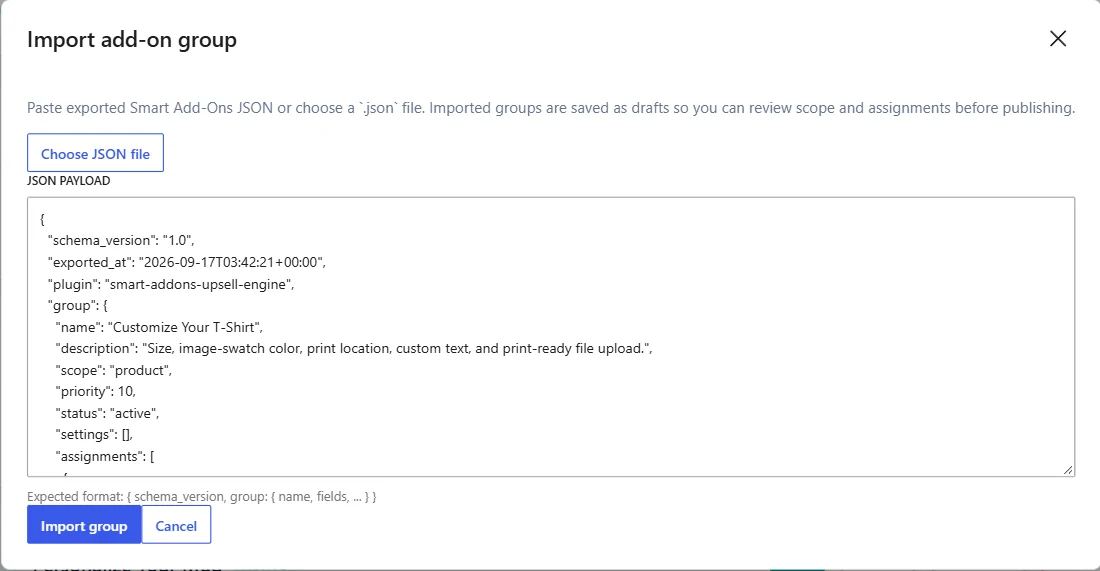
If something is wrong with the file, the dialog tells you before anything is saved. For example, a group needs a name and at least one field. Editing a JSON file by hand is where most mistakes happen, and a JSON primer (opens in new tab) helps if you need to.
Step 3: Review the imported draft and publish
When the import succeeds, a message confirms Add-on group imported as draft, and the group opens in the editor. Imported groups are always saved as drafts, even if the original was active, so shoppers don’t see anything yet.
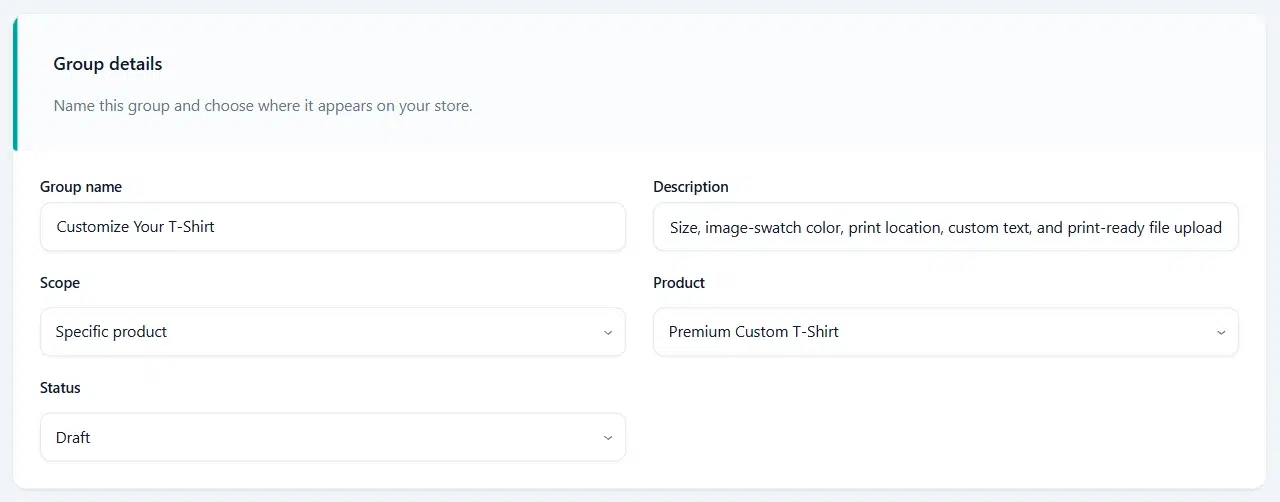
Before you set Status to Active and click Save group, check these:
- Product or category: assignments are saved by ID, and IDs differ between stores. On a new store, ID 76 may be a different product or none at all, so choose the right Product or Category again.
- Image swatches: swatches that use a Media Library image are linked by image ID, which also differs between stores. Pick those images again. Color swatches with a hex code import exactly.
- Formula prices: formulas that refer to another field, such as
{field:12}, keep the original store’s field ID. Update them to the new field IDs. The formula pricing guide explains field references.
More ways to use export and import
- Staging to live: build and test on a staging copy, then export WooCommerce product add-ons to the live store once they’re right.
- A backup before big changes: export a group before reworking it. If you don’t like the result, import the file to get the earlier version back as a new draft.
- Agencies and multiple stores: keep a library of proven groups as files and import them into each new client store.
Export WooCommerce product add-ons FAQ
Can I export all add-on groups at once?
No. Each export file holds one group, so export and import each group you need separately.
Does importing overwrite an existing group?
No. Importing always creates a new draft group, even if a group with the same name already exists. Delete or deactivate the old group yourself once the new one is ready.
Do conditional logic rules survive the import?
Yes. When you export WooCommerce product add-ons, rules refer to fields by key rather than by ID, and they’re reconnected to the new fields on import.
Next steps
- Reuse groups on the same store with duplicates and templates.
- See how the imported T-shirt group works for shoppers in the T-shirt customization tutorial.
- Compare Smart Add-Ons plans.


Comments