

Quick answer
How does a WooCommerce live price preview work?
As the shopper picks options, the product page sends the current selection to your store and shows the returned total — "Add-ons: $12.00" and "Total: $39.00". In Smart Add-Ons the maths happens on the server using the same calculator that prices the cart, about a third of a second after the shopper stops changing things, so the number on the page and the number at checkout cannot disagree.
A shopper who can’t see what their choices cost does one of two things: adds to cart to find out, or leaves. A WooCommerce live price preview removes that step — the total moves as they choose. This is a short piece about how it actually works in Smart Add-Ons, because the implementation detail is the reason you can trust the number.
What a WooCommerce live price preview shows
Below the add-on fields, two figures appear as soon as a priced option is selected:
- Add-ons — what the chosen options add on top of the product.
- Total — the product plus those options, at the current quantity.
While a new figure is being worked out the panel reads Calculating price…, and if nothing priced is selected yet, it isn’t shown at all rather than sitting there at zero.
Why the price is calculated on the server
The obvious way to build a live price preview is to add the numbers up in the browser. It’s instant and it costs nothing. It’s also how you end up with a product page that promises $39.00 and a cart that charges $41.50.
That gap appears the moment pricing stops being simple addition — a percentage of the product price, a formula that reads another field, a flat fee that shouldn’t multiply by quantity, a variation with its own price. Two separate implementations of those rules will drift apart, and the one the customer believes is the one on the product page.
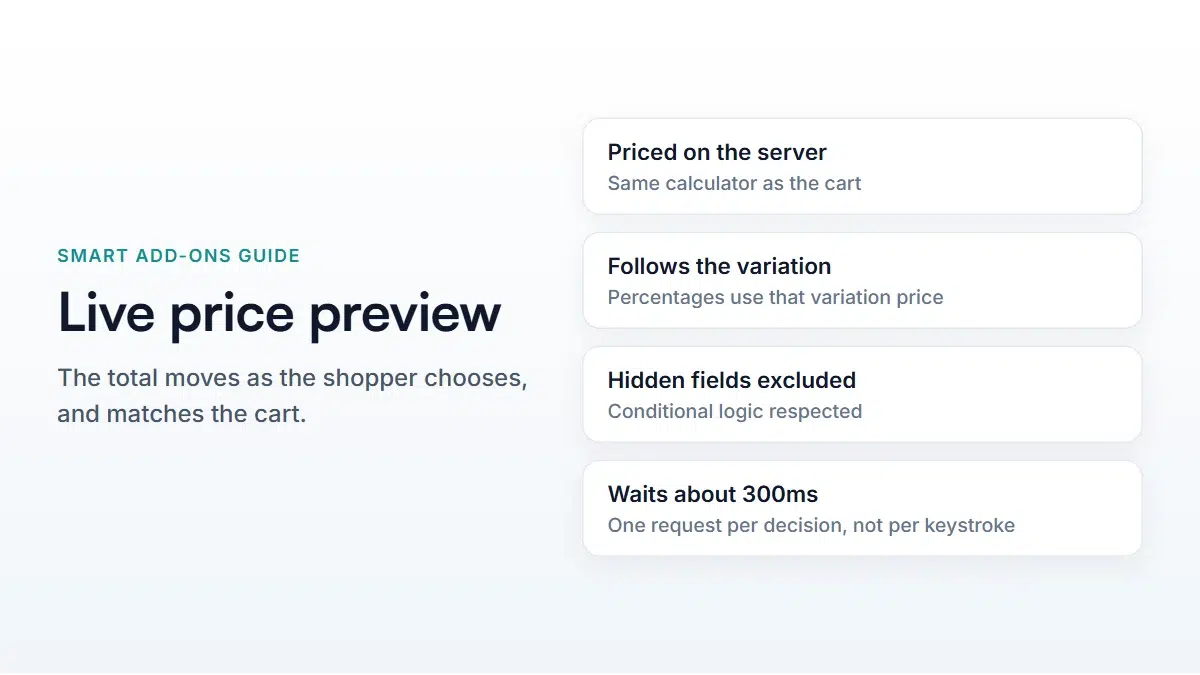
So the preview doesn’t do the maths. It sends the current selection to your store and asks what it costs, and the answer comes back from the same price calculator that prices the line when it reaches the cart. There is one implementation of your pricing rules, not two.

What triggers a recalculation
Three things, each of which can change the answer:
- A changed selection. Ticking, unticking, typing, choosing.
- The quantity. Per-quantity options scale with it; flat fees don’t.
- The chosen variation. On a variable product the preview follows the selected variation, so a percentage-priced option is a percentage of that variation’s price.
Hidden fields don’t get counted
Worth knowing if you use conditional logic: only the add-ons currently visible to the shopper are sent for pricing. If a field was answered and then hidden because an earlier choice changed, its value stops counting towards the total the moment it disappears.
That’s the behaviour you want — nobody should be charged for an option they can no longer see — but it’s worth testing on your own conditional rules, because it means the total can go down when a shopper changes an earlier answer.
The 300 millisecond pause
Every keystroke in a text field could in principle change the price. Asking the server on each one would mean dozens of requests to type a short gift message.
Instead the preview waits until the shopper has stopped for about a third of a second, then asks once. If they start typing again before the answer arrives, the in-flight request is cancelled rather than left to land late and overwrite the newer figure with a stale one. That’s why the total never flickers backwards while someone is mid-word.
For a WooCommerce live price preview, three hundred milliseconds is short enough to feel immediate and long enough that a fast typist generates one request instead of twenty. It also keeps the load on your store proportional to decisions made rather than keys pressed, which matters on a busy product page.
If your WooCommerce live price preview isn’t updating
- Nothing priced is selected. The panel stays hidden until an option with a price is chosen. Options priced at 0 don’t bring it out.
- A page cache is serving stale HTML. The add-on data is embedded in the page, so purge the cache after changing a group and check again.
- A JavaScript error from another plugin. Open the browser console on the product page; one broken script can stop every other one on the page.
Making the most of it
A WooCommerce live price preview changes what you can reasonably sell. Options you’d hesitate to offer because the pricing is hard to explain in a sentence — priced by size, by quantity, by material — become straightforward when the shopper can simply watch the number move.
Two things worth doing once it’s working. Put prices beside individual options as well, so people can see what each choice contributes rather than only the running total. And check the page on a phone, where the total often scrolls out of view exactly when someone is choosing the expensive option.
You can try this on the Smart Add-Ons demo store (opens in new tab) — change the pizza size and watch the extra-cheese price follow it — or read the pricing guide for how each price type behaves. WooCommerce’s product management documentation (opens in new tab) covers setting the base price the preview builds on.



Comments