


Quick answer
Can you add WooCommerce product variations add-ons?
Yes, with one distinction worth understanding. Add-on groups attach to a product, a category, or the whole store — not to an individual variation — so every variation of a variable product shows the same fields. But the selected variation is tracked, so percentage and formula pricing use that variation's price, and cart validation and analytics record it. If a field should only appear for one variation, use conditional logic or split the product.
“Can I put different options on different variations?” is one of the most common questions about WooCommerce product variations add-ons, and most answers are either an unqualified yes or an unqualified no. Neither is right. This is what actually happens today, where the limit really is, and the two workarounds that solve almost every real case.
Variations and add-ons solve different problems
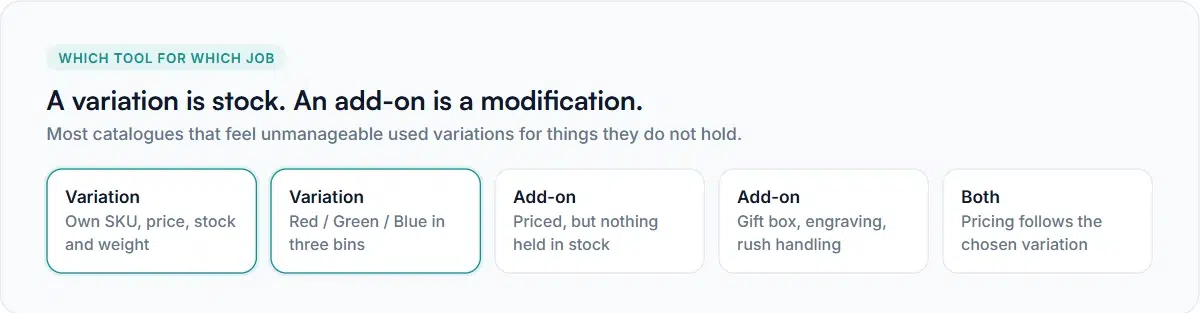
Before the workarounds, the distinction that saves the most time. A variation is a separate item you hold: its own SKU, price, stock and weight. An add-on is a modification to whatever item is being bought: it has a price but no stock of its own.
Red / Green / Blue in three warehouse bins is a variation. “Add a gift box” is an add-on. Most stores that find variations painful have been using them for things they don’t stock — which produces a combinatorial explosion of variations nobody wants to manage. The options versus variations guide goes through where to draw that line.
What works today
WooCommerce product variations add-ons work on variable products, and more of the behaviour follows the variation than people expect.
- The group renders on a variable product exactly as on a simple one.
- The chosen variation is tracked. When the shopper picks a combination, the page notices.
- Pricing follows the variation. This is the important one. A percentage-priced option on a $30 small and a $50 large charges a percentage of $30 and $50 respectively, not of the parent product’s displayed price.
- Formula pricing sees the variation’s price too, so a formula referencing the base price behaves per variation.
- Cart validation and analytics record the variation, so a required field is enforced against the item actually being bought.
In other words, “add-ons don’t understand variations” is not true. For pricing — the part that costs you money when it’s wrong — they do.
The actual limit on WooCommerce product variations add-ons
A group is assigned to a product, a category, or globally. There is no “assign this group to the Large / Blue variation” setting. So every variation of a product shows the same fields.
That matters when an option is genuinely meaningless for some variations. A framed print might offer three frame colours for the framed variations and nothing at all for the unframed one, and out of the box every variation shows the frame question.
Workaround 1: ask the question yourself
Instead of driving the add-on from the variation dropdown, put the choice in the add-on group and drive the rest with conditional logic.
- Add a field for the distinction — Framing, with Framed and Unframed.
- Add the dependent field — Frame colour.
- Set a rule on frame colour: show when Framing is Framed.
- Price the framed choice through the add-on rather than through a variation.
The shopper gets a page that responds to what they pick, and you get one product instead of a variation matrix. This is the right answer whenever the distinction isn’t something you hold in stock — which is most of the time.
Workaround 2: split the product
When the variations genuinely are different stocked items with genuinely different questions, two products with a product-scoped group each is cleaner than one product fighting its own options.
It costs you a little SEO surface and a little catalogue tidiness, and it buys complete control. Build the first group, then duplicate it for the second product and edit what differs, so you’re not rebuilding from scratch.
Choosing between them
| Situation | Do this |
|---|---|
| You hold separate stock per combination | Keep variations; add a group to the product |
| The “variation” is really a customisation | Move it into the add-on group entirely |
| Some options only apply to some variations | Conditional logic on a field you control |
| Genuinely different products in one listing | Split into separate products |
| Price differs per variation only | Nothing to do — pricing already follows it |
Common questions
Will a percentage add-on use the parent price or the variation price?
The variation’s price, once a variation is selected. This holds in the live price preview and again when the line is priced in the cart, because both go through the same calculation.
Can a required add-on block adding a variation to the cart?
Yes. Validation runs against the item being added, including its variation, so a required field must be answered whichever combination is chosen. That’s worth remembering before you mark a field required on a product where it only applies to some variations.
Do WooCommerce product variations add-ons show in the cart and order?
They appear the same way as on a simple product — the variation attributes first, then the add-on choices beneath. The cart and order guide shows what the customer and your team each see.
Set up well, WooCommerce product variations add-ons let one listing cover real stock differences and real customisation at the same time. If you’re deciding how to structure a catalogue from scratch, start with the options versus variations comparison, and see WooCommerce’s own variable product documentation (opens in new tab) for how variations themselves are set up.


Comments