

Quick answer
How does WooCommerce product option validation work?
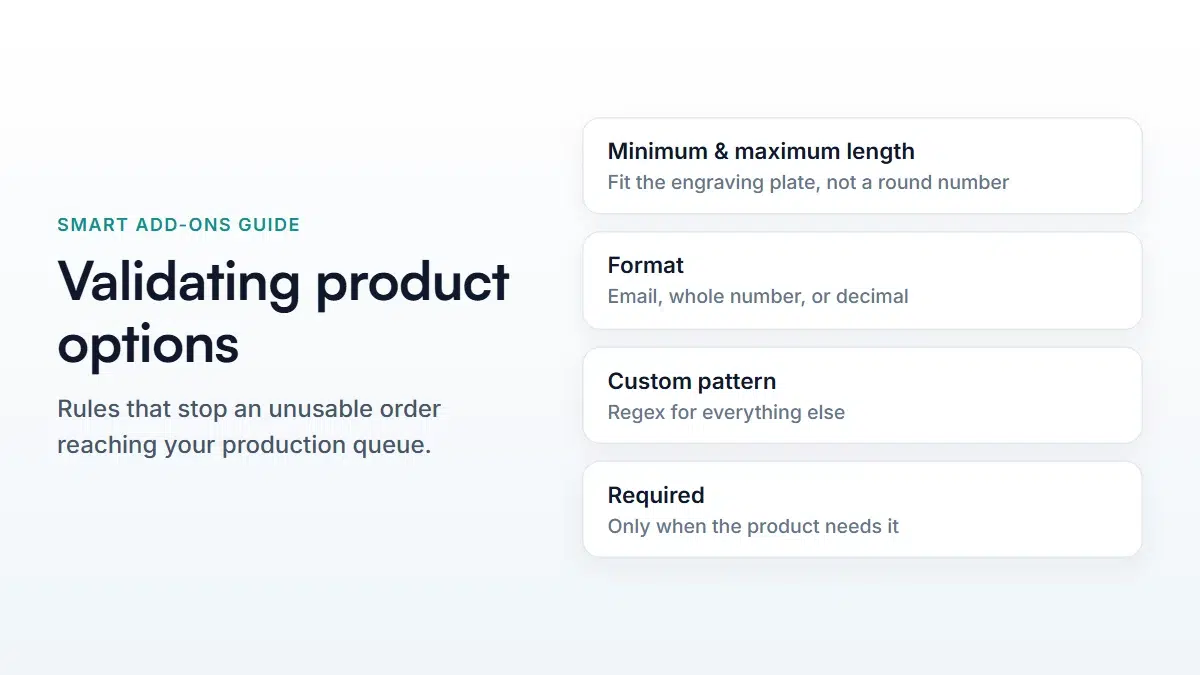
Open the field in Smart Add-Ons and set its rules under Validation: Minimum length, Maximum length, Format (Any text, Email address, Whole number, or Number), and a Custom pattern for anything else. Mark the field Required if the product can't be made without it. The rules run in the browser as the shopper types and again on the server before the item reaches the cart.
WooCommerce product option validation is what stands between a customised order and an unusable one. Every unusable order starts the same way: a field that accepted something it shouldn’t have. An engraving with 60 characters that only fits 20. A phone number typed as “call me”. An email address missing the @. WooCommerce product option validation is how you stop those at the product page instead of finding them in your production queue on Monday.
Where WooCommerce product option validation lives
WooCommerce product option validation is configured per field. Open Smart Add-Ons → Add-On Groups, open the group, and expand the text, textarea or custom price field you want to constrain. The validation controls sit under the field’s settings. They apply to the text-entry field types — for dropdowns, radios and image select, the options themselves are the constraint.
Minimum and maximum length
Two number fields. Maximum length is the one that earns its keep: set it to whatever physically fits on the product. If a shopper exceeds it, they see “Engraving must be no more than 20 characters.” — your field’s label, then the rule.
Minimum length is for fields where a single character is obviously a mistake. A gift message with one letter in it is almost always someone testing whether the field works.
Format
A dropdown with four choices, which covers most of what stores actually need:
- Any text — the default, no format rule.
- Email address — for a “send the gift notification to” field. Rejects with “must be a valid email address”.
- Whole number — quantities, seat counts, floor numbers. No decimals.
- Number (decimal allowed) — measurements, weights, anything with a fractional part.
Custom pattern
For anything the four formats don’t cover, the Custom pattern (regex) field takes a regular expression. A few that come up often:
^[A-Za-z ]+$— letters and spaces only, for a name to be embroidered.^[A-Z]{2}[0-9]{6}$— a fixed reference format, two letters then six digits.^[0-9]{5}(-[0-9]{4})?$— a US ZIP, with the optional +4.
Don’t write the delimiters — enter ^[A-Za-z ]+$, not /^[A-Za-z ]+$/. A pattern that isn’t valid is discarded when you save rather than saved and silently failing on every order, so if your regex disappears after saving, that’s why.
Required is a separate decision
Marking a field required is not a validation rule so much as a statement about the product: can you make and ship this item without an answer? If yes, leave it optional. Every required field is a place an order can fail.
The two combine sensibly. An optional engraving field with a 20-character maximum means “you don’t have to engrave this, but if you do, keep it short” — which is usually exactly what you want.
Why the rules run twice
This is the part worth understanding, because it’s what separates real WooCommerce product option validation from a bit of JavaScript decoration.
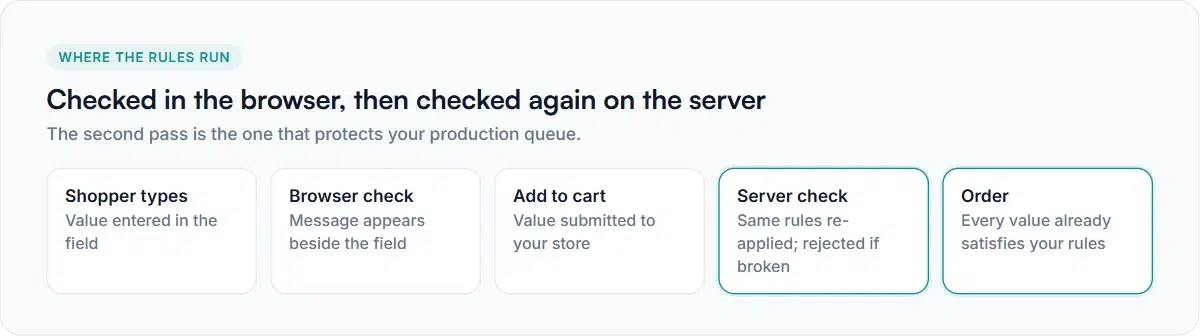
The rules run in the browser as the shopper types, so the message appears immediately next to the field. That’s the user-experience half, and on its own it stops nothing — anyone can disable JavaScript, and automated submissions never run it at all.
So the same rules run again on the server when the item is added to the cart. If the submitted value breaks a rule, the add to cart is rejected and the shopper is told why. That second pass is the one that actually protects your production queue, and it means an order in your admin has already satisfied every rule you set.
Rules that aren’t text rules
Two more constraints worth knowing, because people look for them in the validation panel and they live elsewhere:
- Quantity limits sit with the pricing rules, not validation. See the minimum and maximum guide.
- File type and size limits are set per upload field, and are enforced by content inspection rather than by trusting the filename.
Getting WooCommerce product option validation right first time
- Look at ten recent orders with customised items. The rule you need is usually already visible in what people actually typed.
- Set the maximum length from the physical product, not from a round number. Measure the engraving plate.
- Reach for Format before regex. A pattern you can’t read in six months is a maintenance problem.
- Write the rule into the field description in plain words, so the error message is a reminder rather than a surprise.
- Test it as a shopper. Type something that should fail, and confirm you can’t add it to the cart.
Common questions
Can I validate a dropdown or radio field?
There’s nothing to validate — the shopper can only pick one of the options you defined, and the server checks the submitted value is one of them. Use conditional logic if a choice should only be available in some situations.
Can I show my own error message?
The messages are generated from the field’s label and the rule that failed, so they stay accurate if you rename the field. To guide people before they make a mistake, use the field description.
Do the rules apply to existing orders?
No. WooCommerce product option validation runs when an item is added to the cart, so orders placed before you added a rule keep exactly what the customer submitted. Changing a rule never rewrites history.
If you’re setting up a store from scratch, the first week checklist covers the order to do this in, and WooCommerce’s own order management guide (opens in new tab) explains what happens after a validated order lands.


Comments