


Quick answer
How do you show or hide WooCommerce product options based on other choices?
Use WooCommerce conditional product options from a product add-ons plugin. In Smart Add-Ons, open a field, tick Enable conditional logic, choose Show this field when or Hide this field when, and add rules such as Add padded laptop sleeve Is checked. The field appears or disappears as the shopper chooses.
Long product forms scare shoppers off. Most people buying a backpack don’t need a laptop sleeve size, and most T-shirt buyers don’t need notes about a back print. WooCommerce conditional product options solve this: a follow-up field stays hidden until the choice that needs it is made. This guide shows how to set up conditional logic in Smart Add-Ons, what each rule setting does, and six real examples from the demo store. It assumes the plugin is installed. If it isn’t, start with the installation guide.
How to add WooCommerce conditional product options
- Go to Smart Add-Ons → Add-On Groups and open the group. Both fields, the one that decides and the one that appears, must be in the same group.
- If you just added the fields, click Save group first. Rules can only point to fields that have been saved.
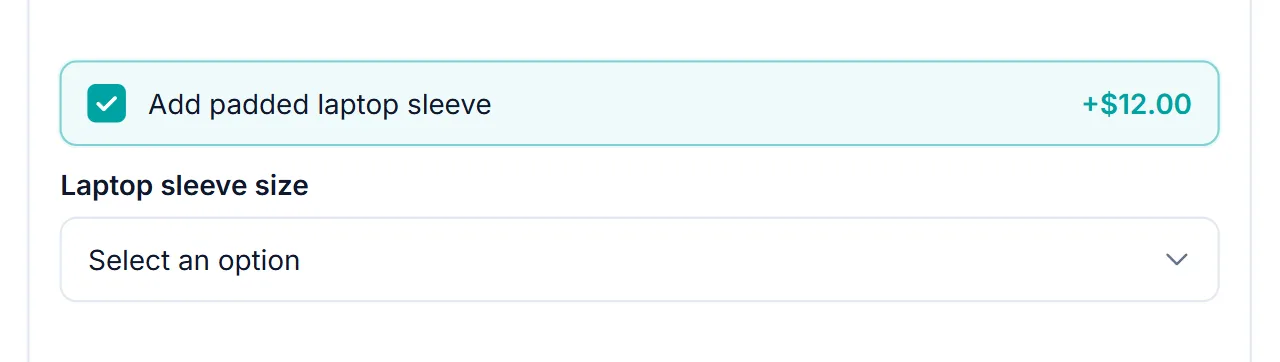
- Open the field that should appear or disappear, such as Laptop sleeve size, and tick Enable conditional logic.
- Set Action to Show this field when or Hide this field when.
- Build the rule: choose the field under When field, pick an Operator, and set the Value if the operator needs one.
- Click Add rule for more rules, set Match rules, and click Save group.
On the product page, the rule runs as soon as the shopper makes a choice, with no page reload.
The eight operators, and when to use each
- Is checked / Is not checked: for a Checkbox (toggle), such as Add gift wrapping. For Checkboxes, Is checked means at least one box is ticked.
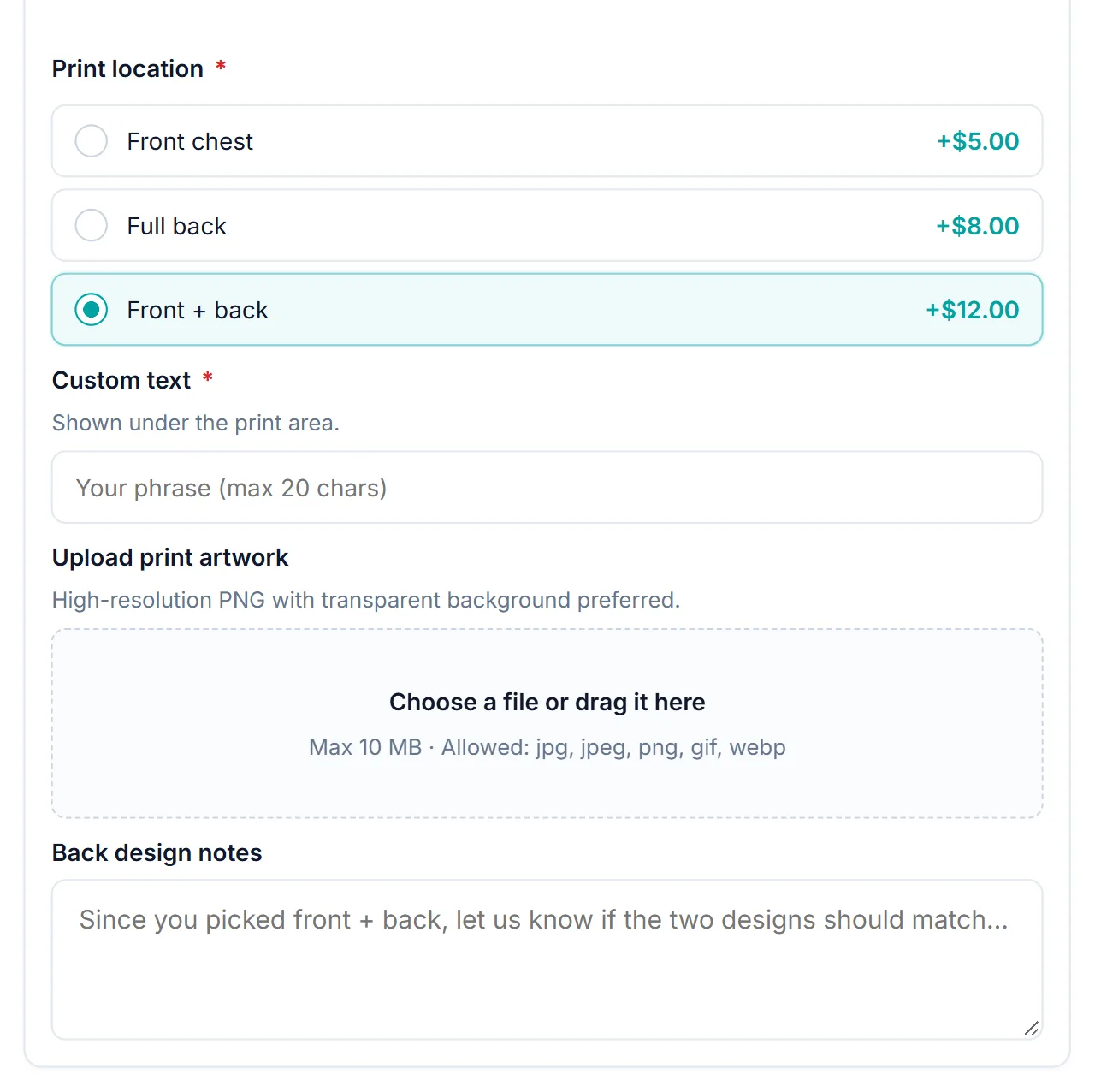
- Equals / Does not equal: for Radio, Dropdown, and Image selection fields, such as Print location Equals Front + back. For Checkboxes, Equals means that option is one of the ticked ones.
- Contains / Does not contain: matches part of a value, ignoring upper and lower case. Useful for Checkboxes and typed text.
- Is empty / Is not empty: for typed fields, such as showing a Font style field only once Engraving text is not empty.
When the chosen field has options, the Value box becomes a list of those options, so you pick Walnut instead of typing it. For typed fields, you enter the value yourself.
Show when or hide when, and AND or OR
Action decides the starting point. With Show this field when, the field is hidden until the rules match, which suits follow-up questions. With Hide this field when, the field is visible until the rules match, which suits removing an option that no longer applies, such as hiding Gift message when Ship directly to me is ticked.
Match rules combines several rules. All rules match (AND) needs every rule to be true, such as Material Equals Walnut and Size Equals Large. Any rule matches (OR) needs just one, such as Dietary preference Equals Vegan or Dietary preference Equals Gluten-free.
What happens to hidden fields
- They aren’t required. A required field that is hidden doesn’t block Add to cart.
- They aren’t charged. A priced field only counts toward the total while it’s visible.
- They don’t reach the cart. Only visible fields appear on the cart line and the order.
Six examples from the demo store
- Travel Backpack Builder: Laptop sleeve size shows when Add padded laptop sleeve Is checked.
- Premium Custom T-Shirt: Back design notes shows when Print location Equals Front + back.
- Personalized Gift Box: Recipient name, Gift message, and Upload card artwork show when the Add-ons checkboxes include Handwritten card.
- Custom Furniture: Add 3-year extended warranty shows when Material Equals Walnut.
- Custom Pizza Builder: Add vegan cheese shows when Dietary preference Equals Vegan.
- Build-Your-Own Cookie Box: Message for the custom cookie shows when Flavor mix-ins include Custom message cookie.
Showing information only when it’s needed is a well-known usability pattern called progressive disclosure (opens in new tab), and it’s what keeps a product form with a dozen possible options feeling short.
WooCommerce conditional product options FAQ
Can a condition use a field from another group?
No. WooCommerce conditional product options in Smart Add-Ons can only refer to other saved fields in the same group, so keep related fields together.
Can I combine several rules?
Yes. Add as many rules as you need and set Match rules to All rules match (AND) or Any rule matches (OR).
Are hidden WooCommerce conditional product options charged?
No. Hidden fields aren’t required, aren’t priced, and don’t appear in the cart or on the order.
Next steps
- Read the conditional logic reference for every setting.
- Build a complete example step by step in the gift wrap guide.
- See how hidden and visible fields change what’s charged in the add-on pricing guide.
- Splitting a long form into steps? A WooCommerce product builder uses one add-on group per step.


Comments