


Quick answer
How do you let customers enter their own price on a WooCommerce product?
Add a WooCommerce custom price field, called Customer-defined price in Smart Add-Ons, with a product add-ons plugin. In Smart Add-Ons, add the field, set a minimum and maximum amount if you want limits, choose whether the amount is charged per item or once per order line, and save. Whatever the shopper enters is added to the product price.
Some amounts only the shopper can decide: a tip for the team that packs the order, a donation to a cause you support, or a top-up on a gift card. A fixed-price add-on can’t handle that. This guide shows how to add a WooCommerce custom price field with Smart Add-Ons, set sensible limits, and avoid the one setting that can charge a tip several times over. It assumes the plugin is installed. If it isn’t, start with the installation guide.
What a custom price field is good for
- Tips. Add a tip for our gift-wrapping team, or for the kitchen on a food order.
- Donations. Add a donation to our tree-planting fund, on top of the product, without a separate donation plugin.
- Pay extra if you want. Sell a digital product at its normal price and let fans add an amount to support the maker.
How to add a WooCommerce custom price field
- Go to Smart Add-Ons → Add-On Groups. Click + Add group, or open an existing group.
- Click + Add field and set Field type to Customer-defined price.
- Set Field label, such as Add a tip for our gift-wrapping team. Use Description to say where the money goes.
- Under Customer price limits, set Minimum amount and Maximum amount, or leave them empty for no restriction.
- Under Pricing, choose Quantity pricing (see the next section).
- Leave Required field off for tips and donations, set Scope to the products or category that need it, and click Save group.
Per item or once per order line?
Quantity pricing decides what happens when a shopper buys more than one:
- Per product quantity (the default) multiplies the amount by the quantity. A $5 amount on 3 items adds $15.
- Flat fee (once per line item) charges the amount once, whatever the quantity. A $5 tip on 3 items adds $5, and the field tells shoppers it’s charged once per cart line, regardless of product quantity.
What shoppers see
The field shows your currency symbol next to an amount box. If you set limits, a hint appears below it, such as Enter an amount between $0.00 and $15.00. As the shopper types, the add-ons total and the product total update.
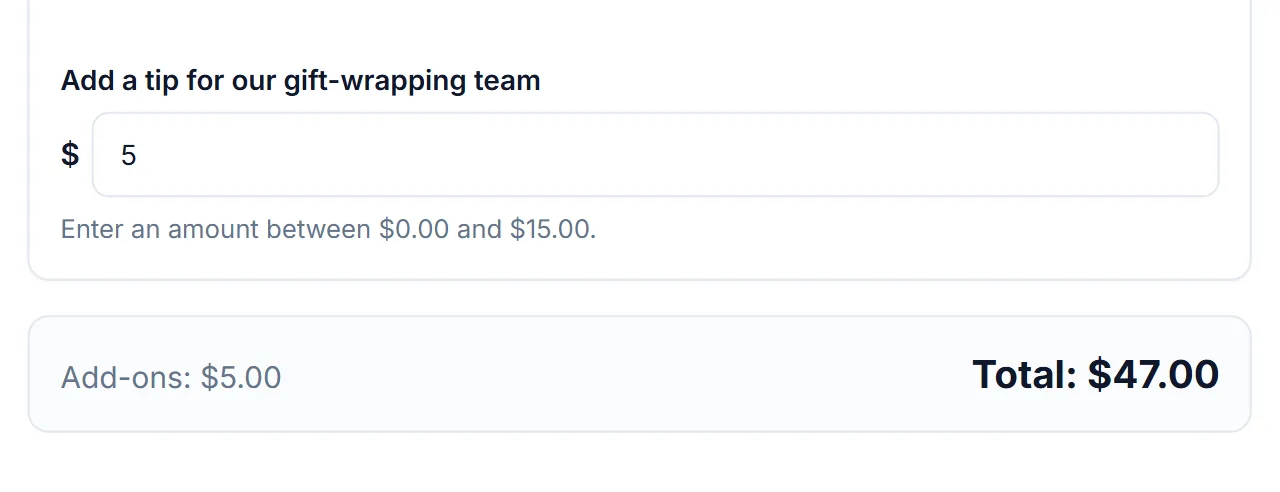
If the amount is outside your limits, the product isn’t added to the cart and the shopper sees a message such as Add a tip for our gift-wrapping team must be no more than $15.00. An amount of zero or less is never accepted, so shoppers who don’t want to add anything simply leave an optional field empty. The minimum and maximum guide covers limits for every field type.
In the cart and on the order, the amount appears next to the field label, so your team can see exactly what the shopper chose to add when managing orders in WooCommerce (opens in new tab).
Tips for tip and donation fields
- Set a maximum. It catches typos, such as 500 instead of 5.00, before they become refunds.
- Say where the money goes. Shoppers give more readily when the description names the team or the cause.
- Keep it optional. A required tip isn’t a tip. If an amount is mandatory, it belongs in the product price.
You can try it on the Personalized Gift Box in the live demo store.
WooCommerce custom price field FAQ
Can customers enter zero in a WooCommerce custom price field?
No. An amount of zero or less is rejected. Keep the field optional so shoppers who don’t want to add anything can leave it empty.
Is the amount multiplied by the quantity?
By default, yes. Set Quantity pricing to Flat fee (once per line item) to charge it once per cart line.
Can I use it for donations?
Yes, as an amount added on top of a product, with minimum and maximum amounts to prevent mistakes. It doesn’t issue donation receipts, so handle those separately if you need them.
Next steps
- Read the custom price field reference for every setting.
- Compare fixed, percentage, and formula prices in the add-on pricing guide.
- Show the tip field only to shoppers who choose gift wrap with conditional logic, as in the gift wrap guide.


Comments