

Quick answer
How do you handle WooCommerce secure file upload safely?
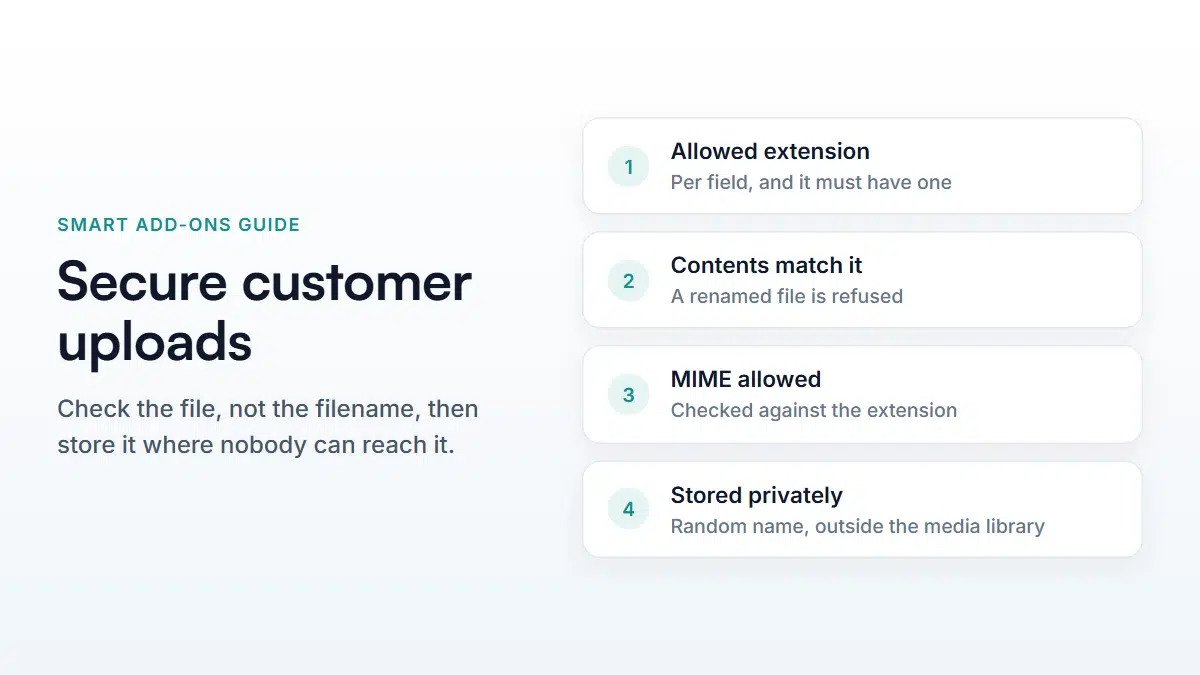
Check the file, not the filename: confirm the extension is one you allow, confirm the contents match that extension, and confirm the MIME type is allowed too. Store the file outside the media library, under a random name, in a directory that denies direct requests. Then serve it only to logged-in staff through a script that checks permission on every request.
Letting customers upload artwork is how print shops, engravers, framers and sign makers take orders. It is also the largest attack surface most WooCommerce stores ever add on purpose. A WooCommerce secure file upload is not a single setting — it’s a sequence of checks, each of which catches something the previous one doesn’t.
This walks through the checks a store needs, in the order they should happen, and how Smart Add-Ons implements each one. Even if you build your own, the sequence is the useful part.
WooCommerce secure file upload: before the file is accepted
1. Is this request even legitimate?
An upload endpoint is heavier than an ordinary request — disk writes, image inspection, storage consumed — which makes it an attractive target for anyone who wants to fill your disk. The endpoint requires a valid WordPress REST nonce and is rate limited per caller, answering with a 429 once someone exceeds a sensible number of attempts.
2. Is it a real, non-empty file for a real upload field?
A WooCommerce secure file upload starts by refusing requests that make no sense. The request has to name a product that exists and a field on that product that is genuinely a file upload field. An empty file is rejected outright. This closes the gap where an attacker posts to the endpoint with a field ID they invented.
3. Is it within the size limit?
Each upload field has its own maximum, defaulting to 5 MB, and there’s a hard ceiling of 50 MB regardless of what you configure. Your server’s own limit applies on top, and whichever is smallest wins — so a 20 MB field on a host that caps uploads at 8 MB effectively allows 8 MB. Over the limit, the shopper is told the actual maximum rather than just “upload failed”.
4. Is the extension one you allow?
Set the allowed types per field: a print shop takes PDF, PNG, JPG, AI and EPS; a document service takes DOCX. A file with no extension at all is rejected. On failure the error lists what is accepted, which turns a dead end into an instruction.
5. Do the contents match the extension?
Here is where most do-it-yourself upload handling stops being safe. An extension is just the end of a filename — anybody can rename payload.php to artwork.png. So the file’s actual contents are inspected and cross-checked against the extension, and a mismatch is rejected with “File extension does not match file contents.”
6. Is the detected MIME type allowed?
The detected type is then checked against the types permitted for that extension. Different servers disagree about some formats — a CSV in particular gets reported as several different types depending on the platform — so the allow-list accounts for the legitimate variants rather than rejecting a customer’s valid file because of how the host is configured.

Where a WooCommerce secure file upload is stored
The default instinct is to put uploads in the media library. Don’t. Everything in the media library is public by URL, meaning a customer’s artwork — often commercially sensitive, occasionally a photo of a person — is one guessed link away from anyone.
Customer uploads are stored in a private directory outside the media library, protected three ways:
- An
.htaccessfile denying direct requests, written for both modern and older Apache. - An
index.phpso the directory can’t be listed. - A random 32-character filename. The customer’s original name is kept separately for display — it never becomes the name on disk.
That third one is doing more work than it looks. Nginx never reads .htaccess at all, so on a large share of WooCommerce hosting the deny rules are inert. The unguessable filename is what actually protects the file there — which is why it’s generated from cryptographically random bytes rather than a timestamp or a counter.
Getting from upload to order
A shopper can upload a file and then never buy. The upload is therefore held against a short-lived token tied to their session, and only attached to the order when the item is actually added to the cart and bought.
One detail matters if you run page caching, which almost every store does. The shopper’s session identifier must be worked out on the server at the moment of upload — never read from the product page’s HTML, because a cached page hands every visitor an identical copy, including whatever session was baked in when it was generated. Getting that wrong produces uploads that work for logged-in staff and fail for guests, which is a miserable bug to diagnose.
Getting the file back out
A WooCommerce secure file upload still has to be usable. Your team needs the artwork. Because the file isn’t publicly reachable, the order screen links to a download route that checks permission on every request and then streams the file, with caching headers that stop it being stored by proxies on the way.
Files are only displayed inline in the browser when the type is safe to render — an image preview is convenient, an inline HTML or SVG file is a way to run someone else’s script inside your admin. Anything else downloads instead of rendering.
A checklist for your own store
- Narrow the allowed types per field to what you can actually print or process.
- Set the size limit from real customer files, then confirm your host allows it — a limit higher than the server’s does nothing.
- Test as a logged-out guest, in a private window, with caching switched on. Most upload bugs only appear for guests.
- Try renaming a text file to
.pngand uploading it. It should be refused. - Place a real order and download the file from the order screen, then log out and try that same link.
- Decide how long your WooCommerce secure file upload files are kept, and say so in your privacy policy. Artwork is personal data.
For setting the field up rather than securing it, see the file upload field guide, and the cart and order guide for where the file appears afterwards. WordPress’s own security documentation (opens in new tab) covers the nonce and capability checks referenced here.


Comments