

Quick answer
Do WooCommerce block theme product add-ons work the same way?
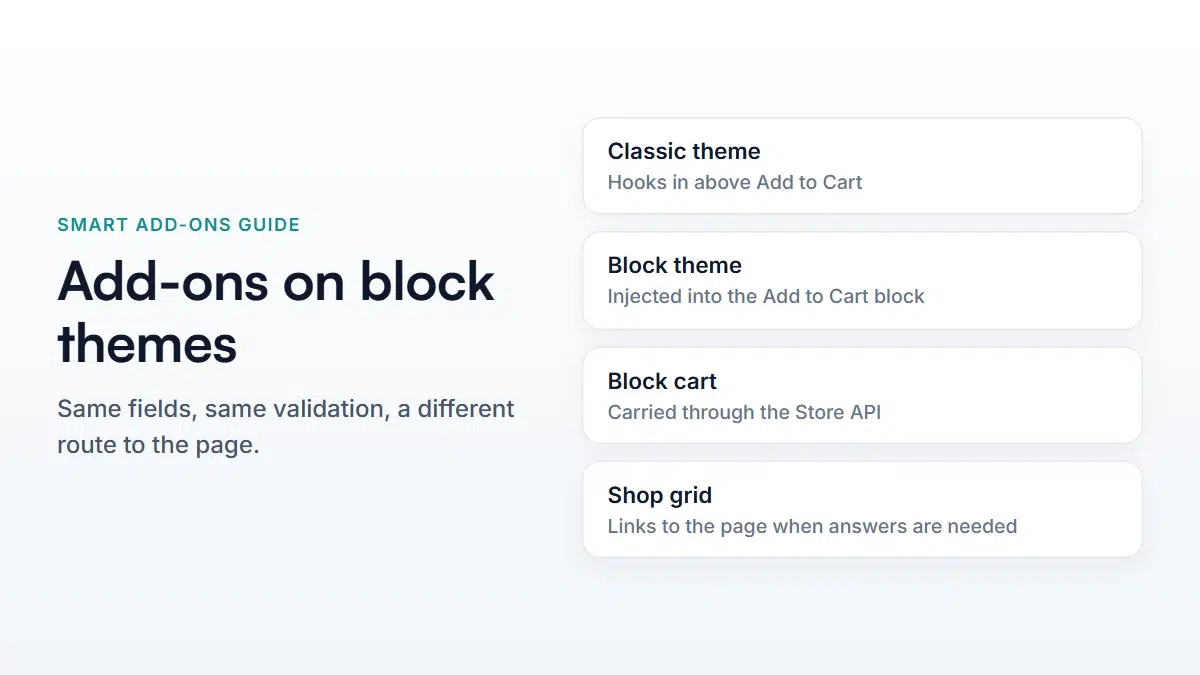
Yes, but they get there differently. On a classic theme the add-on group hooks in above the Add to Cart button. On a block theme there is no such hook, so the group is injected into the Add to Cart block itself as it renders. Block cart and checkout are handled through WooCommerce's Store API, so the same choices and validation survive the whole flow.
Block themes changed where things live on a WooCommerce product page. Plugins that hooked into the classic template found their output simply missing — the hooks they relied on don’t fire in a block template. If you have moved to a block theme, or you’re about to, this is what WooCommerce block theme product add-ons actually need to work, and how to tell whether yours are working properly.
WooCommerce block theme product add-ons: two problems, not one
“Block theme” and “block checkout” get used interchangeably and they are separate things. A store can have either, both, or neither:
- A block theme changes how the product page is built — templates made of blocks, edited in the Site Editor.
- Block cart and checkout change how the cart and checkout pages work — WooCommerce’s newer Cart and Checkout blocks, which talk to the Store API rather than posting a form.
Add-ons have to work in both places, and the mechanism is different in each. That’s why a plugin can look fine on your product page and then lose the choices at checkout.

How the group reaches a block product page
On a classic theme, the fields are rendered by the long-standing action that fires just above the Add to Cart button. Predictable, and every theme supports it.
A block template has no such action. So for WooCommerce block theme product add-ons the fields are inserted while the Add to Cart block is being rendered — the block’s output is intercepted and the group placed inside it, which puts the fields in the same position relative to the button as on a classic theme.
The practical consequence: the add-on fields follow the Add to Cart block. If you move that block in the Site Editor, the fields move with it. If you remove it, the fields go too — which is the usual explanation when add-ons “disappear” after someone edits the product template.
How choices survive a block cart and checkout
The classic cart posts a form; the Cart and Checkout blocks call the Store API instead. Anything that attaches data to a cart item has to register with that API or the data is simply not carried.
Smart Add-Ons registers with the Store API, so add-on selections are attached when an item is added through the block flow, and the same validation that guards a classic add to cart runs there too. A required field is still required; an invalid value is still refused. You don’t configure any of this — but it is worth knowing it exists, because it’s the part competing plugins most often skip.
The shop grid needs thinking about
WooCommerce block theme product add-ons share one behaviour with classic ones that catches people out on every theme, block or classic. A product with required add-ons cannot sensibly be added straight from a category or shop grid — there’s nowhere to answer the questions.
So products that need answers show a link through to the product page rather than an add-to-cart button. If you’d rather products with only optional add-ons still add directly from the grid, that’s a setting under WooCommerce’s product settings.
Checking your own store
- Product page. Open a product with a group. The fields should sit directly above Add to Cart, and the total should update as you choose.
- Add to cart. Add the item and open the cart. Your choices should be listed under the product name.
- Checkout. Go through to the block checkout. The same lines should still be there, with the same price.
- Mini-cart. Open the mini-cart drawer. Add-on rows should be styled, not raw text.
- As a guest. Repeat in a private window. Caching behaves differently for logged-out visitors, and that’s where problems surface.
If step 2 or 3 loses the choices, the plugin isn’t registered with the Store API and no amount of theme configuration will fix it.
Styling in a block theme
Block themes push styling towards theme.json and global styles, which is a problem for plugin output that needs to match your palette without you writing CSS.
The appearance settings generate the styling as inline CSS attached to the plugin’s stylesheet, so your colours and spacing apply without an extra request and without competing with your theme’s global styles. The styling guide covers what you can change.
The same block-rendering questions come up for right-to-left stores — see WooCommerce RTL product add-ons for what mirrors and what doesn’t.
Common questions
Do I need a different plugin for a block theme?
No — you need one that handles both paths. The same groups, fields and pricing work on classic and block themes; only the rendering route differs, and that’s decided automatically.
Will WooCommerce block theme product add-ons work with a custom product template?
As long as the template includes the Add to Cart block, yes. A fully hand-built template that replaces it with custom markup is the one case where you’d need to place the group yourself.
What if I use a block theme but the classic cart?
That combination is common and fully supported. The product page uses the block route, the cart uses the classic one, and the plugin works out which flow applies rather than assuming.
For the wider picture on where choices appear after the sale, see the cart and order guide, and WooCommerce’s own cart and checkout blocks documentation (opens in new tab) for the state of the block flow itself.


Comments