


Quick answer
How do you add good, better, best upsell tiers to a WooCommerce product?
Add the tiers as options on one Radio field with a product add-ons plugin. In Smart Add-Ons, list each tier from lowest to highest with its price, name each one after what it includes, and make the field required so every shopper picks a level. Each tier shows its extra cost beside it, and the total updates as they choose.
WooCommerce tiered upsell options give shoppers a simple ladder: a standard version, a better one, and a best one. Instead of a separate yes or no question for every upgrade, the shopper picks the level that suits them, sees exactly what each step up costs, and the order total follows. This guide shows how to set up WooCommerce tiered upsell options with Smart Add-Ons in five steps, using the tiers in our demo store as examples.
Where tiered upsells work
- Size or quantity: a gift box with 2, 4, or 6 items.
- Quality or material: sterling silver, gold plated, or 14K gold.
- Coverage: a print on the front, the back, or both.
- Service level: standard wrapping or premium wrapping with ribbon and tissue.
Tiers suit choices where exactly one level applies. Extras a shopper can combine, such as a card and chocolates, belong in a Checkboxes field instead.
Step 1: Decide the tiers and prices
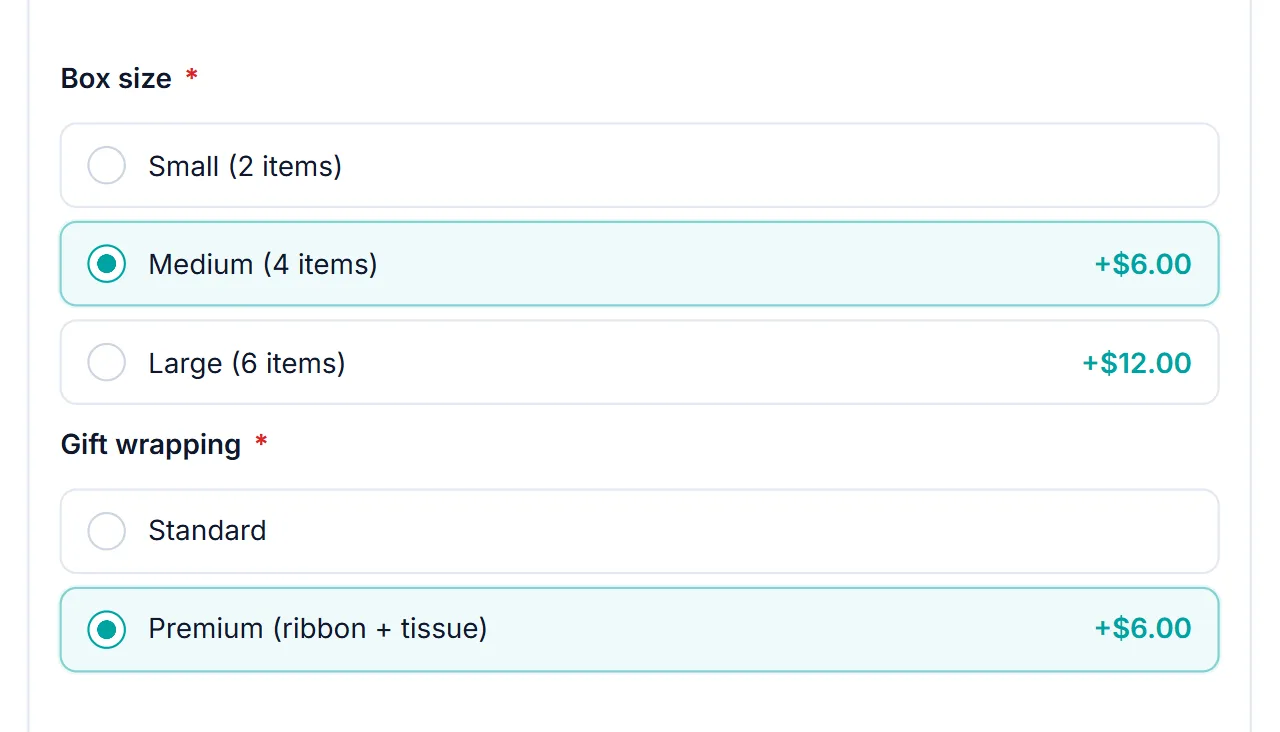
Two to four tiers is plenty. The first tier is usually what the base price already includes, with no extra cost, and each tier after it adds a clear step. The demo gift box starts at $42 with a Small box included, then Medium adds $6 and Large adds $12.
Step 2: Create one Radio field for the tiers
- Go to Smart Add-Ons → Add-On Groups and open or create the group.
- Click + Add field, set Field type to Radio, and give it a label such as Box size.
- Add one option per tier, lowest first, with its Label, Value, and Price. Leave the first tier at 0.
- Tick Required field and click Save group.
Step 3: Name tiers after what they include
A tier name should answer the question what do I get. Premium on its own is vague. Premium (ribbon + tissue) tells the shopper exactly what the extra $6 buys, and Medium (4 items) makes the step from Small obvious. Put longer explanations in the field Description.
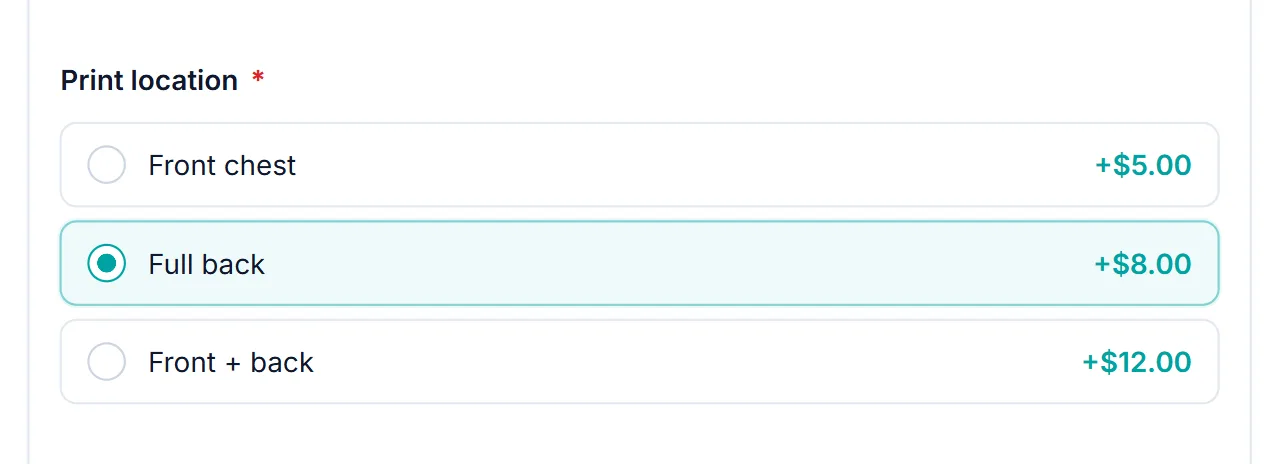
The T-shirt tiers show a pattern that makes the top tier attractive: Front + back costs $12, less than the $13 the Front chest and Full back tiers add up to.
Step 4: Reward the top tier
Tiers work even better when the higher levels unlock something. With conditional logic, choosing a tier can reveal extra fields. On the demo T-shirt, choosing Front + back reveals a Back design notes box, so the shopper can describe the second design. A Premium tier could reveal a gift message, or a Large box could reveal extra flavor choices.
If a tier’s price should grow with another choice, such as a coverage upgrade that costs more on bigger items, use a Checkbox (toggle) with formula pricing instead of a fixed option price.
Step 5: Test the WooCommerce tiered upsell options
Open the product, move through the tiers, and watch the add-ons total change. Radio options start unselected, so with Required field turned on, shoppers must choose a tier before adding the product to the cart. Nielsen Norman Group’s guidance on radio button default selections (opens in new tab) is a useful read on why an explicit choice can be the right call. Then add it to the cart and confirm the chosen tier and its price appear on the cart line.
WooCommerce tiered upsell options FAQ
Can I preselect the middle tier?
Not today. Radio options in Smart Add-Ons start unselected. Make the field required so every shopper makes a choice, and describe the tier you recommend in the field description.
Are tiers the same as tiered quantity discounts?
No. WooCommerce tiered upsell options let shoppers pick a better version at a higher price. Quantity discounts lower the price as the quantity rises, which add-ons don’t do.
Can tiers use pictures?
Yes. Use an Image selection field, which works like radio buttons with a swatch for each option and the price under each label.
Next steps
- Try the tiers on the Personalized Gift Box in the live demo store.
- Learn more about WooCommerce product radio buttons.
- See every pricing option in the add-on pricing guide.


Comments