

Quick answer
How do you upsell in WooCommerce without being pushy?
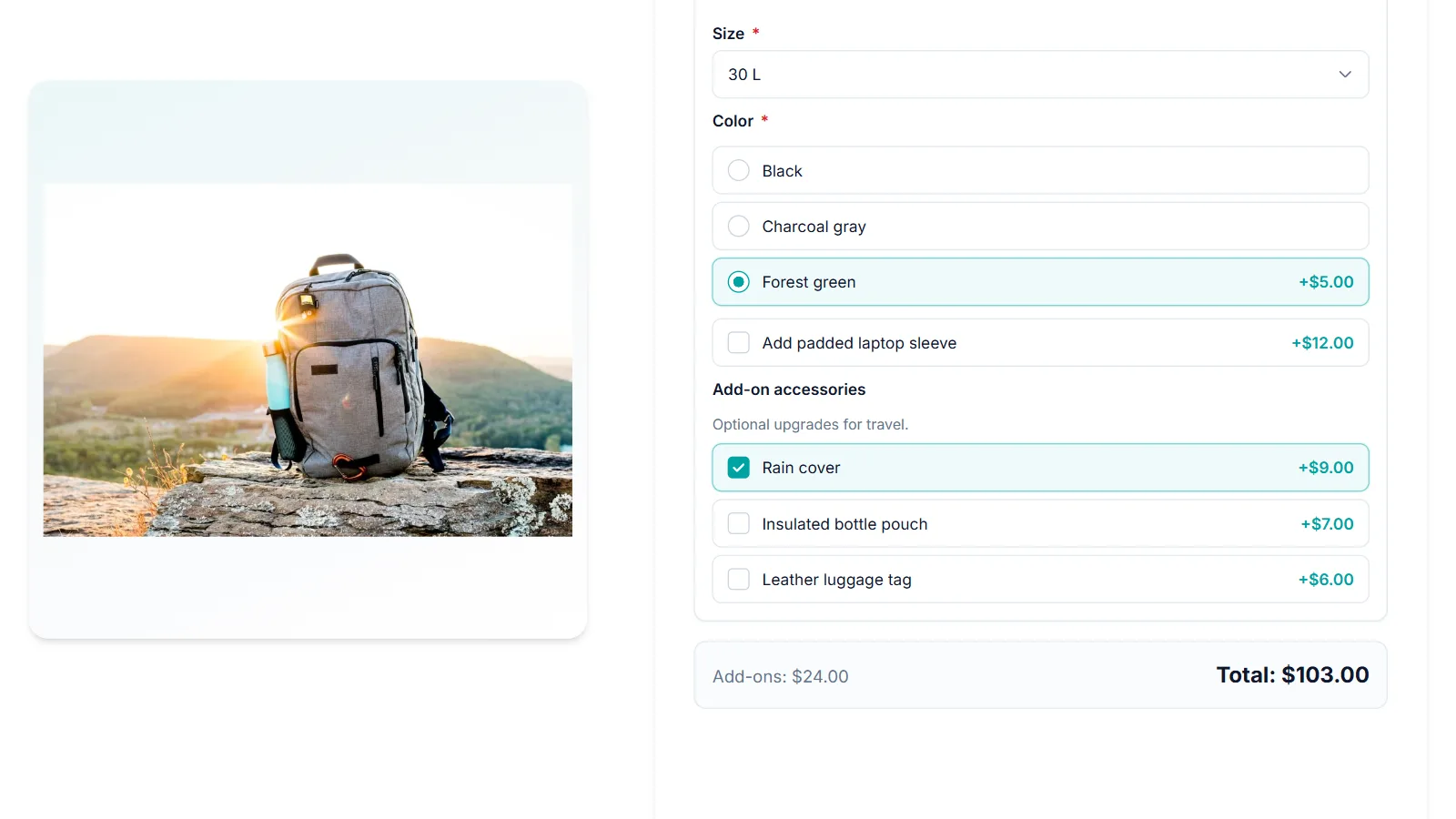
Offer extras that genuinely fit the product, show every price before the shopper chooses, leave paid extras unticked and optional, ask follow-up questions only when they apply, and keep the full breakdown visible in the cart. Product add-ons make this easy because the extras sit right on the product page, next to what the shopper is already choosing.
Good WooCommerce product upsells feel like helpful suggestions. Bad ones feel like a trap: a box already ticked, a fee that appears at checkout, an upgrade you have to hunt for a way to remove. The difference isn’t how much you offer, it’s how you offer it. These seven rules show how to add WooCommerce product upsells with product add-ons that shoppers welcome, using the travel backpack in our demo store as the example.
One note on terms: WooCommerce also has a built-in Upsells setting under Linked Products, which recommends other products. This guide is about extras on the product itself, such as a rain cover for a backpack or gift wrap for a mug, added with a product add-ons plugin like Smart Add-Ons.
1. Show the price before the shopper chooses
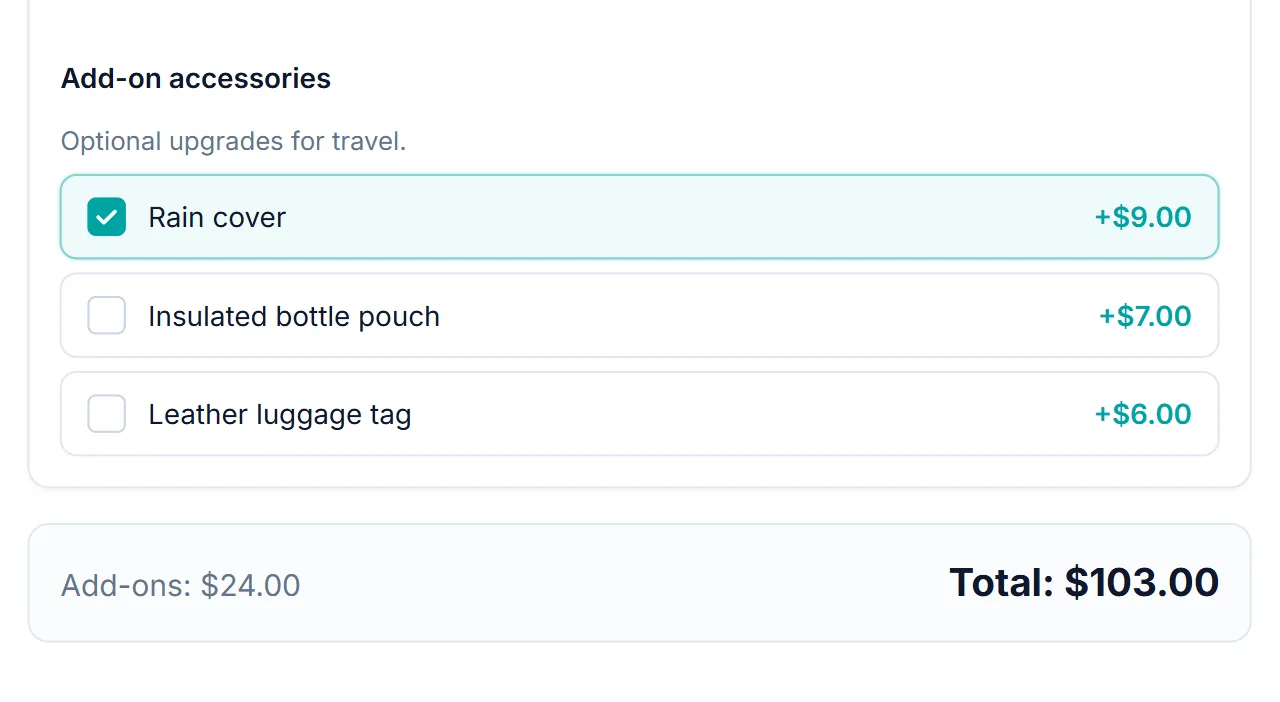
Nothing feels pushier than a surprise. Put the extra cost right next to each option, and let the total update as extras are added. In Smart Add-Ons, priced options show their price beside them, such as +$9.00, and the Add-ons and Total lines under the form change as soon as the shopper ticks a box.
2. Never pre-tick a paid extra
A box ticked by default charges shoppers who didn’t notice it, and they notice later, on their bank statement. Checkboxes in Smart Add-Ons start unticked, so every extra is an active choice. Regulators pay attention to these tactics too: the US Federal Trade Commission covers them in its report Bringing Dark Patterns to Light (opens in new tab).
3. Keep extras optional
Required fields are for things you can’t make the order without, such as a size or a color. An upsell should never be required. If you want every shopper to consider an upgrade, use tiers where the first option costs nothing, as in the tiered upsell options guide, rather than forcing a paid choice.
4. Offer extras that belong with the product
A rain cover on a backpack makes sense. A rain cover on a coffee mug doesn’t. Relevance is what separates a helpful suggestion from noise, so scope each add-on group to the products or categories it suits. A Travel accessories group scoped to your Bags category only appears where it belongs.
5. Ask follow-up questions only when needed
Long forms feel like work. Keep the page short by revealing questions only when an earlier choice needs them. On the demo backpack, a Laptop sleeve size dropdown only appears after the shopper ticks Add padded laptop sleeve. The conditional product options guide shows how.
6. Say what the extra is for
Shoppers buy extras that solve a problem they recognize. A field description such as Optional upgrades for travel frames the accessories as helpful, and clear labels such as Insulated bottle pouch say exactly what arrives. Skip vague names like Protection plan without saying what it covers.
7. Keep the full breakdown visible
Trust carries into the cart when every extra is still itemized there. Smart Add-Ons lists each chosen add-on under the product with its price, plus an Add-ons subtotal, so the shopper can check exactly what they agreed to before paying. The cart and order guide shows what each line looks like.
A pushy upsell vs a helpful one
| Pushy | Helpful |
|---|---|
| Paid extra ticked by default | Every extra starts unticked |
| Price revealed at checkout | Price shown beside the option |
| Upgrade required to continue | Upgrade optional, or a free first tier |
| The same extras on every product | Extras scoped to products they fit |
| A long form of questions | Follow-up questions only when relevant |
| Extras bundled into one price in the cart | Each extra itemized with its price |
WooCommerce product upsells FAQ
What's the difference between add-ons and WooCommerce Upsells?
WooCommerce Upsells, set under Linked Products, recommend other products on the product page. Add-ons are extras on the product itself, bought together in one cart line. Many stores use both for WooCommerce product upsells.
How many extras should a product offer?
As many as genuinely fit, and no more. Three relevant accessories, like the demo backpack’s rain cover, bottle pouch, and luggage tag, are easier to choose from than a dozen loosely related ones.
Can I see which extras shoppers choose?
Yes, on every order, where each chosen add-on is listed under the product. Use that to learn which WooCommerce product upsells earn their place and which to replace.
Next steps
- Try the accessories on the Travel Backpack Builder in the live demo store.
- Price extras well with the add-on pricing guide.
- See what Smart Add-Ons includes.

Comments