


Quick answer
How do you show WooCommerce add-ons by category?
Open the add-on group, set Scope to Product category, and pick the category. Every active product in that category shows the group — no per-product work. A product shows every group that matches it: global groups, groups for any category it is in, and groups for the product itself, in Display order.
Setting WooCommerce add-ons by category is the difference between building one gift-wrap group and building it forty times. If every candle, mug and print in your Gifts category should offer the same wrapping and message, you want one group pointed at the category — not one group per product that you have to remember to update. This guide covers the three scopes, which one to reach for, and the category rule that catches most people out the first time.
The three scopes a group can use
Every add-on group has exactly one scope, set under Group details:
- Global (all products) — shows on every product in the store. Good for something genuinely universal, like a gift message or delivery notes.
- Product category — shows on every product in one category. This is WooCommerce add-ons by category, and it is the one most stores should be using more.
- Specific product — shows on one product. Right for options only that item has, like the print locations on a particular T-shirt.

How to set WooCommerce add-ons by category
- Go to Smart Add-Ons → Add-On Groups and click + Add group, or open a group you already built.
- Give it a name that says where it applies, such as Gift wrap and message. You’ll thank yourself at twenty groups.
- Set Scope to Product category. A Category dropdown appears next to it.
- Pick the category, leave Status on Active, and save.
- Open any product in that category on your storefront. The group should be there, with no per-product setup.
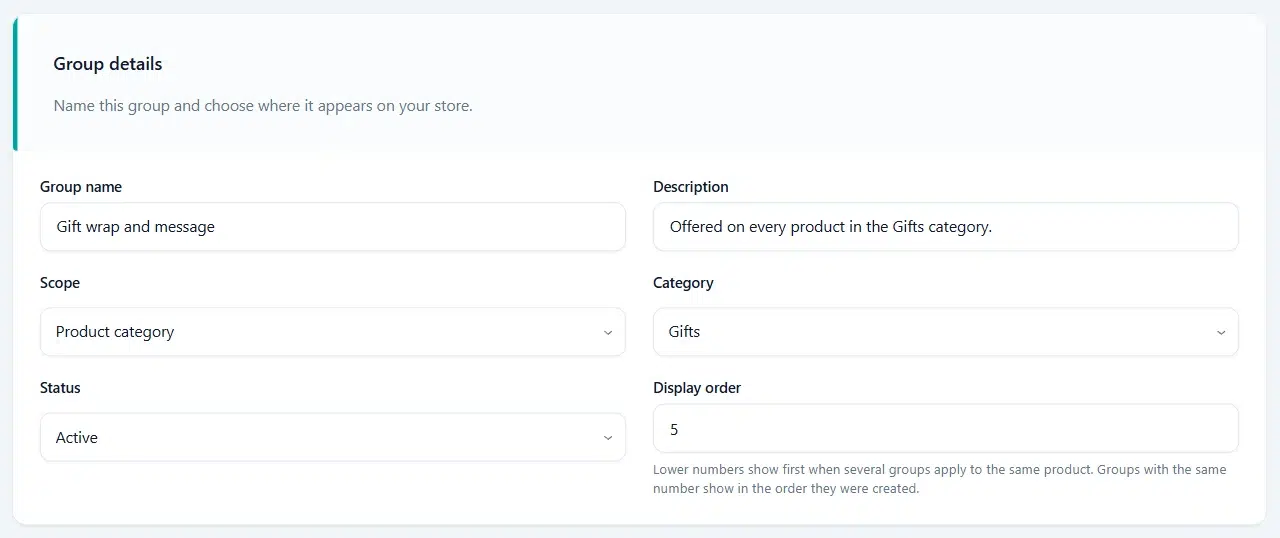
One group targets one category. To cover two categories with the same questions, either build the group once and duplicate it for the second category, or use a global group if it really does apply everywhere.
The rule that catches people out: child categories
A product only matches the categories it is actually assigned to. Parent categories are not inherited. If you have Apparel with T-Shirts underneath it, and a T-shirt is only ticked as T-Shirts, a group scoped to Apparel will not appear on it.
What a product shows when several groups match
Scopes don’t compete — they stack. A mug in your Gifts category can show a global delivery-notes group, the Gifts wrapping group, and its own engraving group, all at once. Two things decide what the shopper sees:
- Status. Only Active groups render. Draft and inactive groups stay in your admin and never reach the storefront, which makes Draft a safe way to build a category group before it goes live.
- Display order. Lower numbers show first when several groups apply to the same product. Groups sharing a number fall back to the order they were created in, so give your category groups deliberate numbers — 10, 20, 30 — and leave room to slot something between them later.
A sensible convention: global groups last, category groups in the middle, product-specific groups first, so the most specific questions are asked at the top of the product page.
Turning a global group off for one product
Sometimes one product is the exception — a gift card that can’t be wrapped, say. Open the product in WooCommerce, go to Product data → General, and tick Exclude global add-on groups. That product then skips every global group while keeping its category and product groups.
Note what it does not do: it only skips global groups. A group scoped to a category the product is in still shows. If you need the exception at category level, remove the product from that category, or move the questions into a product-specific group instead.
If a change doesn’t show up straight away
Which groups apply to a product is worked out once and then cached for an hour, because doing it on every page view would be wasteful — that applies to WooCommerce add-ons by category the same as any other scope. Two saves clear it for you: saving the add-on group refreshes every product in the category it targets, and saving a product refreshes that product. So the normal editing flow is already covered.
Where it can surprise you is bulk work — moving thirty products into a category with Quick Edit or a CSV import, for example. If a category group hasn’t appeared on those products after a few minutes, open one of them and click Update, which is enough to refresh it. Worth checking your page cache too: most hosts serve product pages from cache, so also purge that before deciding something is broken.
A plan for a store with several categories
- Write down the questions you ask on every order. Those become one global group.
- For each category, write down what only that category needs — ring sizes for Jewelry, wood finishes for Furniture. Each becomes one group set to WooCommerce add-ons by category.
- Anything left that belongs to a single product becomes a product-specific group.
- Set display order so product groups come first and the global group comes last, then open three real products and read the page as a shopper would.
Most stores that feel buried in add-on groups have simply built at product level what belonged at category level. If you’re just starting, the first week checklist builds up to this, and the conditional logic guide covers hiding individual fields once a group is showing on the right products. WooCommerce’s own guide to product categories (opens in new tab) covers setting the categories themselves up.


Comments