

Quick answer
What do you get with the Smart Add-Ons Pro plan?
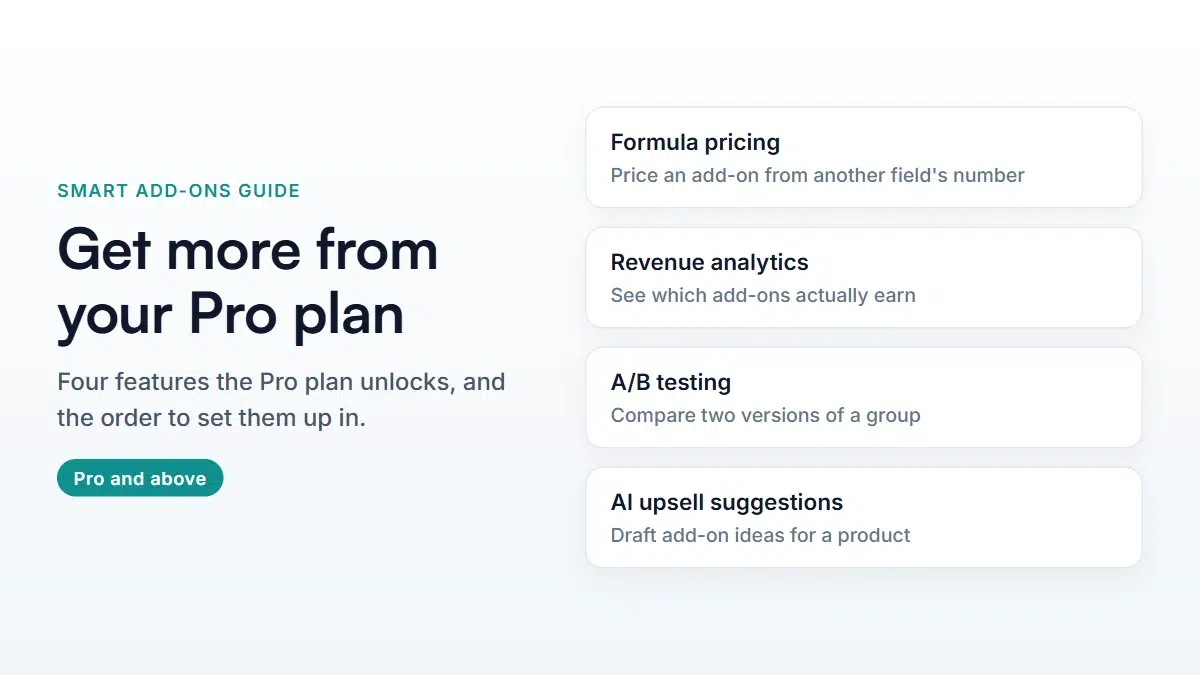
The Smart Add-Ons Pro plan adds four things to everything in Starter: formula pricing, the revenue analytics dashboard, A/B testing for add-on groups, and AI upsell suggestions. It also covers three sites instead of one. Set them up in that order — pricing first, then measurement, then experiments.
Most stores buy the Smart Add-Ons Pro plan for one feature and never look at the other three. That’s a shame, because they build on each other: formula pricing gets your numbers right, analytics tells you which add-ons earn, and A/B testing turns that into a change you can prove. This guide walks through each one in the order that actually helps, with the exact screens to open.
What the Smart Add-Ons Pro plan adds
Everything in Starter stays — the add-on builder, conditional logic, fixed and percentage pricing, file uploads, import and export. On top of that, the Pro plan unlocks:
- Formula pricing — price an add-on from another field’s number instead of a flat amount.
- Revenue analytics — a dashboard showing views, selections, orders, and add-on revenue.
- A/B testing — run two versions of a group against each other and keep the winner.
- AI upsell suggestions — draft add-on ideas for a product you’re building a group for.
- Three sites on one license instead of one, which covers a staging site and a live store.
Step 1: Price the awkward add-ons with a formula
Start here, because pricing mistakes cost money every day they stay live. Some add-ons don’t have one right price: extra cheese costs more on a larger pizza, a longer table needs more material, a rush fee is a percentage of the product price. A fixed amount is wrong for all three.
- Go to Smart Add-Ons → Add-On Groups and open the group you want to change.
- Open the field, and under Pricing set Price type to Formula.
- Write the formula using another field’s ID, for example
{field:70} * 0.3to charge 0.30 for every unit of the number chosen in field 70 — on a pizza sized in inches, that’s 3.00 at 10 inches and 4.20 at 14. You can also use{base}for the product price and{qty}for the quantity. - Open the product on your storefront and change the other field. The total should move with it.

The formula pricing guide covers the syntax, which numbers you can reference, and the mistakes that quietly turn a price into zero. Formula pricing is part of the Smart Add-Ons Pro plan, so the Formula option only appears once your Pro license is active.
Step 2: Open the revenue analytics dashboard
Go to Smart Add-Ons → Analytics. The dashboard covers the last 30 days and answers a question guesswork can’t: which add-ons do shoppers actually pay for?

Two details worth knowing before you read too much into a number. Only paid orders count, which means processing and completed among WooCommerce’s order statuses (opens in new tab), plus anything your store treats as paid. A cancelled, failed, or refunded order is removed again, so the revenue figure follows the money rather than the checkout. And for typed fields, only the settled value is recorded, not every keystroke on the way there. The analytics guide explains each card.
Step 3: Run one A/B test, not five
Once analytics shows you a group worth improving, test the change instead of guessing. Go to Smart Add-Ons → A/B Tests, pick two groups — usually your current one and a duplicate with a different price, order, or wording — and set the traffic split.

A few things the screen handles for you: each shopper stays on the variant they first saw, both variants have to be active groups to take part, and results stay marked as early until a variant passes 100 views. There is no statistical significance calculation, so treat a close result as no result. When you declare a winner, the test is marked completed and the losing group stops showing. The A/B testing guide walks through a full test.
Step 4: Use AI suggestions as a first draft
When you build a group for one specific product, the Smart Add-Ons Pro plan adds an AI assist panel inside the group editor. Click Generate suggestions and it proposes add-on ideas for that product, each with a suggested price, and an Add to group button.

Treat the output as a brainstorm, not a decision. It doesn’t know your margins, your suppliers, or what you’ve already tried, and the panel says so: review before adding. The useful part is getting past a blank screen on a product where you can’t think of a single sensible option.
A realistic first month on the Pro plan
- Week 1: fix any add-on whose price should depend on another choice. That’s formula pricing.
- Week 2: read the analytics dashboard and write down the one add-on with plenty of views and few selections.
- Week 3: duplicate that group, change one thing, and start a single A/B test.
- Week 4: declare the winner if the gap is clear, and use the second site on your license for a staging copy.
If you’re still setting up, the first week checklist comes before any of this.
What happens if you change plans later
Worth knowing before you build anything around it. If you move from the Smart Add-Ons Pro plan down to Starter, formulas you already saved keep pricing your add-ons exactly as they do now — shoppers are never charged a different amount because a license changed. You just can’t add or edit a formula until you’re back on Pro. The analytics dashboard, A/B testing, and AI screens show an upgrade notice instead of their contents, while add-on activity carries on being recorded in the background.
Your groups, fields, prices, and settings are never deleted by a plan change. The plans page has the full comparison if you’re weighing Starter against Pro.


Comments