


Quick answer
How do you track revenue from WooCommerce product add-ons?
Smart Add-Ons records add-on activity automatically. Go to Smart Add-Ons → Analytics to see the last 30 days: how often add-on groups were viewed, how many selections shoppers made, how many orders included add-ons, the revenue those add-ons brought in, and your top five fields by selections.
You added gift wrap, engraving, and a handful of upgrades. Are they earning anything? WooCommerce’s own reports show product sales, but not how much of each order came from the extras. WooCommerce add-on analytics in Smart Add-Ons answers that directly, with no tracking code to install. This guide explains what each number on the dashboard means, how it’s counted, and how to use it to decide which add-ons to keep, change, or drop.
Plan note: the revenue analytics dashboard is available on the Pro plan. Add-on activity is recorded on every plan, including Starter, so the views, selections and revenue for the period are already there the moment you upgrade — you are not starting the count from zero.
Where to find WooCommerce add-on analytics
Go to Smart Add-Ons → Analytics. The Revenue analytics page covers the last 30 days of add-on activity on your storefront. There’s nothing to switch on: tracking starts as soon as your add-on groups are live on product pages.

What each number means
- Views (Add-on groups rendered): counted each time an add-on group loads on a product page. A product with two groups counts two views per visit.
- Selections (Customer interactions): counted each time a shopper picks or changes a value in an add-on field. For choice fields, every change counts, so a shopper who switches sizes three times adds three selections. For fields shoppers type into, such as a text box, only the finished value counts, once they pause or move on.
- Conversions (Orders with add-ons): the number of paid orders that included at least one add-on. Orders count once they reach a paid status, such as Processing or Completed. Orders that are still Pending payment or On hold aren’t counted.
- Add-on revenue (Attributed upsell revenue): the part of those orders that came from add-ons, not the full order total. A $42 gift box with $18 of add-ons contributes $18.
Top performing fields
Below the cards, Top performing fields lists the five fields with the most selections in the period. It’s the most practical part of WooCommerce add-on analytics, because it tells you which questions shoppers engage with most, which is often where a better option or price has the biggest effect.
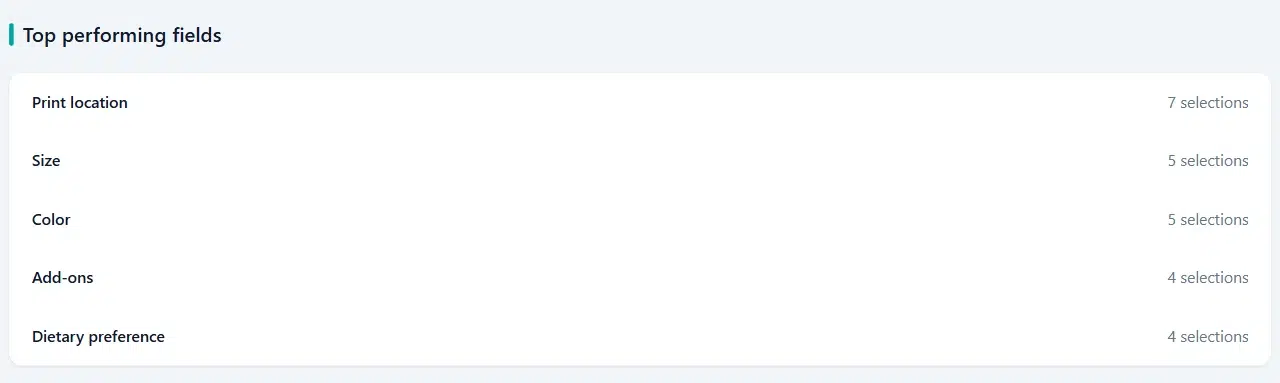
Choice fields count every change, while typed fields, such as a text box, count only the finished value. A shopper who tries three sizes adds three selections, but one who types and edits a name adds one. Compare choice fields with each other, and treat typed fields separately.
How to use the numbers
- Compare selections to views. Many views with few selections means shoppers see the add-ons but aren’t tempted. Try clearer labels, a description of the benefit, or a lower price.
- Compare conversions to your total orders. Check your order count in WooCommerce Analytics (opens in new tab) for the same 30 days. The share of orders with add-ons shows how often extras actually make it to checkout.
- Divide add-on revenue by conversions. That’s your average add-on value per order, a simple number to track month to month.
- Look at the top fields. Fields shoppers interact with most deserve the best options and the clearest prices. Fields that never appear there may be candidates to remove or hide behind conditional logic.
Going further: decide what to change
Analytics tells you how your current add-ons perform. Note the numbers before you change a price, label, or option, then compare the next 30 days with the last. For ideas on what to change first, see upselling without being pushy and tiered upsell options.
WooCommerce add-on analytics FAQ
Does add-on revenue include the product price?
No. WooCommerce add-on analytics in Smart Add-Ons counts only the add-on part of each order, so you see what the extras earned on their own.
When is an order counted as a conversion?
When it includes at least one add-on and reaches a paid status, such as Processing or Completed. If it’s later cancelled, refunded, or fails, it’s removed again.
Do I need Google Analytics for this?
No. The dashboard is built into Smart Add-Ons and works on its own. You can still use Google Analytics or WooCommerce Analytics alongside it for the rest of your store.
Next steps
- Price add-ons well with the add-on pricing guide.
- See how add-ons appear on orders in the cart and order guide.
- Compare Smart Add-Ons plans.

Comments