
Addon Groups
Import & Export
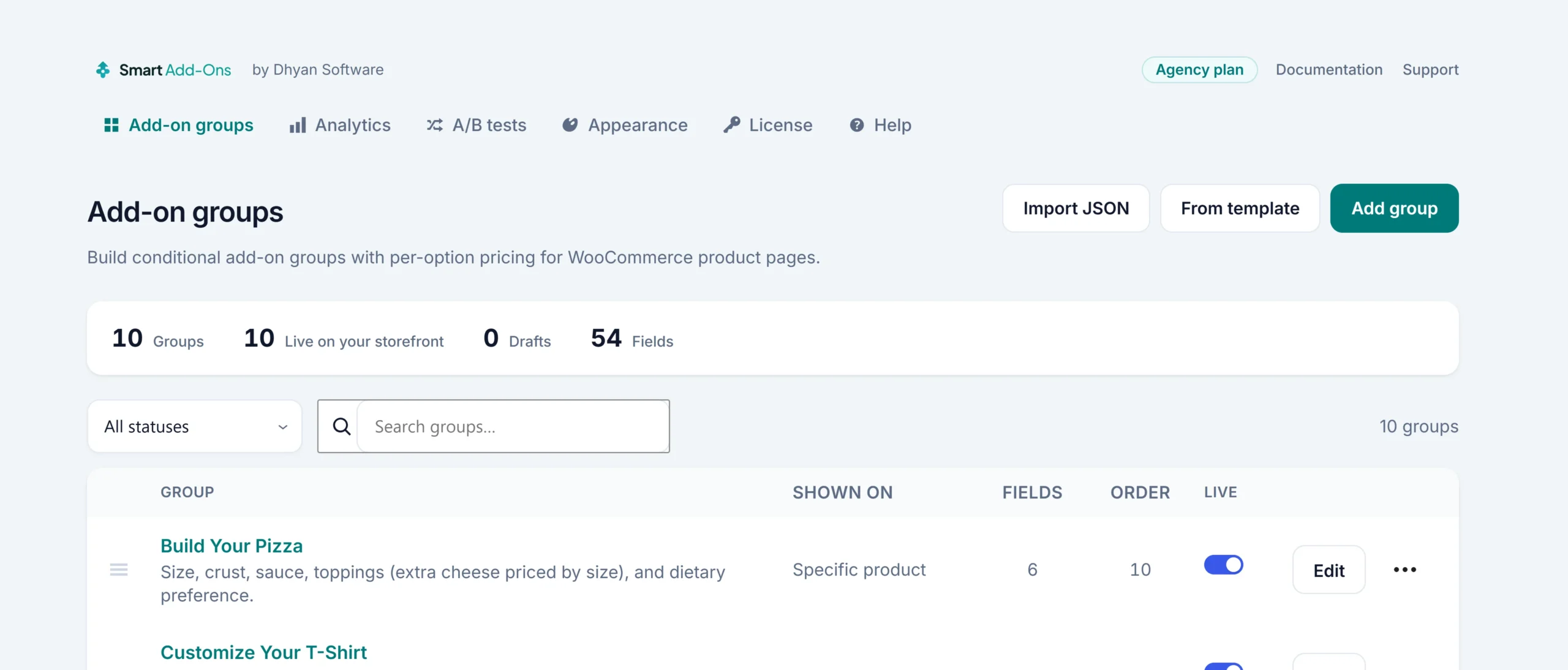
Import & Export lets you save an addon group as a portable JSON file for backup or to move it to another site, then recreate the group by importing that file.
1
Export a group
- Open the group you want to export in Smart Add-Ons → Addon Groups.
- Click Export on the group’s card (or Export JSON inside the group editor).
- The JSON file downloads to your computer automatically.
The file carries a schema version, the group itself, its assignments, and its fields.
What’s in the file
- Group name, description, layout, scope, priority, and status
- Every field on the group: type, options, pricing, and conditional logic
- A schema version number, so a future plugin version can tell whether an older export needs migrating
- Not included: analytics history
2
Import a group
- Go to Smart Add-Ons → Addon Groups → Import.
- Choose the JSON file and click Import.
- The group appears in your Addon Groups list as a new group, saved as a draft.
Import always creates a new group — it never overwrites an existing one, even when the name matches. The new group is always saved as a draft.
Its assignments come across with it, but the group is always saved as a draft — review its scope and assignments, then publish it before it appears on the storefront.
When to use Import & Export
- Back up a group before a risky edit
- Move a group from staging to production, or between two stores
- Share a starting-point configuration with another Smart Add-Ons customer
Reusing a group’s structure within one site is usually simpler with Duplicate or a saved Template — see Addon Groups. Import/Export is the way to move a group between sites.
Via the REST API
Both actions are also available as REST API calls, each requiring the manage_woocommerce capability:
GET /wp-json/saue/v1/addons/{id}/export— returns the group as the same portable JSON payload the admin export downloadsPOST /wp-json/saue/v1/addons/import— creates a group from that JSON payload sent as the request body
Example: export a group by ID
GET /wp-json/saue/v1/addons/42/exportResponse (trimmed):
{
  "schema_version": "1.0",
  "plugin": "smart-addons-upsell-engine",
  "group": {
    "name": "Gift Wrap",
    "scope": "global",
    "settings": { "display": { "layout": "stacked" } },
    "assignments": [
      { "target_type": "global", "target_id": 0 }
    ],
    "fields": [
      { "type": "checkbox", "label": "Add gift wrapping" }
    ]
  }
}
Full parameter and response details are on the REST API reference.